


 Registration
Connecting to VLESS VPN
Introduction
VLESS is a lightweight and flexible protocol based on Xray/V2Ray. Connecting comes down to importing a single link or QR code into the client. In this article, we will cover two practical examples: using V2RayTUN on a mobile phone and Karing on a computer.
Important: do not share your configurations with third parties!
Part 1. Mobile [Android/iPhone] — V2RayTUN
-
Download the V2RayTUN app:
PlayMarket (for Android) — download
AppStore (for iPhone) — download -
Open V2RayTUN → on the screen, tap Scan QR.
-
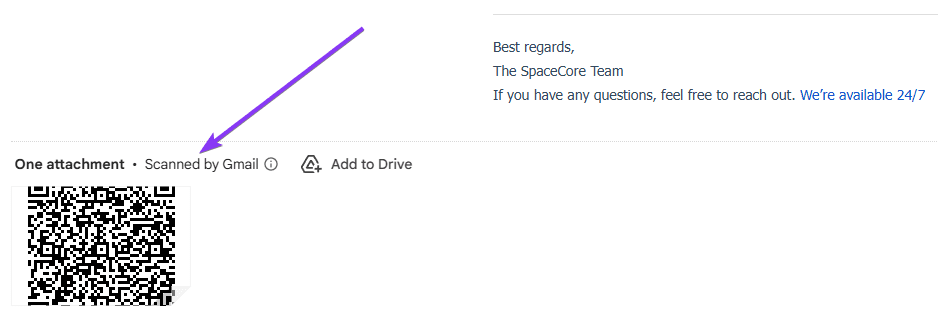
Point the camera at the QR code (if you purchased our VPN, the code is attached to the email).
-
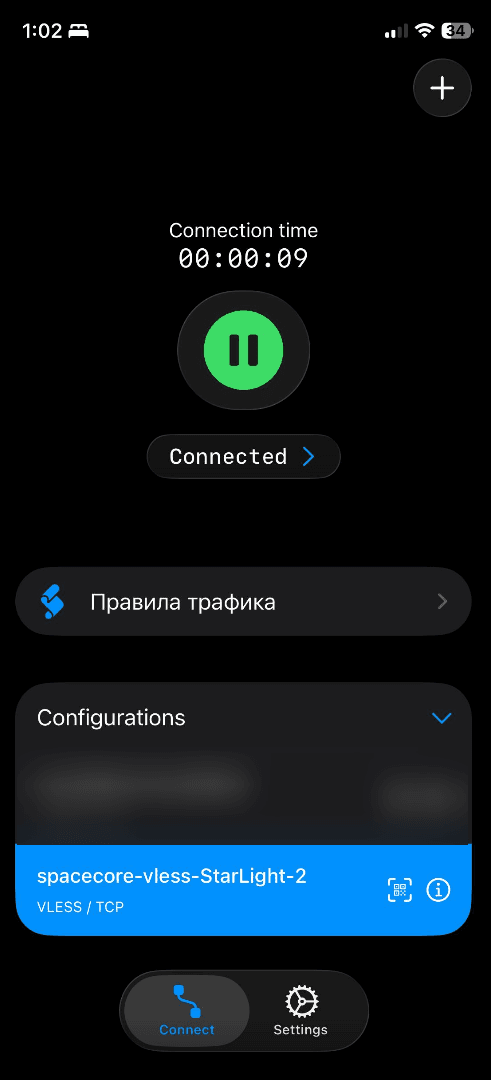
Make sure the profile appears in the list.
-
Tap the Connect button.
-
Check: the status should show Connected, and the Android status bar should display the VPN key icon. Open any website — your internet connection should now be going through the VPN.
Part 2. PC [Windows] — Karing
-
Download and install the Karing application:
GitHub (for Windows) — downloadBe sure to run the application as administrator!
-
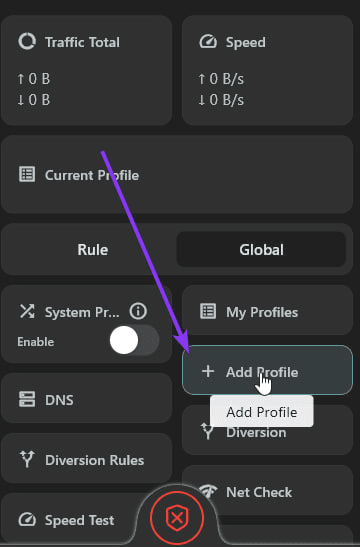
Click the button to add a config.
-
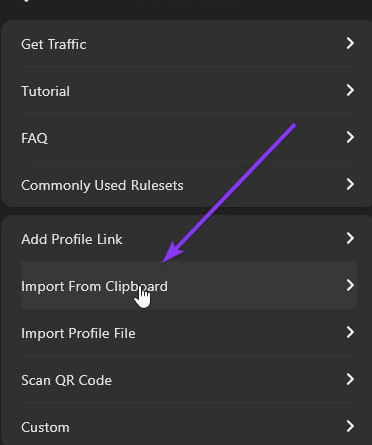
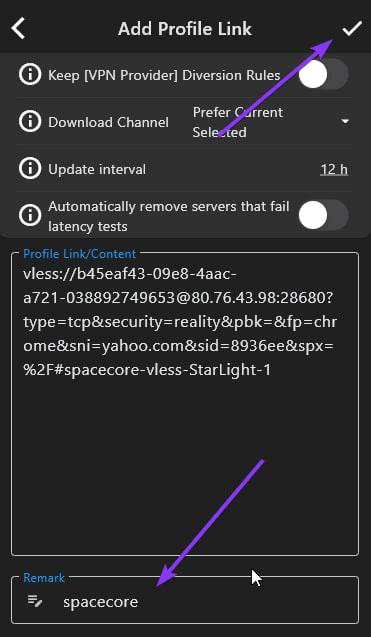
Copy the config from the email sent to your mailbox. The config looks like this: "vless://b45eaf43-09e8-4aac-a721-038..."
-
Click the button to import the configuration.
-
Scroll down a little, enter any name for the config, and click the checkmark in the upper right corner to save it.
-
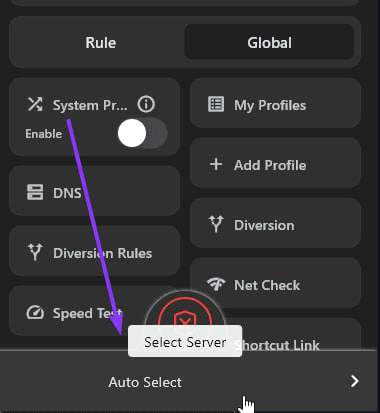
Go to the main menu, click the button to change the config (if it is not selected), choose the new one and start the VPN.
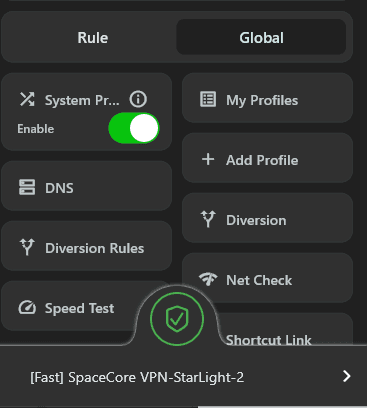
If the VPN via Karing does not work, find the TUN option in the settings and enable it. This will likely solve the problem.