


Linux Storage Mounting: A Practical Guide
Unlike Windows, which automatically mounts all storage devices, Linux in most cases requires you to do this manually. Let's figure out how it works.
Storage devices are mounted using the mount utility. It is usually used together with arguments.
mount "options" "-t filesystem type" "-o mount options" "device file" "mount point directory"
The following arguments are available to users:
- -v — print detailed information while the operation is being performed.
- -h — display help.
- -V — display the program version.
- -a — mount all devices specified in fstab.
- -F — create a separate mount instance for each partition.
- -f — "fake run". Allows you to roughly see what would happen as a result of running the command.
- -n — do not log mount information to Mtab.
- -l — add the device label to the mount point.
- -c — use only absolute paths.
- -r — mount the filesystem read-only.
- -w — mount the filesystem read-write.
- -L — mount a partition by its «Label».
- -U — mount a partition by its UUID.
- -B — mount a local directory.
- -R — remount a local directory.
#Mounting Using Mount
Mounting storage devices using the Mount utility is quite straightforward. You just need to enter a command specifying the partition to be mounted as an argument, and the directory where this partition should be mounted.
We can get a list of all existing partitions as follows:
fdisk -l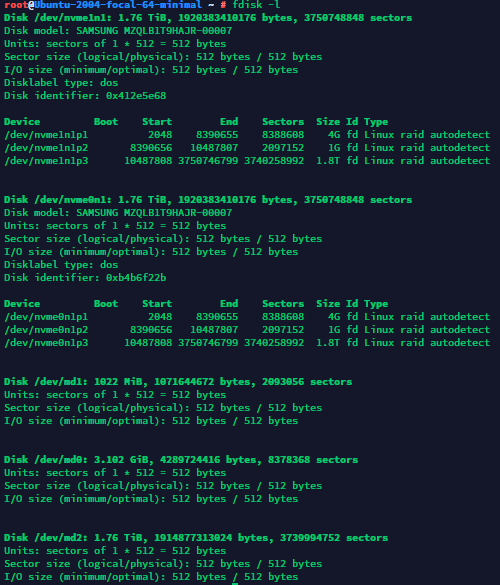
For example, let's mount the nvme1n1p3 partition to the /mnt directory:
sudo mount /dev/nvme1n1p3 /mnt/To unmount it, use the following command:
sudo umount /mntYou can view a list of all mounted devices in a simple way:
mount#Mounting Using UUID
To obtain information about the UUID of the partitions on our server, run the following command:
sudo blkidYou will see an output similar to this:

Next, open the configuration file that contains information about all partitions mounted at system startup:
sudo nano /etc/fstabAfter that, depending on the filesystem, you should add a line with the appropriate parameters to this config.
For example, if we need to mount an NTFS partition, we should use the following line:
UUID="0x0x0x0x0" /mnt/myfolder rw,nls=utf8,gid=plugdev,umask=0002 0 0For FAT and FAT32 filesystems, use the following line:
UUID="0x0x0x0x0" /mnt/myflash vfat rw,exec,codepage=866,nls=utf8,gid=plugdev,umask=0002,nofail,users 0 0Here UUID="" is the UUID of the storage device you want to use, and "/mnt/..." is the path to the directory where the device should be mounted.
To apply the changes you've made (mount the devices), run the command:
sudo mount -a#Summary
That's it. We've learned how to mount storage devices manually. This article is relevant for most Linux distributions.
Did not find the answer? We are online 24/7.Contact support