


Section “Finances” in the SpaceCore client area
#Payments
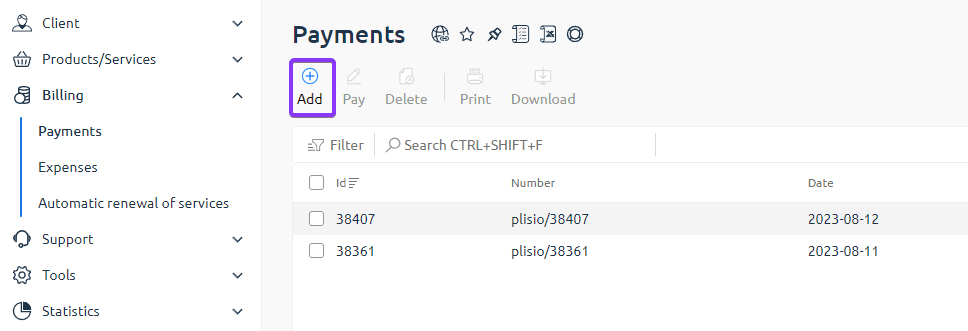
The “Payments” section displays a list of all invoices you have created and their current status.
Here you can:
- create new payments for any required amount
- view the history of issued invoices
- pay invoices that have already been created but are not yet paid
To pay an invoice, select it from the list and click the “Pay” button.
#Expenses
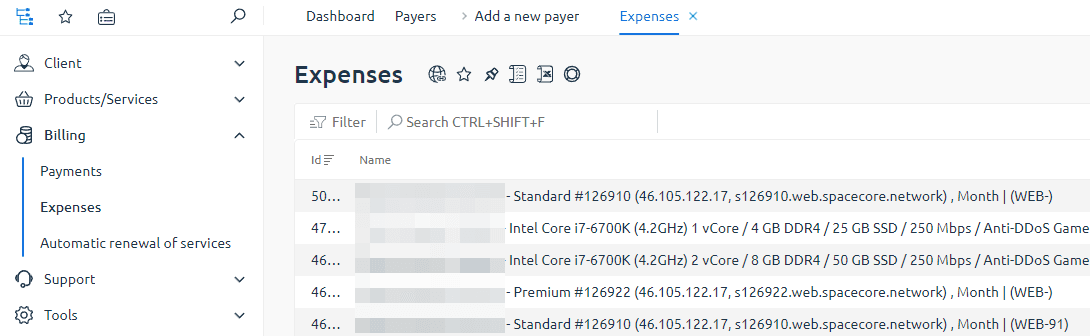
The “Expenses” section shows all debits from your account balance.
Here you can see:
- service renewals such as hosting and servers
- payments for additional options
- other debit transactions
This section helps you track when and on what your funds were spent.
#Service auto-renewal
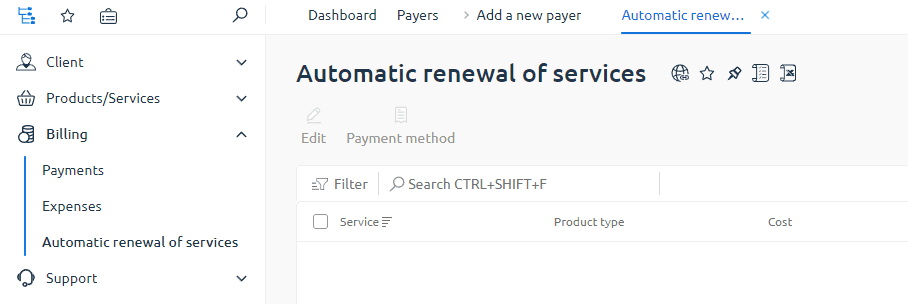
The “Service auto-renewal” section displays all services for which automatic renewal is enabled.
On this page you can:
- view the list of services with active auto-renewal
- change the renewal period for a service, for example monthly or for a longer term
- completely disable auto-renewal for a selected service
Important: for auto-renewal to work correctly, your balance must contain the full renewal amount at least 24 hours before the service expiration date.
If you top up your balance shortly before the service expires, we recommend renewing the service manually on its page using the “Renew” button to avoid service interruption.
#Auto-renewal settings
#If auto-renewal is already enabled
If a service is already connected to auto-renewal, you can change the renewal period or disable auto-renewal in the “Service auto-renewal” section by clicking the “Edit” button next to the required service.
On the settings page you can:
- disable auto-renewal for the selected service
- change the service renewal period
#If auto-renewal is not yet enabled
If auto-renewal was not enabled when ordering the service, you can turn it on at any time from the page of the required service.
- Go to the “Products/Services” section and open the page of the required service, for example web hosting or a virtual server
- Select the required service from the list
- Click the “Edit” button or a similar settings button
- In the auto-renewal settings block, select the period for which the service should be renewed automatically
- Save your changes. After that, the service will be renewed automatically, provided there are sufficient funds on the balance.
Did not find the answer? We are online 24/7.Contact support