


Installing a Minecraft Java Server (Paper 1.16.5)
In this guide, we will take a detailed look at manual installation of a Minecraft server. We will review popular server cores and learn how to set up the server correctly.
#Some information
We present a detailed guide on installing a Minecraft server on virtual infrastructure from the SpaceCore team. The instructions are suitable for both VDS and fully dedicated servers.
Before starting the server installation, we recommend that you review the following pages:
This article provides an example of installing the Paper core for Minecraft 1.16.5.
#Installation process
Create a file named "start.txt" in any folder on your computer (the name "start" is not critical, you can use any name).

Open the document and enter the startup command with all required arguments for the server:
java -Xms1024M -Xmx1024M -jar core.jar nogui-Xms512M is the minimum amount of RAM allocated for the game server.
-Xmx2048M is the maximum amount of RAM that will be available to the server during operation.
-jar is the file type that should be launched.
core.jar is the name of the game server core itself.
nogui is an argument that disables the graphical interface, since it is not needed.
After adjusting all arguments and names to your needs, enter and save the configured startup command for your server:
java -Xms512M -Xmx2048M -jar paper-1.16.5-553.jar nogui
Rename the startup file from "start.txt" to "start.sh".

Upload the file to the server into the folder with the core.

Next, use the SSH command sh start.sh to run the script.
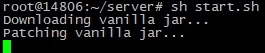
The server core has started and begun installing additional files.
The startup process was stopped. You need to accept the EULA agreement.

Go to sFTP. New server files have appeared there:

You need to open "Eula.txt".
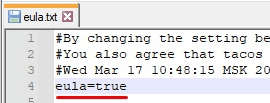
Accept the agreement by entering "true":

Save and close the text editor. A window asking to upload the file back to the server will appear, click "Yes":

Go back to SSH and run the command sh start.sh again to restart the server.
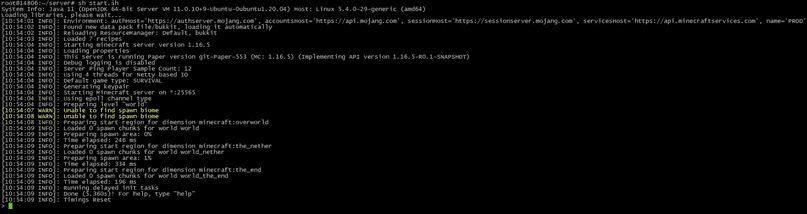
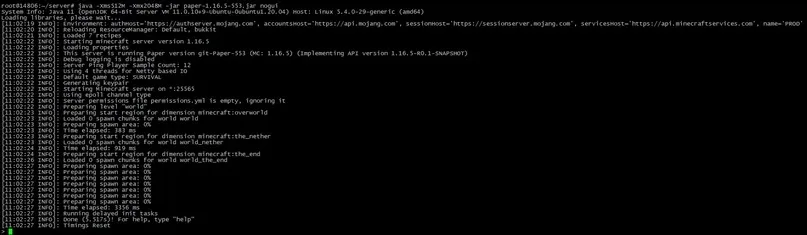
For a direct startup without start.sh, simply enter the command with launch arguments in the console:
java -Xms512M -Xmx2048M -jar paper-1.16.5-553.jar nogui#Cores for modded servers
Latest versions:
Cauldron 1.7.10 – https://mirror.spacecore.info/minecraft/cauldron-latest.zip
Thermos 1.7.10 – https://mirror.spacecore.info/minecraft/thermos-latest.zip
#Question: How do I get access to admin commands?
In the server console, you can grant yourself operator rights by entering:
/op <YourNickname>Did not find the answer? We are online 24/7.Contact support