


Disabling Linux Password Access
If you are using SSH keys, disabling password access to the server will be a useful additional security measure.
#Disabling using nano
Use the following command:
nano /etc/ssh/sshd_configThis opens the sshd configuration file.
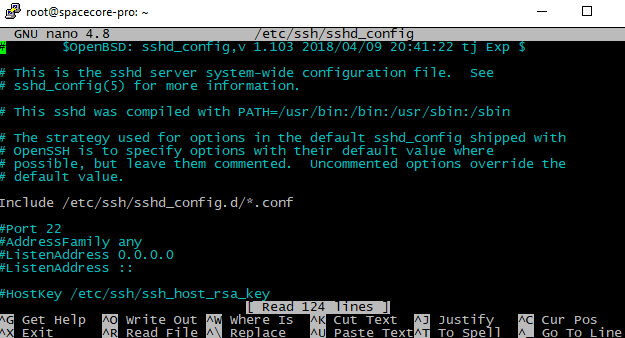
Locate the line PasswordAuthentication yes.

You need to remove the hash character # to activate the line, then change the value yes to no.

Press Ctrl + X and enter Y to save.
Restart the SSH service:
sudo service ssh restart#Disabling via sFTP
In the panel above the file manager, remove the default path /root and specify /etc/ssh.
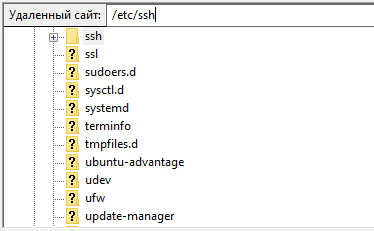
In this directory, open the sshd_config file.
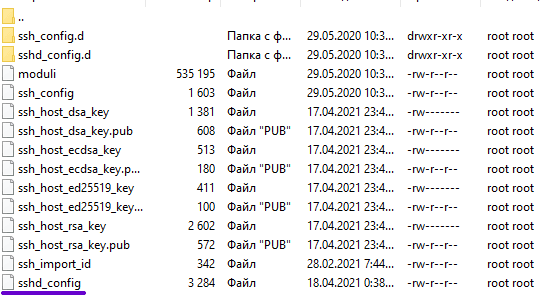
Locate the line PasswordAuthentication yes.

Remove the hash character # to activate the line, then change the value yes to no.

Save the file and upload it to the server.
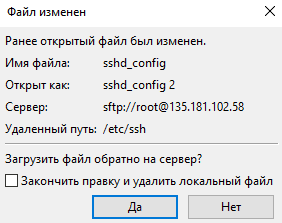
Restart the SSH service:
sudo service ssh restart#Using an SSH key in sFTP
After enabling SSH key only access, you might encounter an issue when connecting via sFTP, which is very easy to resolve.
#FileZilla
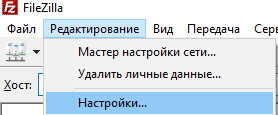
Click the Edit menu and select Settings.
Then open the sFTP page and click the Add key file button.
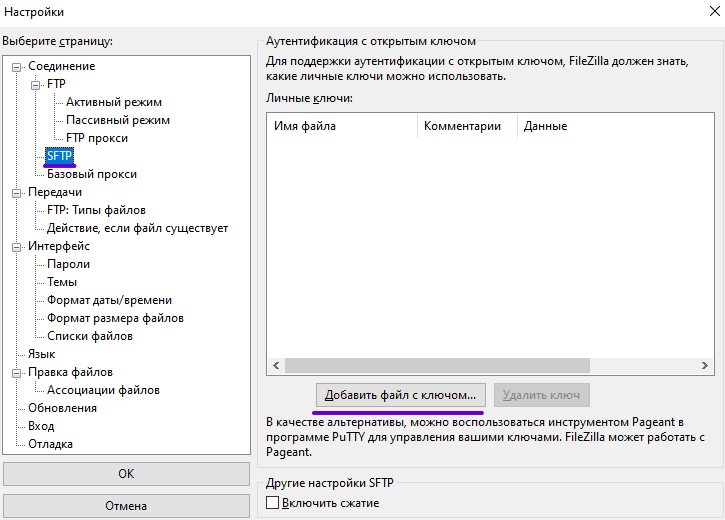
Select the file location and add the file.

The key has been added and FileZilla will now use it when attempting to connect to servers.
#WinSCP
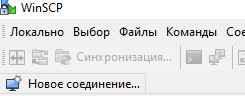
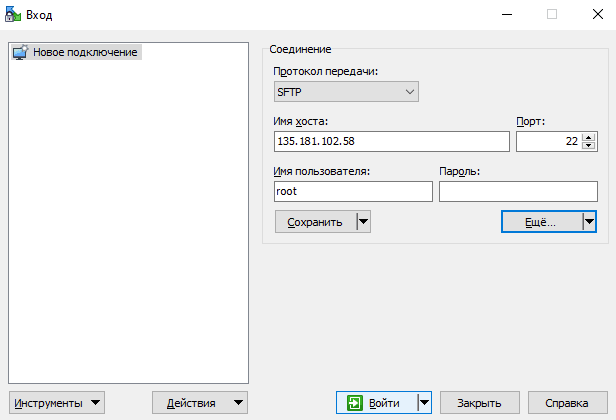
Click the button to create a new connection:
A window opens where you specify the server IP address and the username.
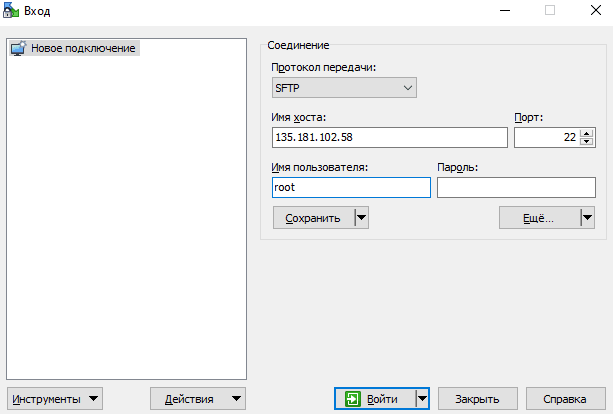
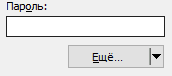
Click the Advanced button under the Password field.
In the window that opens, select the Authentication section.
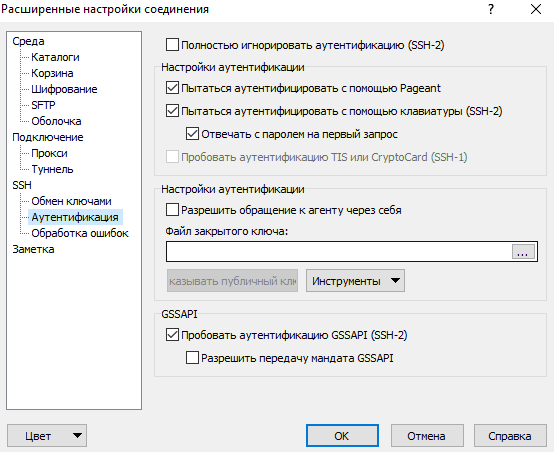
Add the private key and click OK.

Try connecting to the server.
The application prompts for the key passphrase, enter spacecore:
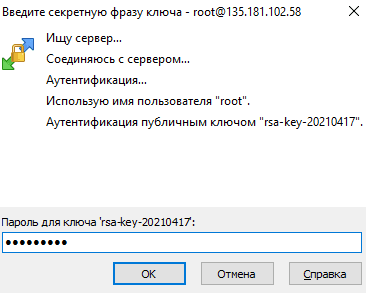
You are now connected to the server.

Did not find the answer? We are online 24/7.Contact support