


Proxying Specific Websites with V2RayN
In this article, we will look at the following task: how to configure a VPN connection so that it is used only for specific services? In other words, how to make most traffic to websites and applications go directly, while only traffic to selected resources is routed through the VPN?
We will demonstrate this using the 3X-UI VPN panel. First, you need to install and configure it on a VDS server by following this guide. However, do not rush to install the client application on your computer or smartphone yet — simply copy the connection configuration. It is a single line that starts with "vless://".
For Windows, install the V2RayN application. You can download it from the official repository using this link. Select the "With-Core" version.
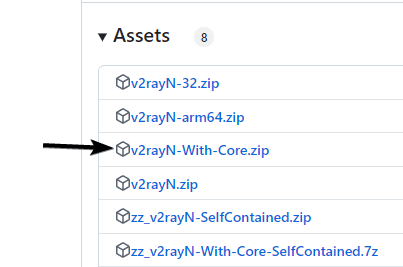
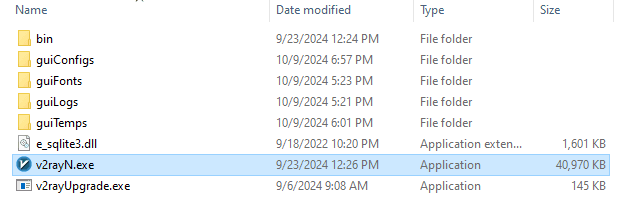
Download and extract the archive to your desktop. You will see the following files. Run v2rayN.exe.
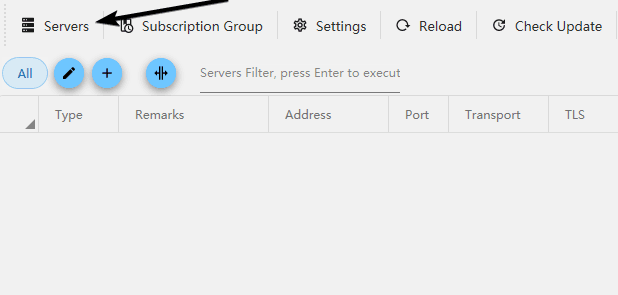
In the application window, click the "Servers" button. Then click "Importing Share Links...". The configuration address starting with "vless://" must already be copied to the clipboard.
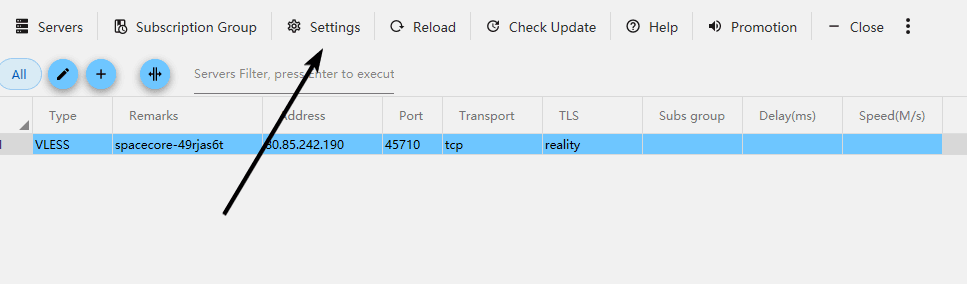
The server has been added. Click "Settings" -> "Routing Setting".
Select "Advanced Function" -> "Add".
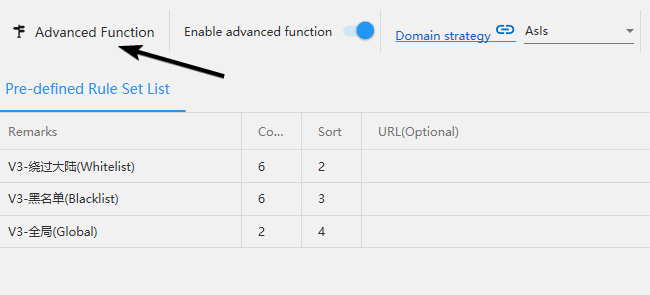
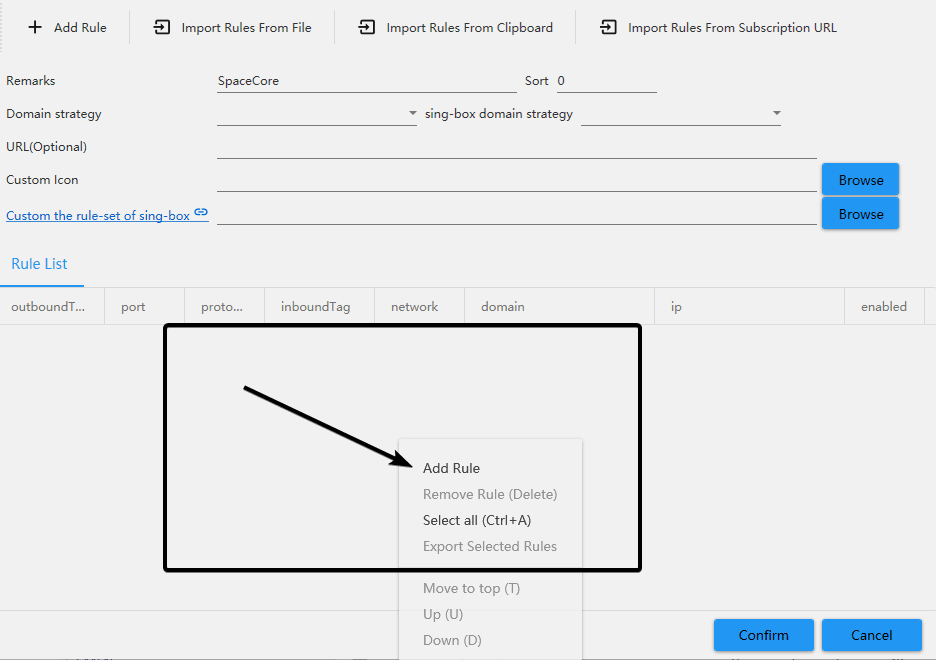
Enter any name in the "Remarks" field.

Right-click in the area marked by the black square. A menu will open — select "Add Rule".
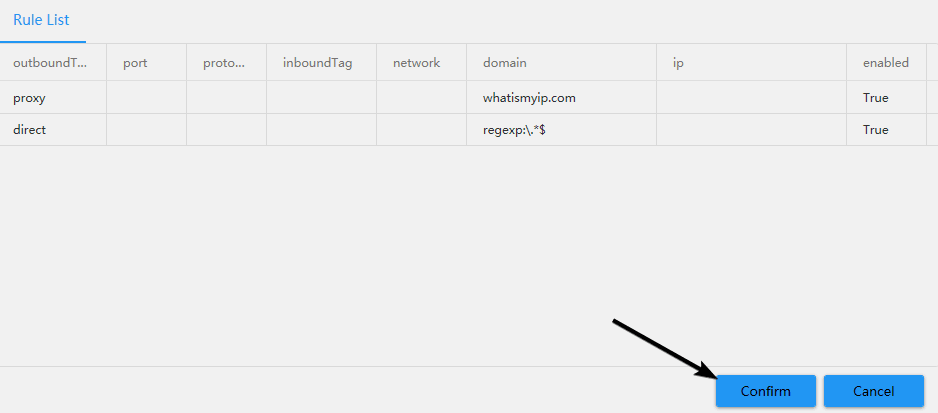
In the new rule creation window, select the "Proxy" type. In the "Domain" field, specify all domains for which you want to use the VPN.
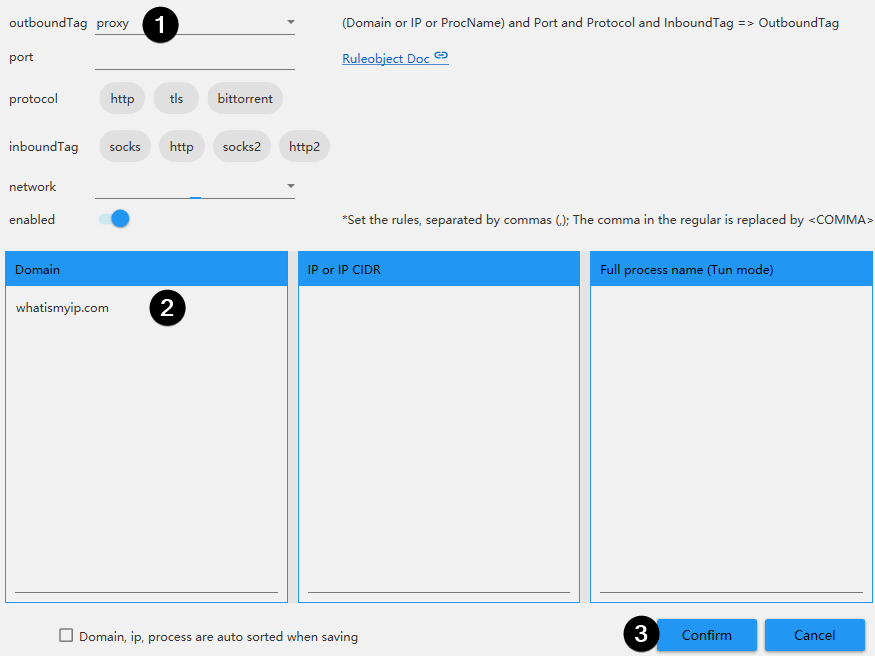
For example, to make Discord work through the VPN, you need to specify these domains. For YouTube, use this list. As an example, we will specify the whatismyip.com service to verify that our IP address is actually changing. Click "Confirm" to save the rule.
Next, create another rule in the same way. This time, select the "Direct" proxy type. In the domains block, enter the following expression
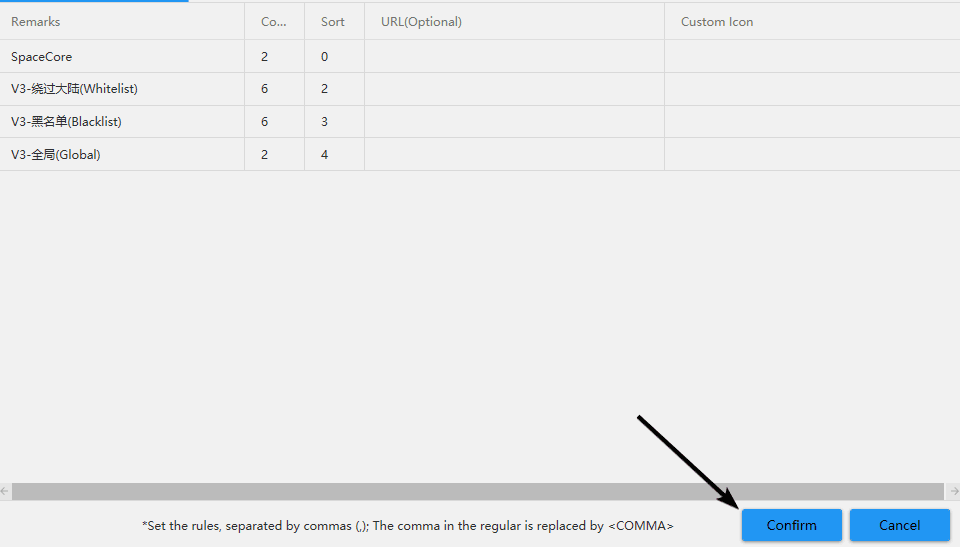
Save your changes.
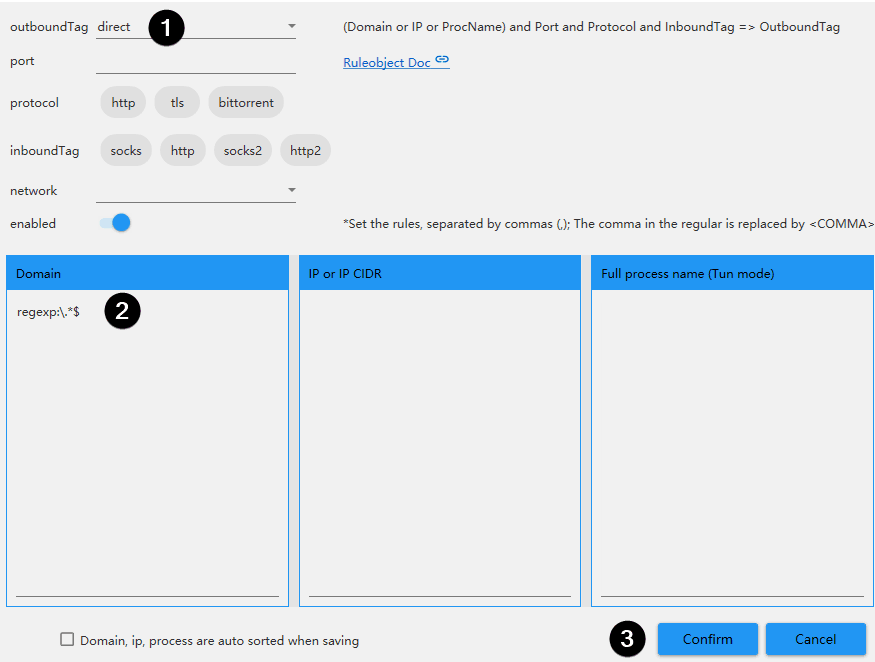
The first rule we created will send encrypted VPN traffic only to the specified domains — in our case, to whatismyip.com. Thanks to the second rule, all other websites will use your "clean" direct traffic without the VPN. Save all the settings.
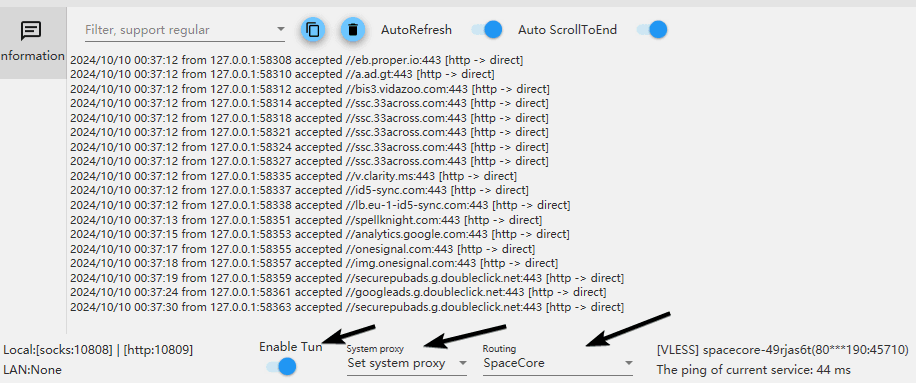
For the "Routing" parameter, select the profile you created using the steps above. Set the "System proxy" parameter to "Set system proxy", then click "Enable Tun" to start the tunnel.
Time to check the result. On one website, your original IP address is shown.
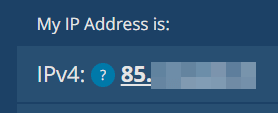
Meanwhile, on whatismyip.com, which we added to the proxy list, the IP address of the VPN server is displayed instead.
Did not find the answer? We are online 24/7.Contact support