


 IPTables Configuration: Rules and ExamplesChanging MTU on Windows and LinuxWorking with TCPDump: basics and filtersMeasuring Network Speed in Linux with Speedtest CLIDNS error “Temporary failure resolving…”: how to fix itHow to Collect Network Traceroute on Linux and WindowsMonitoring Network Traffic with VnStat
Installing a Resource Pack on the Server
Want to install a default resource pack on your server so that all players use it? Not a bad idea for a role-play server :D
Basic information
First, we need to choose the resource pack itself; we will use the resource pack Faithful 1.16.
Next, go to the server folder and open the server.properties file.

Here we find the resource-pack line.

Now we need to specify a direct link to download our resource pack. There are several ways to obtain a direct link to the resource pack:
Getting the link from the author’s website
Copy the direct link from the "Download" button:
As a result, we get the link "https://github.com/FaithfulTeam/Faithful/raw/releases/1.16.zip", and when you follow it, the file download starts immediately. This link can be used to install the resource pack on the server. Keep in mind that some websites may use temporary direct links that are not suitable for permanent use; they are usually very long and unreadable.
Own web server
Now let’s look at the option of serving the file from a remote server. You can use either a web hosting service or a VDS/dedicated server.
-
In the case of web hosting, you only need to upload the file to the server via sFTP, and then use a link like "https://sXXXXX.web.spacecore.ovh/resourcepack.zip" for downloading.
-
For a VDS or dedicated server, you need to install a web server that will allow you to run a website on your machine. You can follow the guides " Installing Nginx" or "Installing Apache2". After installing the software, follow the same steps as in the first option.
File-sharing services
As an example, we will use a well-known service, Google Drive, where we will upload our resource pack (stick to the 25 MB limit, we will explain this below). Now we need to get a link to our file — don’t forget to make it public.
Copy the link and go to the website. There you will see a section for generating direct Google Drive links. Paste the copied link into the first field and click the Generate button. A ready-to-use direct link will be generated, which you then need to copy:
Google Drive allows files of up to 25 MB to be downloaded without an antivirus check. If your resource pack is larger, an additional confirmation dialog will appear when attempting to download it, which effectively prevents the direct link from working.
Installing on the server
After obtaining the direct link, we can move on. In this example, we will use the option with Google Drive.
Go back to the server.properties file and paste the prepared link into the resource-pack field:
Save the file and start the server.
After joining the game, you will see a dialog asking whether to download the resource pack.
Click "Yes".
The download of our resource pack will begin:
Done! The resource pack is installed, and now by default all players will receive a prompt to install it when they join the server.
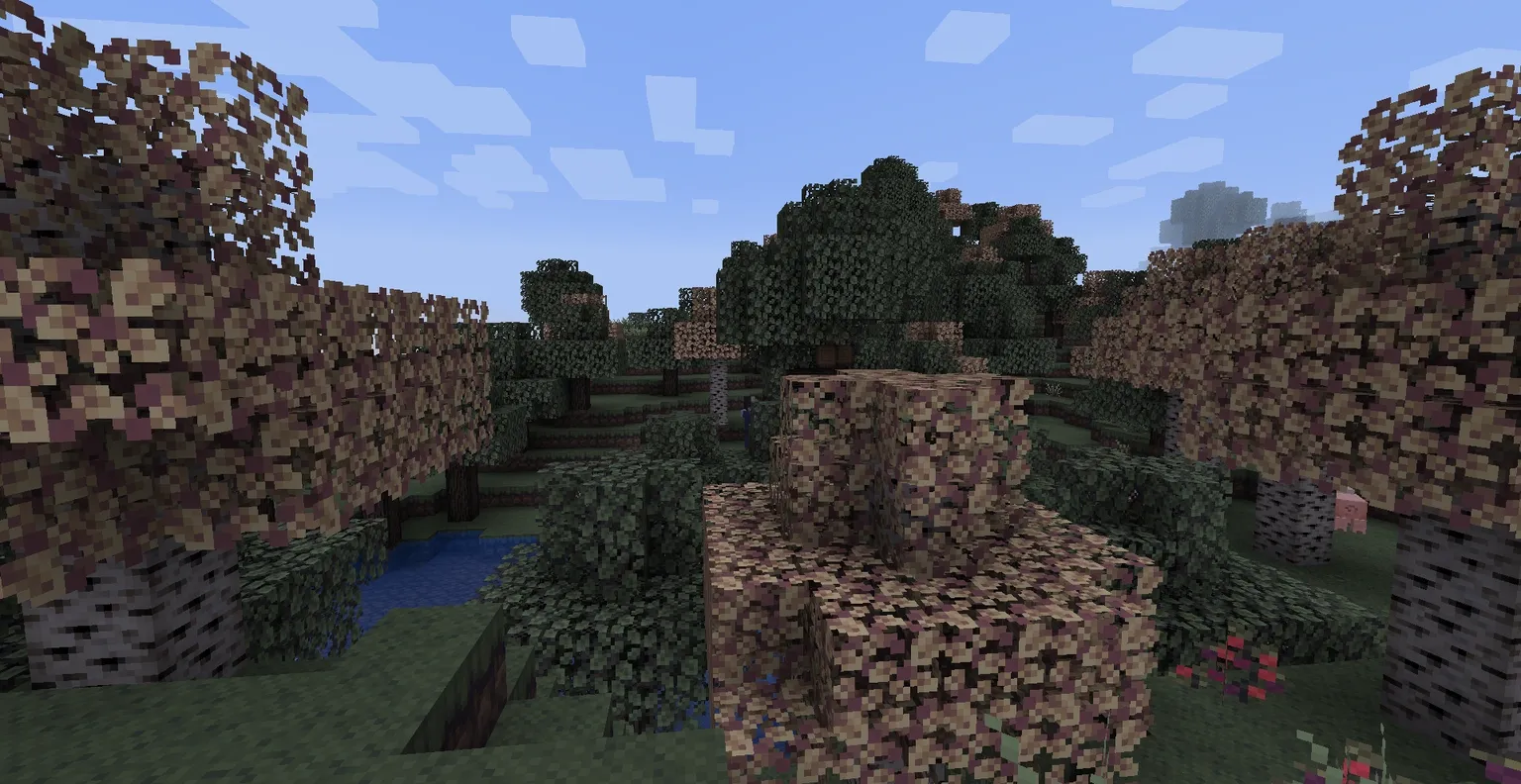
The resource pack only works on the server itself; it is not installed into the client’s resource packs folder. To use it in singleplayer, the user has to download the pack separately.