IPTables Configuration: Rules and ExamplesChanging MTU on Windows and LinuxWorking with TCPDump: basics and filtersMeasuring Network Speed in Linux with Speedtest CLIDNS error “Temporary failure resolving…”: how to fix itHow to Collect Network Traceroute on Linux and WindowsMonitoring Network Traffic with VnStat
Connecting via RDP
By default, connections to Windows servers are made via RDP (Remote Desktop Protocol).
Connecting to the server
Use the Win + R keyboard shortcut.
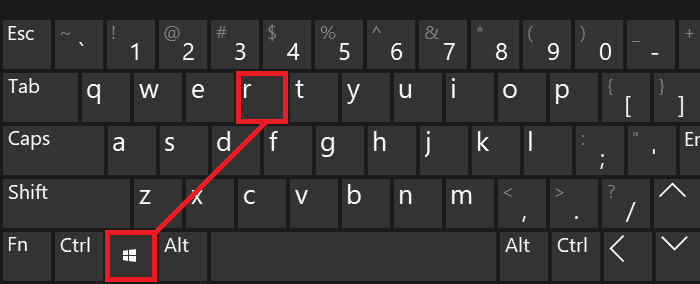
A dialog box appears prompting you to enter a command to run, type mstsc.
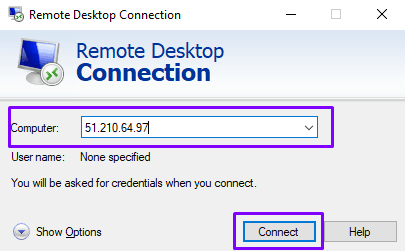
The Windows Remote Desktop client then opens. In the "Computer" field, enter the server IP address you want to connect to.
The user name Administrator is filled in by default. Next, open the advanced settings by clicking the "Show Options" button.
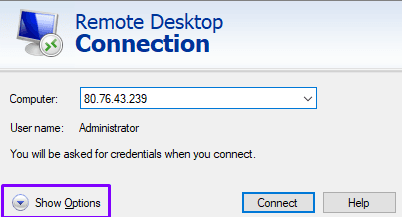
In the menu that opens, you can tick a checkbox so that the program prompts you for new credentials every time it connects to the server.
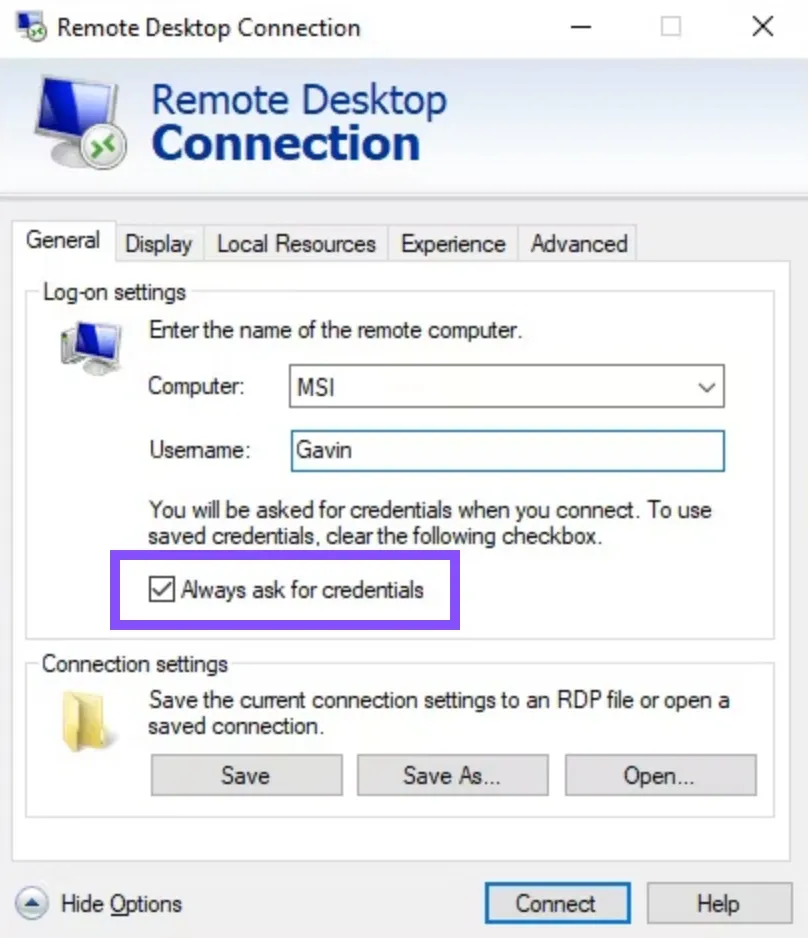
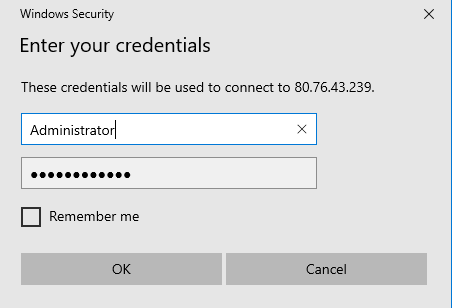
Now let us try to establish the first connection. Click the "Connect" button. When prompted for the service password, enter it and select "Remember me".
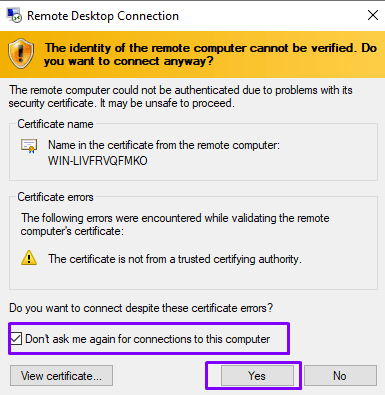
You need to confirm the connection to the server. Tick the checkbox so that this prompt is not shown again and click "Yes".
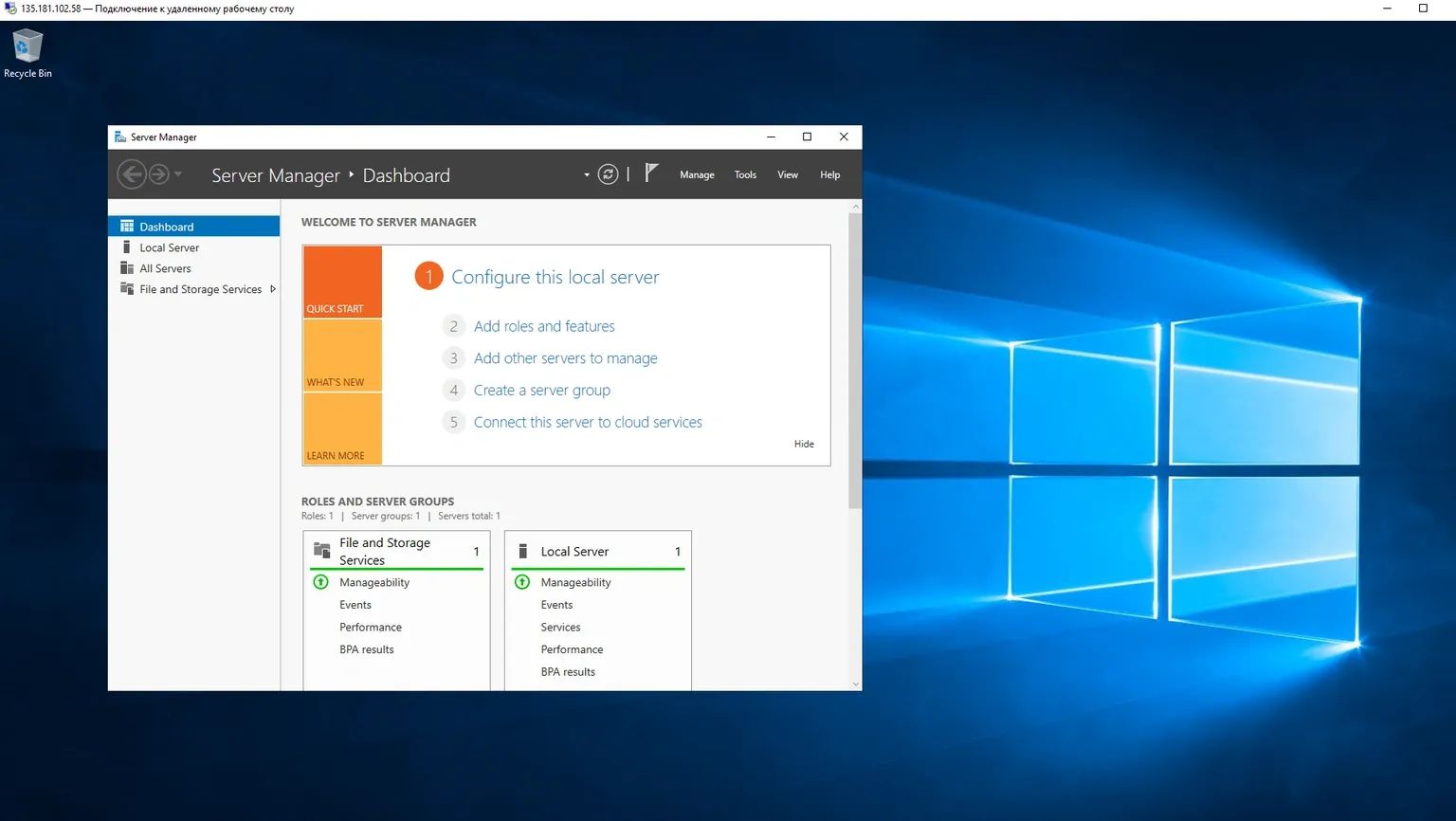
The process of connecting to the remote server begins:
A large window with an empty desktop opens – this is your remote workspace.