


 IPTables Configuration: Rules and ExamplesChanging MTU on Windows and LinuxWorking with TCPDump: basics and filtersMeasuring Network Speed in Linux with Speedtest CLIDNS error “Temporary failure resolving…”: how to fix itHow to Collect Network Traceroute on Linux and WindowsMonitoring Network Traffic with VnStat
Downloading Files
Many users have likely encountered the issue where the default Internet Explorer browser on Windows Server does not allow you to download the required file. Let’s fix that!
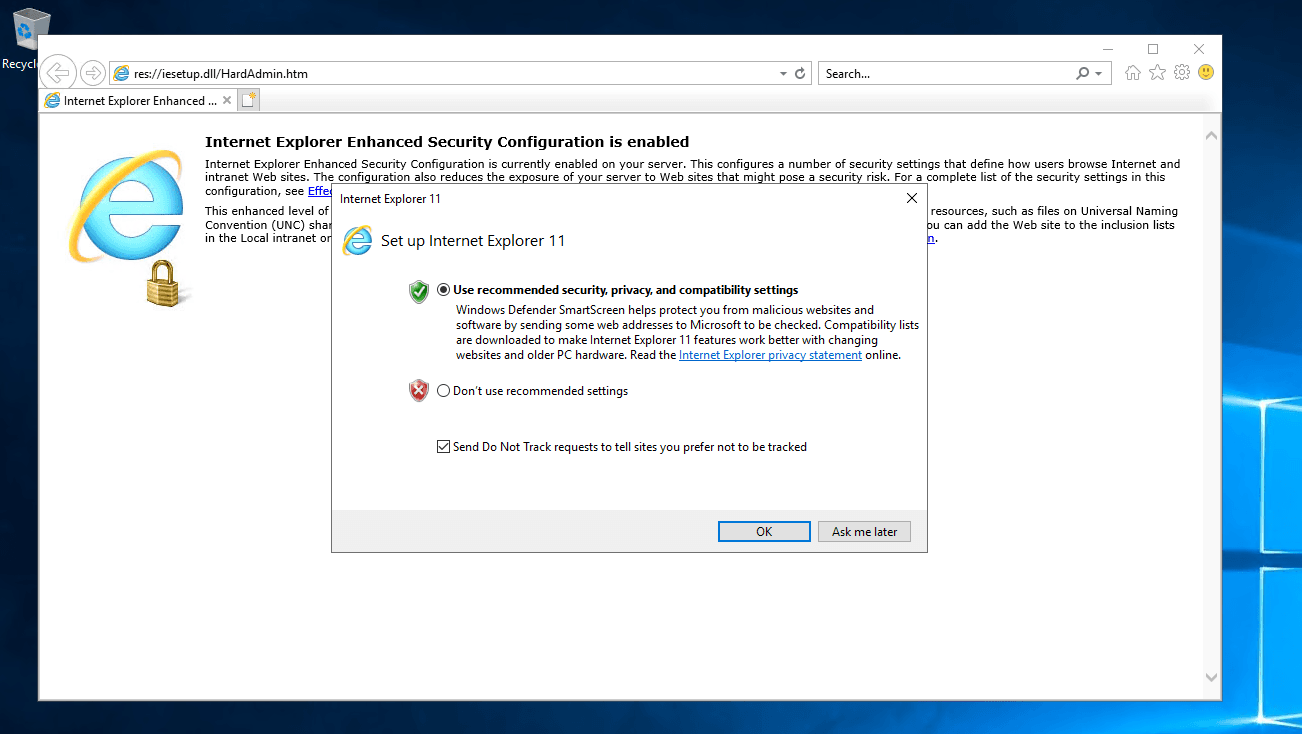
Connect to the remote server. Open Internet Explorer, select the recommended settings, and click OK.
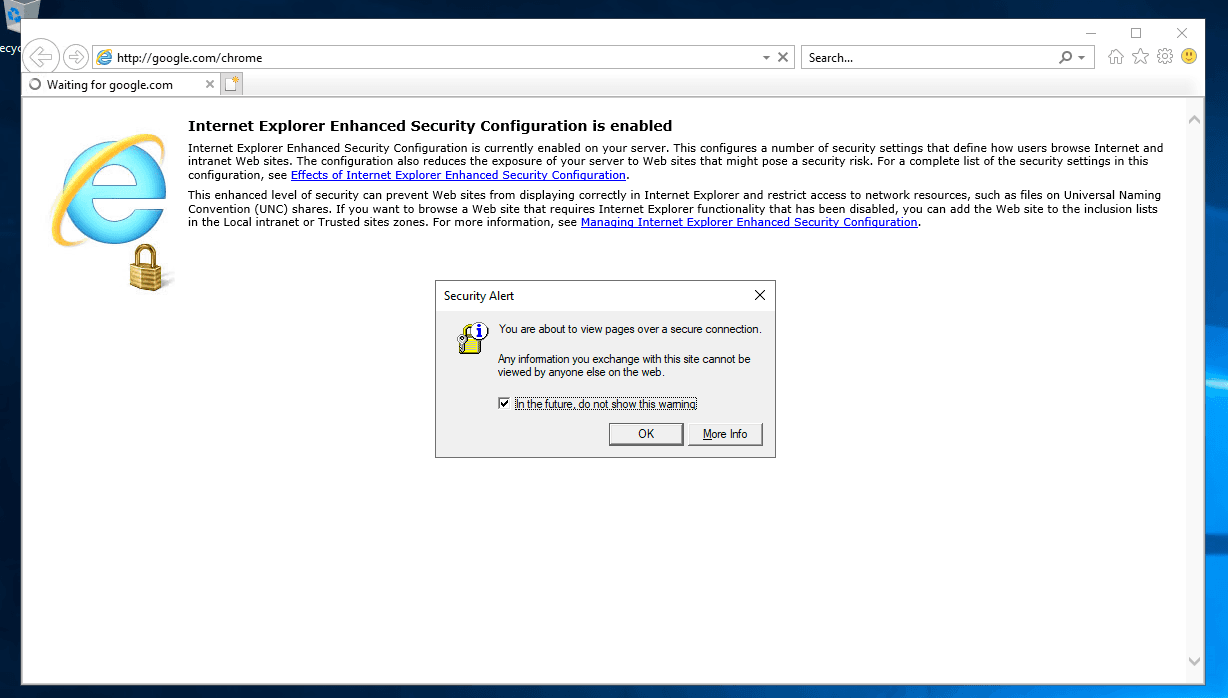
When you try to open a website, another warning appears. Leave the checkbox enabled and click OK.
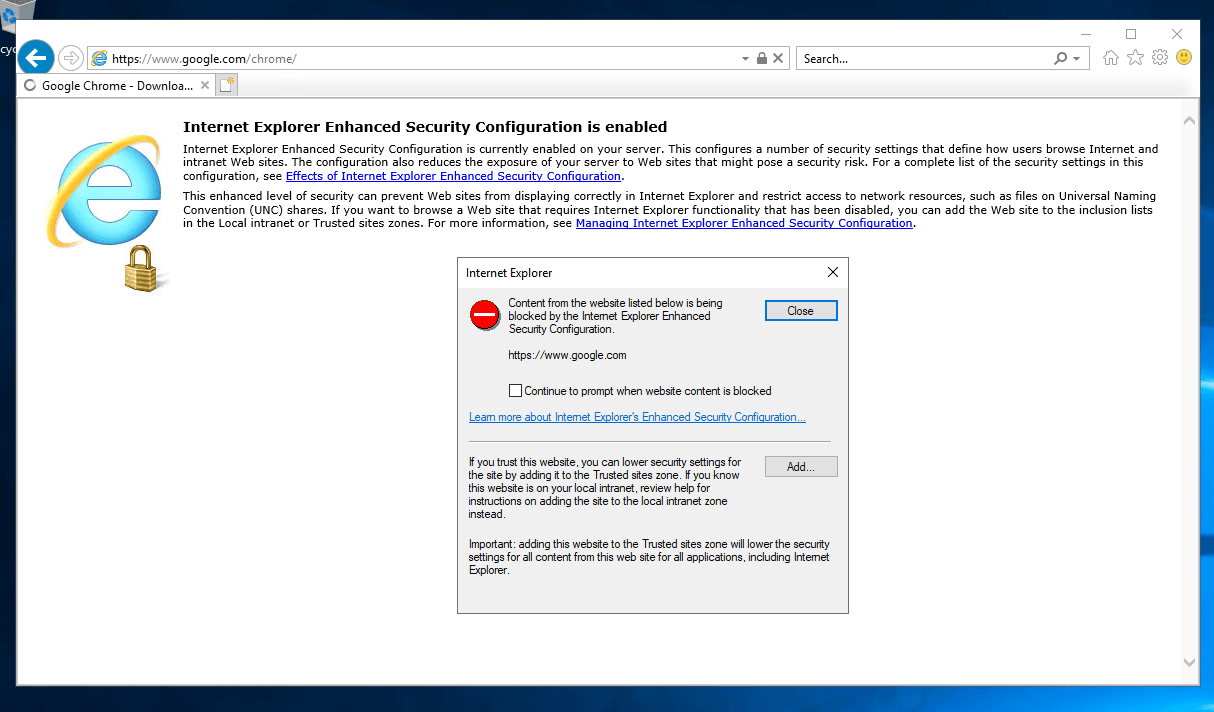
Next, Windows security also displays an error. Clear the checkbox that would continue to show such warnings and click Close.
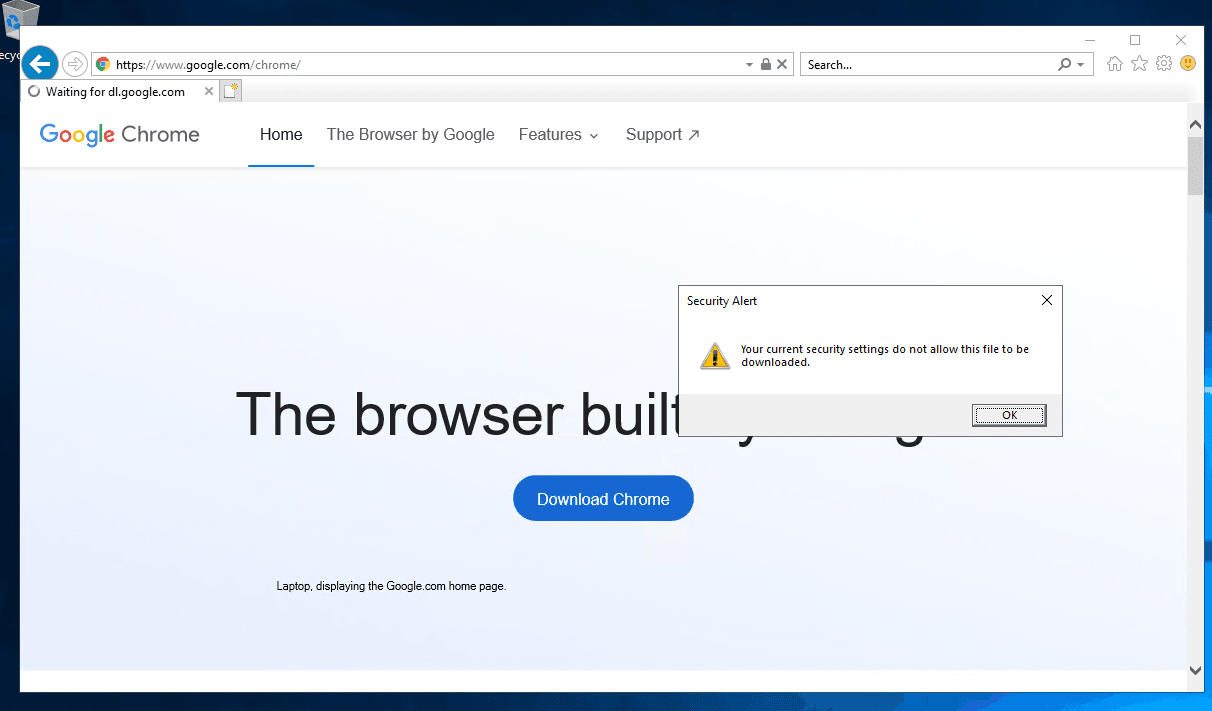
If you try to download a file, you will see a message stating that the current security settings do not allow this action. Click OK.
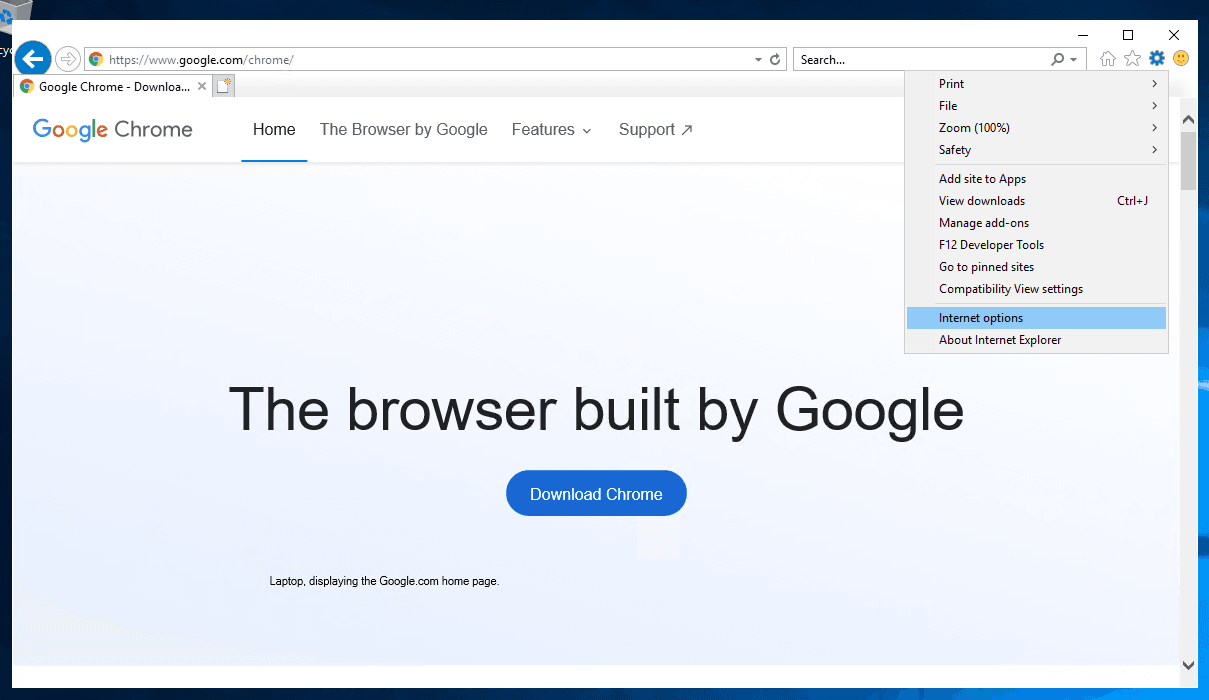
Next, click the gear icon in the upper corner of the browser window. Then select Internet options.
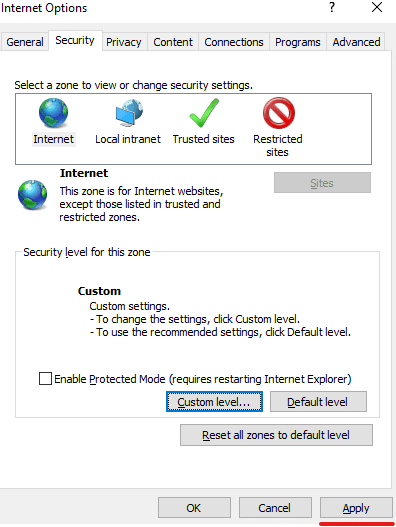
A settings window opens. Go to the Security tab.
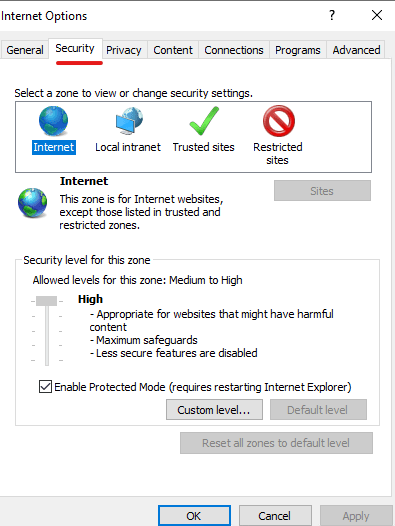
Clear the Enable Protected Mode checkbox and click Custom level. In the window that opens, scroll down and locate the following settings:
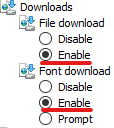
Set both of these options to Enable.
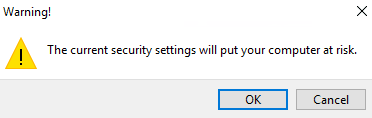
Then click OK to apply the settings. A warning dialog will appear:
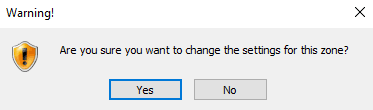
Confirm the changes by clicking Yes.
In the main settings window, click Apply to fully apply the changes:
Another warning will appear; confirm the changes and close the settings window.
You can now download any files from websites without issues. The first thing you should do is install a modern browser!
