


 IPTables Configuration: Rules and ExamplesChanging MTU on Windows and LinuxWorking with TCPDump: basics and filtersMeasuring Network Speed in Linux with Speedtest CLIDNS error “Temporary failure resolving…”: how to fix itHow to Collect Network Traceroute on Linux and WindowsMonitoring Network Traffic with VnStat
Mounting Storage Devices in Linux
Unlike Windows, which automatically mounts all storage devices, Linux in most cases requires you to do this manually. Let’s figure out how it works!
Storage devices are mounted using the mount utility. It is usually used together with arguments.
Mounting Using Mount
Mounting storage devices using the Mount utility is quite straightforward. You just need to enter a command specifying the partition to be mounted as an argument, and the directory where this partition should be mounted.
We can get a list of all existing partitions as follows:
fdisk -l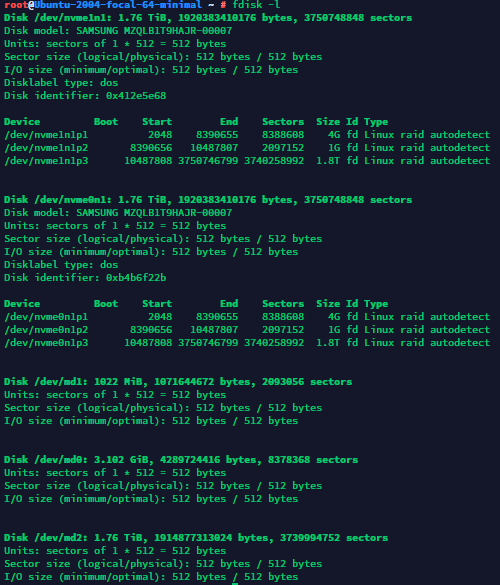
For example, let’s mount the nvme1n1p3 partition to the /mnt directory:
sudo mount /dev/nvme1n1p3 /mnt/
To unmount it, use the following command:
sudo umount /mnt
You can view a list of all mounted devices in a simple way:
mountMounting Using UUID
To obtain information about the UUID of the partitions on our server, run the following command:
sudo blkid
You will see an output similar to this:

Next, open the configuration file that contains information about all partitions mounted at system startup:
sudo nano /etc/fstab
After that, depending on the filesystem, you should add a line with the appropriate parameters to this config.
For example, if we need to mount an NTFS partition, we should use the following line:
UUID="0x0x0x0x0" /mnt/myfolder rw,nls=utf8,gid=plugdev,umask=0002 0 0
For FAT and FAT32 filesystems, use the following line:
UUID="0x0x0x0x0" /mnt/myflash vfat rw,exec,codepage=866,nls=utf8,gid=plugdev,umask=0002,nofail,users 0 0To apply the changes you’ve made (mount the devices), run the command:
sudo mount -aSummary
That’s it! We’ve learned how to mount storage devices manually. This article is relevant for most Linux distributions.