


 Registration
Blocking access to private networks
You may suddenly start receiving complaints from the data center about private network scanning, even though you did not intend to do this. To resolve this issue, you can block all private networks using the ufw firewall.
Installing ufw
First, check whether the ufw utility is present on your server and install it if necessary:
sudo apt install ufw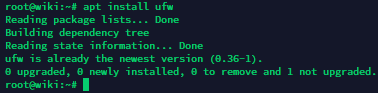
Next, before enabling ufw, you need to open the important ports so you do not lose access to your services. Allow the ports used by SSH, HTTP and HTTPS:
sudo ufw allow 22

sudo ufw allow 80

sudo ufw allow 443
That’s it. Now you can enable the firewall:
sudo ufw enable
You can check the current firewall status with the following command:
sudo ufw status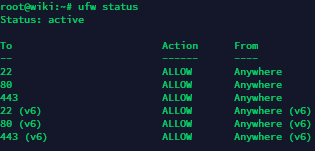
Blocking private networks
Now we can proceed to blocking private networks to prevent any outbound connections to them from your server.
- 10.0.0.0/8
- 172.16.0.0/12
- 192.168.0.0/16
- 100.64.0.0/10 (CGNAT)
Blocking these networks (and several special-use ranges) is quite simple — use the following commands:
sudo ufw deny out from any to 10.0.0.0/8

sudo ufw deny out from any to 172.16.0.0/12

sudo ufw deny out from any to 192.168.0.0/16

sudo ufw deny out from any to 100.64.0.0/10

sudo ufw deny out from any to 198.18.0.0/15

sudo ufw deny out from any to 169.254.0.0/16
After adding the rules, check their status again:
sudo ufw status


# Or using iptables:
iptables-save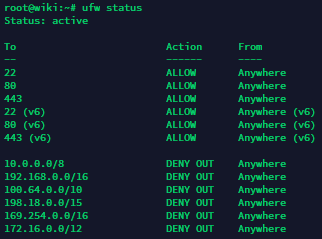
Now, if we try to access an address from a private network, we will get an error. For example, using the ping command:
ping 198.18.22.62
This completes the configuration for blocking private networks.
Unblocking networks (if required)
If you later need to re-enable access to one of the blocked networks, first display the numbered list of current ufw rules:
sudo ufw status numbered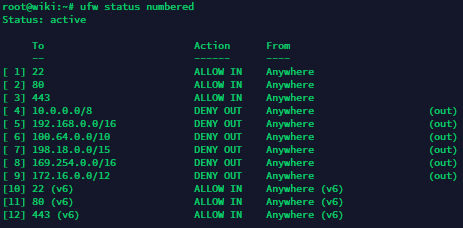
Then delete the required rule by its number (replace N with the actual rule number from the output of the previous command):
sudo ufw delete NFor example, let’s delete rule #7:
sudo ufw delete 7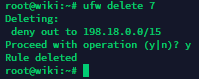
Now, any subsequent attempt to access the address 198.18.22.62 will no longer be restricted:

Thank you for reading! You now know how to block (and unblock) your server’s access to private networks using ufw.