


 IPTables Configuration: Rules and ExamplesChanging MTU on Windows and LinuxWorking with TCPDump: basics and filtersMeasuring Network Speed in Linux with Speedtest CLIDNS error “Temporary failure resolving…”: how to fix itHow to Collect Network Traceroute on Linux and WindowsMonitoring Network Traffic with VnStat
How to Collect a Traceroute?
Traceroute is most often useful when diagnosing various issues related to the operation of a particular network.
Linux [Traceroute]
First, you need to install this utility if it is not yet present on your server:
apt install mtr
For CentOS:
yum install mtr
Let’s try to collect a traceroute in the standard way:

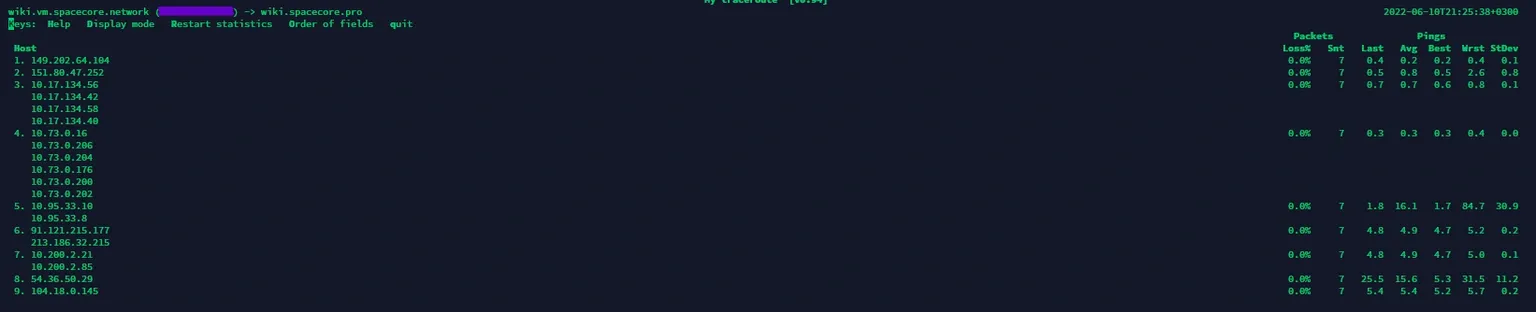
For example, if you want to send 7 TCP packets during the traceroute to the host wiki.spacecore.pro and get information about the hops in IP address format, you can use the following command:
mtr --tcp -c 7 -n wiki.spacecore.proThe result will look like this:
Windows [WinMTR]
Install the WinMTR utility. It is available at this link. Run the version of the program that matches the architecture of your operating system.
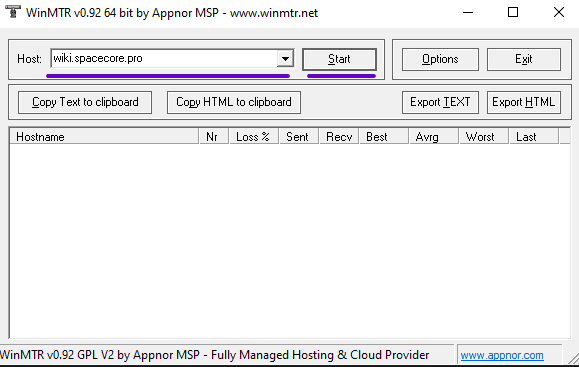
In the Host field, specify the target server for which you want to collect a traceroute, then click the Start button.
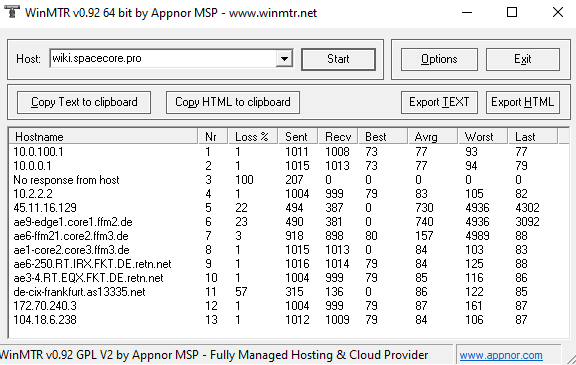
Wait until at least 1000 packets have been sent. This is usually sufficient.
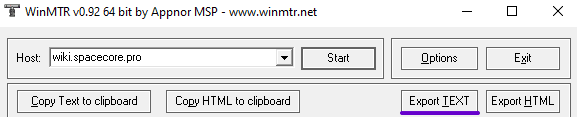
To export the traceroute result as a text document, use the Export TEXT button and save the file.
If you collected the traceroute to help diagnose an issue at the request of a technical support specialist in a ticket, please make sure to also attach the address from which the traceroute was performed, in addition to the traceroute itself.