


 IPTables Configuration: Rules and ExamplesChanging MTU on Windows and LinuxWorking with TCPDump: basics and filtersMeasuring Network Speed in Linux with Speedtest CLIDNS error “Temporary failure resolving…”: how to fix itHow to Collect Network Traceroute on Linux and WindowsMonitoring Network Traffic with VnStat
Working with TCPDump
This utility is a useful tool for capturing and collecting packets incoming to the server as well as outgoing from it.
Installing TCPDump
For Ubuntu/Debian:
apt install tcpdump
For Red Hat / CentOS:
sudo yum install tcpdumpCommand arguments
Usage
To avoid cluttering our capture with unnecessary packets, you should select a specific interface from which you want to collect information instead of all of them. You can view the list of all interfaces using the following command:
tcpdump -D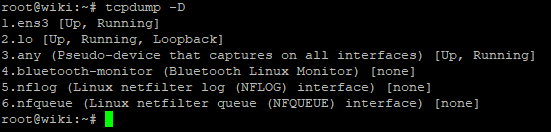
To display logs from our network interface in real time, use the command:
tcpdump -i ens3Keep in mind that TCPDump requires superuser privileges, so these commands must be executed as root or with sudo.
After running the command, you will see many rapidly scrolling lines; to stop the capture, use the key combination Ctrl + C
Let us try to see more detailed information about packets by using the -v argument.
tcpdump -i ens3 -vFiltering arguments
Another powerful feature is additional arguments that let us filter different types of packets by the following parameters:
For example, we can display all packets that are sent from our server to a specific destination address:
tcpdump dst 192.168.1.1
Or, conversely, all packets that are sent to our server from a source subnet (you can also use a specific IP address, as in the example above):
tcpdump src net 192.168.1.1/24
To search for packets of the required size, you can use arguments such as:
tcpdump less 48 // packets smaller than 48 bytes
tcpdump greater 128 // packets larger than 128 bytes
Suppose you have several Garry's Mod servers running on different ports and you want to check whether they are currently being subjected to a DDoS attack. The following command will help:
tcpdump -nnv udp src portrange 27015-27025 -w garrysmod.dumpPay attention to the specified port range.
Thanks to the -w argument, the capture will be saved to the garrysmod.dump file.
Advanced operators
In addition, TCPDump supports operators for building various combinations of arguments.
For example, we can display all MySQL request traffic that 192.168.1.1 sends to port 3306 (to any destination address).
tcpdump -nnv src 192.168.1.1 and tcp dst port 3306Conclusion
Thank you for reading! We have taken a detailed look at a very useful tool, TCPDump, which is an integral part of a network engineer's work and will also certainly be useful for regular users.
To inspect packets on Windows, you can use the WireShark application.