


 IPTables Configuration: Rules and ExamplesChanging MTU on Windows and LinuxWorking with TCPDump: basics and filtersMeasuring Network Speed in Linux with Speedtest CLIDNS error “Temporary failure resolving…”: how to fix itHow to Collect Network Traceroute on Linux and WindowsMonitoring Network Traffic with VnStat
OpenVPN [Easy]
Introduction
OpenVPN is one of the most popular and reliable solutions for creating virtual private networks (VPN). It provides a high level of encryption and flexible configuration, making it an ideal choice for both individual users and corporate networks.
This guide uses the Ubuntu 20.04 OS. The script works on all current versions of Ubuntu, Debian, AlmaLinux, Rocky Linux, CentOS and Fedora.
Connecting to the server
Connect to your server. If necessary, you can use our detailed guide on how to perform this operation.
Installing OpenVPN
You may have never seen such an easy way to install OpenVPN 😎
It is enough to enter the following command in your server console, after which the installation will run automatically.
apt-get update; rm openvpn-install.sh; wget https://mirror.spacecore.info/scripts/openvpn-install.sh && bash openvpn-install.shOnce the process is complete, you will see the following output.
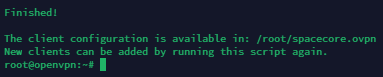
The first configuration file created by default is called "spacecore.ovpn" and is located in the main directory. You can download it to your device using sFTP. For more details on how to connect via sFTP, see the section "Transferring data via sFTP".
This configuration file is universal and can be used to add a profile on any device that supports OpenVPN.
Configuration
You can download the OpenVPN client for Windows from the following link.
After installation, you can add a client either via a link or by using a file. In this example, we will use the second option. Simply drag and drop or manually select the "spacecore.ovpn" file that you downloaded from your server.
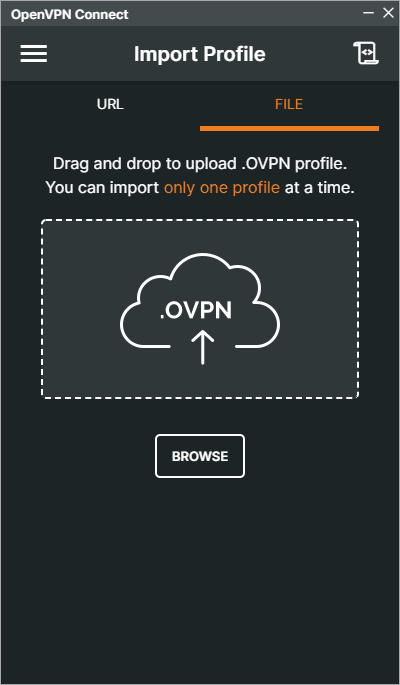
Then connect. Great!
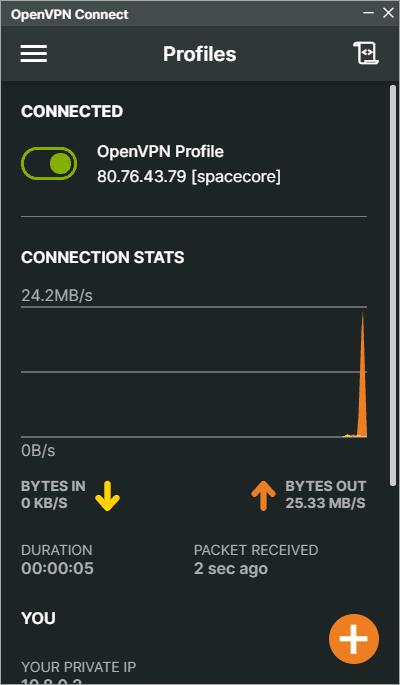
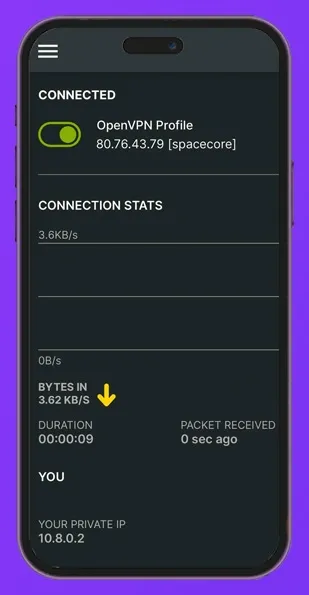
The connection is configured in a similar way through the OpenVPN mobile app, which is available in both the App Store and Play Market.
Adding users
How do you add other users to your VPN? To do this, you need to run the already downloaded script again.
bash openvpn-install.shYou will see a message that OpenVPN is already installed and a list of available actions. Enter "1", then type a name for the new user, for example "friend".
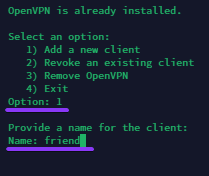
A new configuration file will then be created. It should be used in the same way as the file that was generated the first time.
