


 IPTables Configuration: Rules and ExamplesChanging MTU on Windows and LinuxWorking with TCPDump: basics and filtersMeasuring Network Speed in Linux with Speedtest CLIDNS error “Temporary failure resolving…”: how to fix itHow to Collect Network Traceroute on Linux and WindowsMonitoring Network Traffic with VnStat
Outline VPN Installation
Introduction
Outline VPN is a unique solution in the world of virtual private networks (VPN). Developed by a Google-affiliated team, this tool is easy to install and manage, allowing users to create their own VPN servers. Thanks to its accessibility and ease of use, Outline VPN is an excellent choice for those who seek reliable data protection without the need for deep technical expertise.
This guide uses Ubuntu 20.04 as the operating system.
Installing the manager
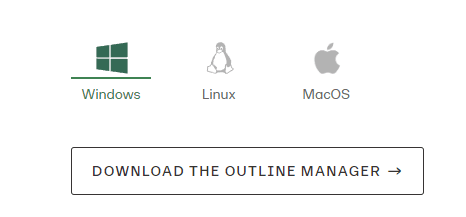
Download Outline Manager for your operating system. In this guide, we use the Windows version as an example.
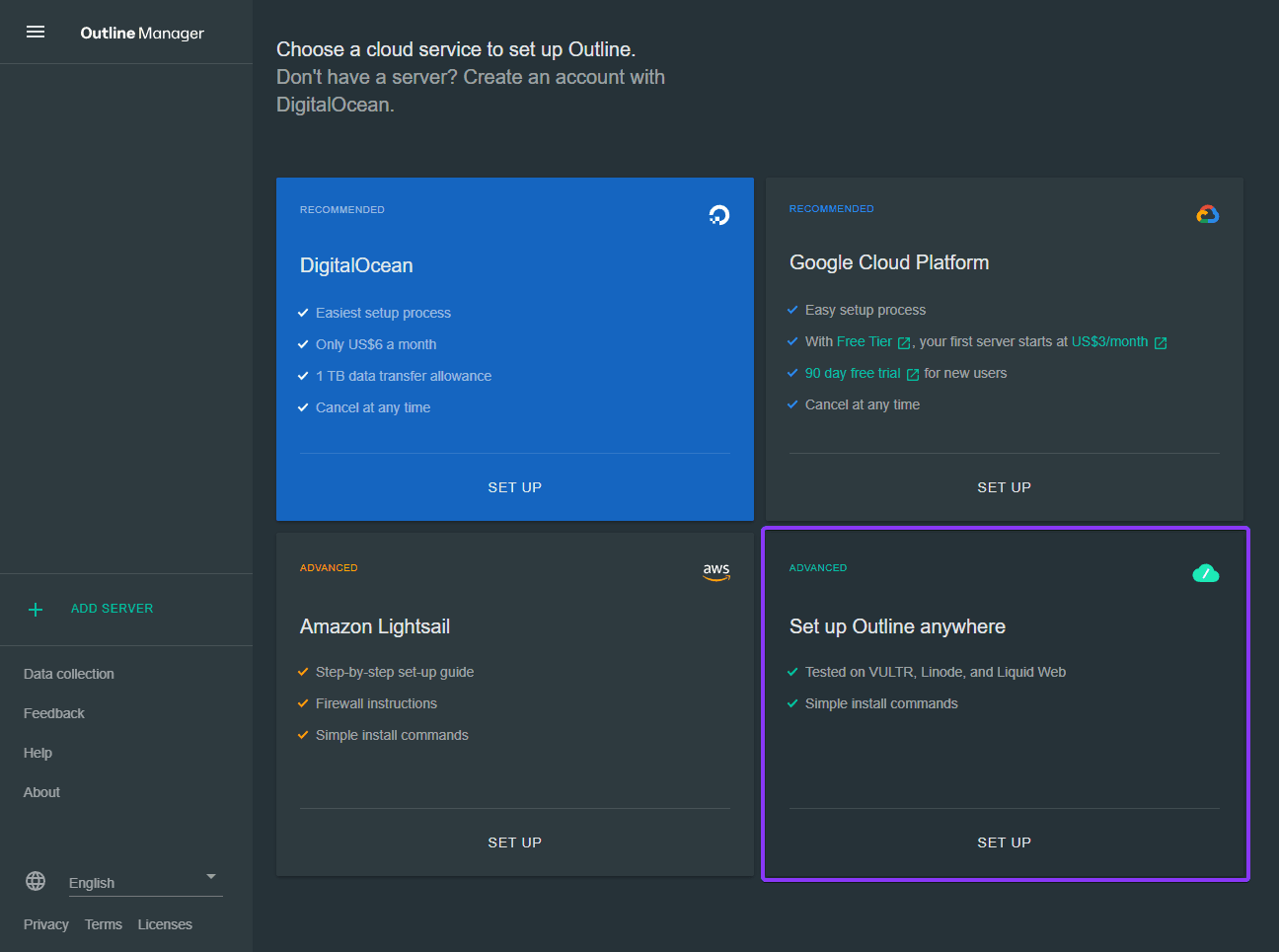
After installation, in the application select the option that assumes deployment on any server.
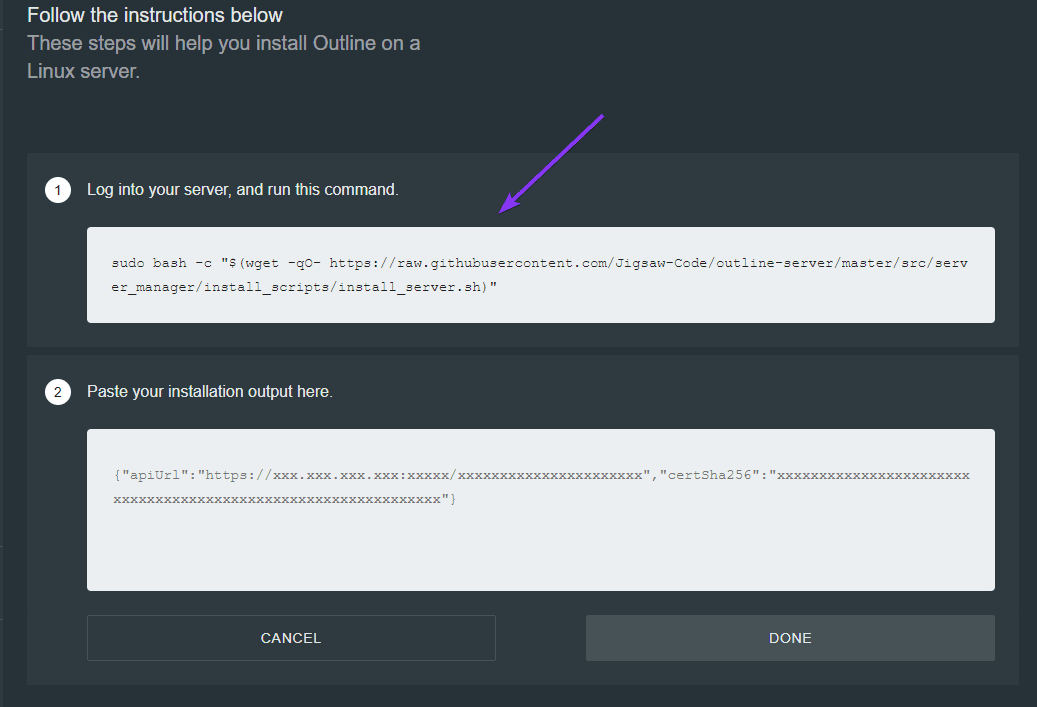
Pay attention to the command shown in the first step and switch to your server’s console.
Connecting to the server
If necessary, you can use our detailed guide on how to connect to your server.
Installing on the server
Update the system repositories and install cURL.
apt-get update; apt install curl -y
Next, run the command provided in the Outline Manager window. If your server is running a clean OS, it most likely does not have Docker installed, which the installer will inform you about. Enter "y" to continue.

Wait for the installation to complete and copy the text highlighted in the screenshot.
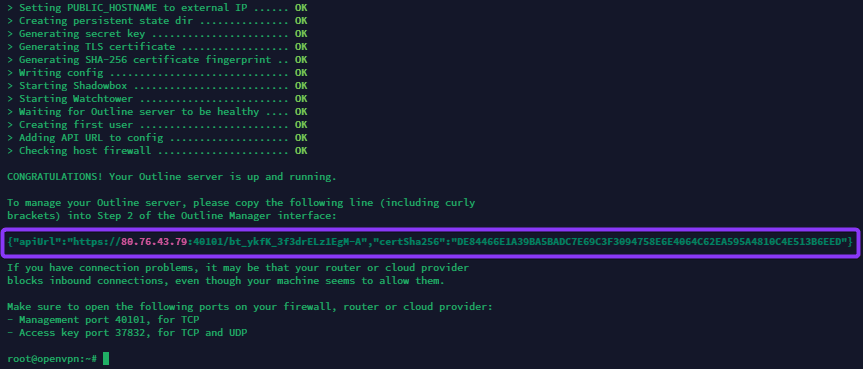
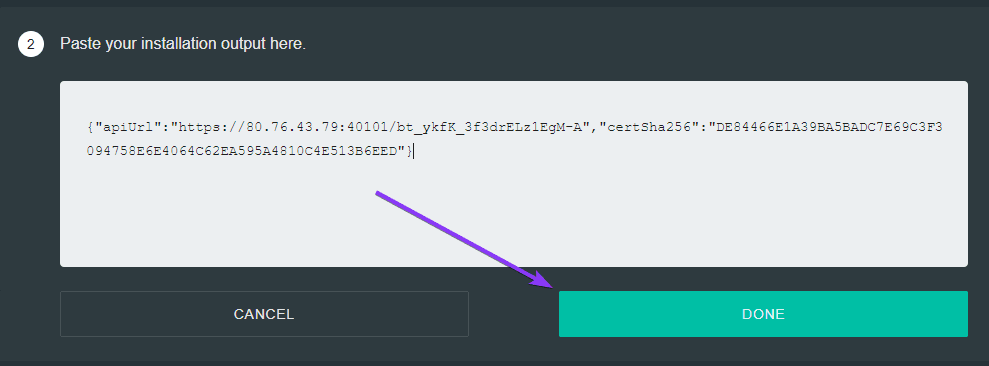
Paste it into the Outline Manager window in step 2, then click "DONE".
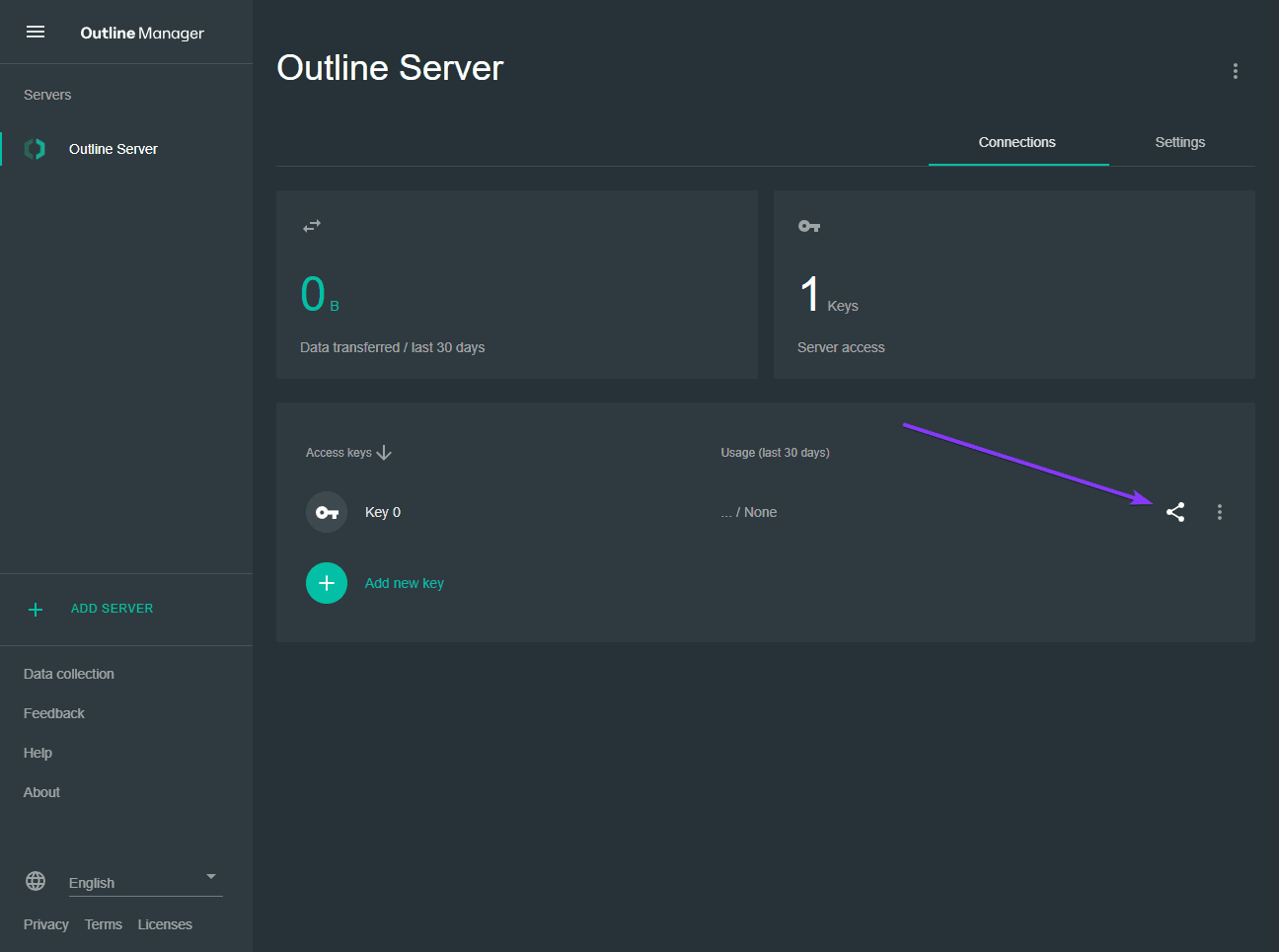
You will see the VPN server configuration interface. By default, one client is already created and can be used immediately to connect from your device. Click the "Share" button.
Configuration
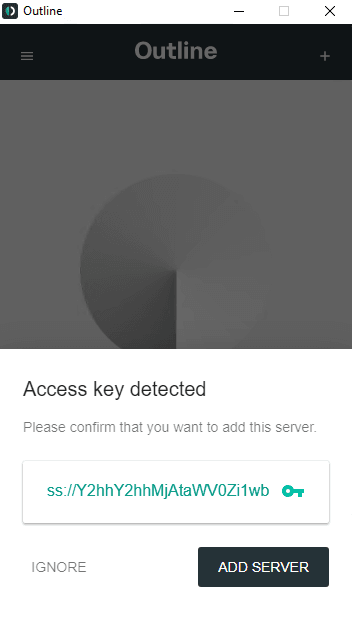
Download and install the Outline Client application for your OS. Then paste the code you copied from the Outline Manager window.
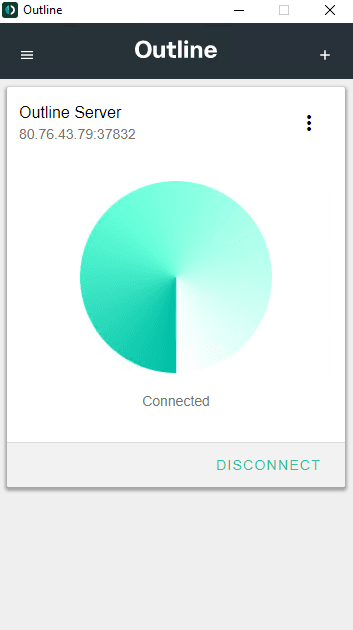
The connection has been established!
The connection is configured in the same way via the Outline VPN mobile app, which is available both in the App Store and in the Play Market.
Paste the copied authorization code.
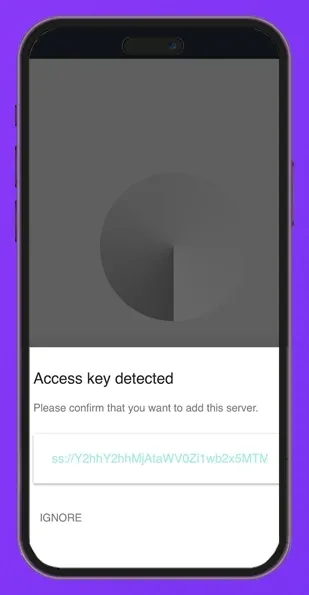
Verify that the VPN is working.
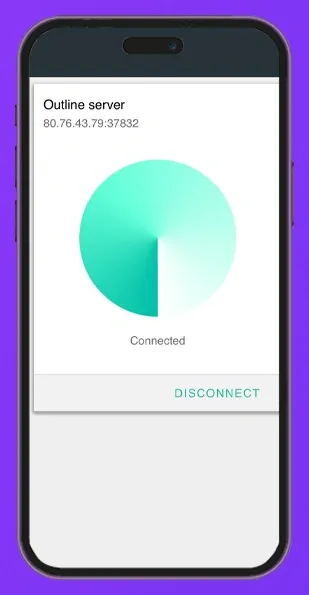
Adding users
Use the "Add new key" button in the Outline Manager control panel.
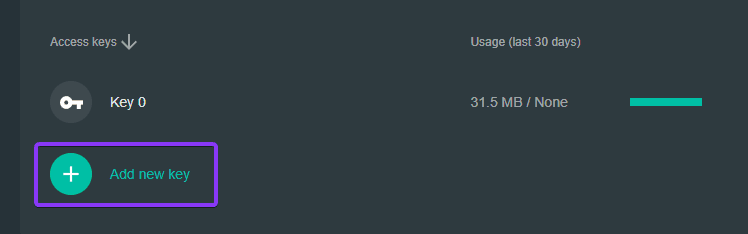
A new key will be generated automatically. You can rename it and share it with a friend, colleague, or family member.
