


 Registration
Changing the VDS Password
A convenient way to change your server password via the VmManager6 web panel.
After the service is activated, you will receive an email with all server details, for example:
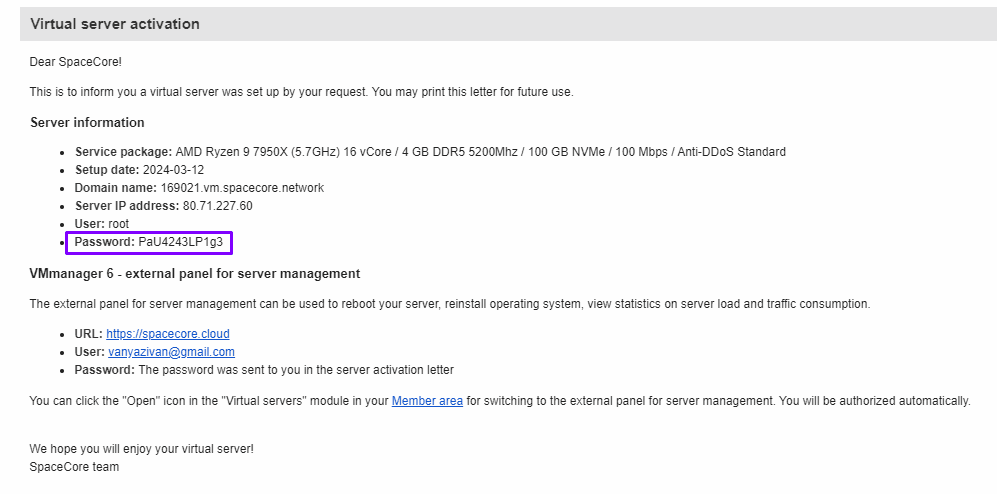
Follow the link https://spacecore.cloud/, enter the Username and then the Password for the control panel (the password line is underlined in the screenshot).

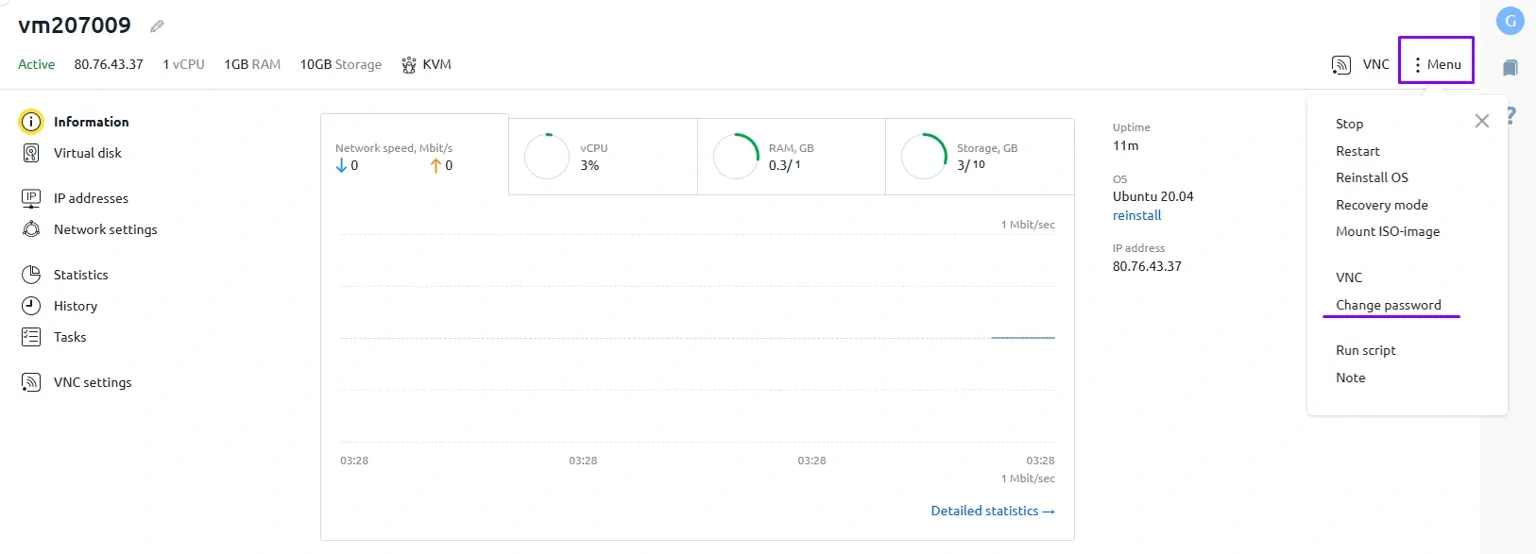
Next, click on the required service. This will take you to the server settings page. Then click the Menu button with three dots next to it and select Change password in the popup window.
After clicking, you will be prompted to enter a new password for the VDS server. On the right side of the field, there is a Generate button that will automatically create a strong password.
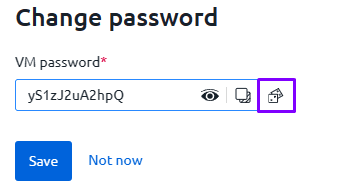
Click Save. The server will then reboot.
You will no longer be able to sign in using the old password.
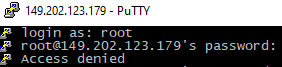
The new password will work successfully.
Changing the password also affects access via sFTP!