IPTables Configuration: Rules and ExamplesChanging MTU on Windows and LinuxWorking with TCPDump: basics and filtersMeasuring Network Speed in Linux with Speedtest CLIDNS error “Temporary failure resolving…”: how to fix itHow to Collect Network Traceroute on Linux and WindowsMonitoring Network Traffic with VnStat
Operating system reinstallation
Using the details provided in the service activation email, sign in to the control panel . You can also access the control panel by clicking the "Go to" button in your client area.
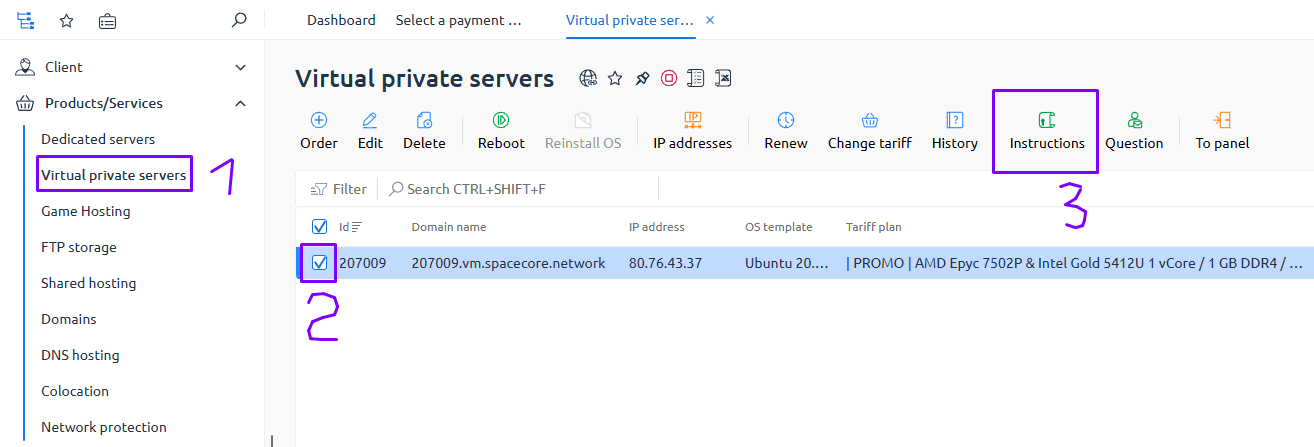
On the control panel page, expand your server’s section and click the "Settings" button.
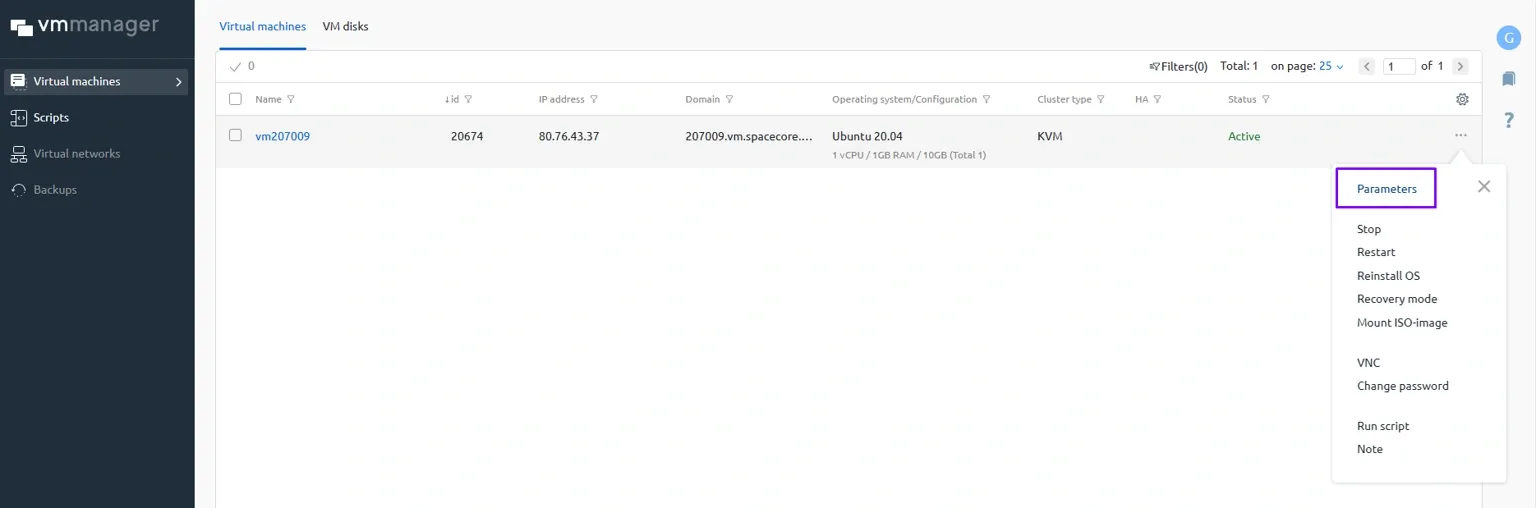
Here you can see detailed real-time information about your server, such as bandwidth usage, CPU load, RAM usage and disk utilization. In the right-hand block you will see the name of the currently installed OS on your server. To start the reinstallation process, click the "Reinstall" button.
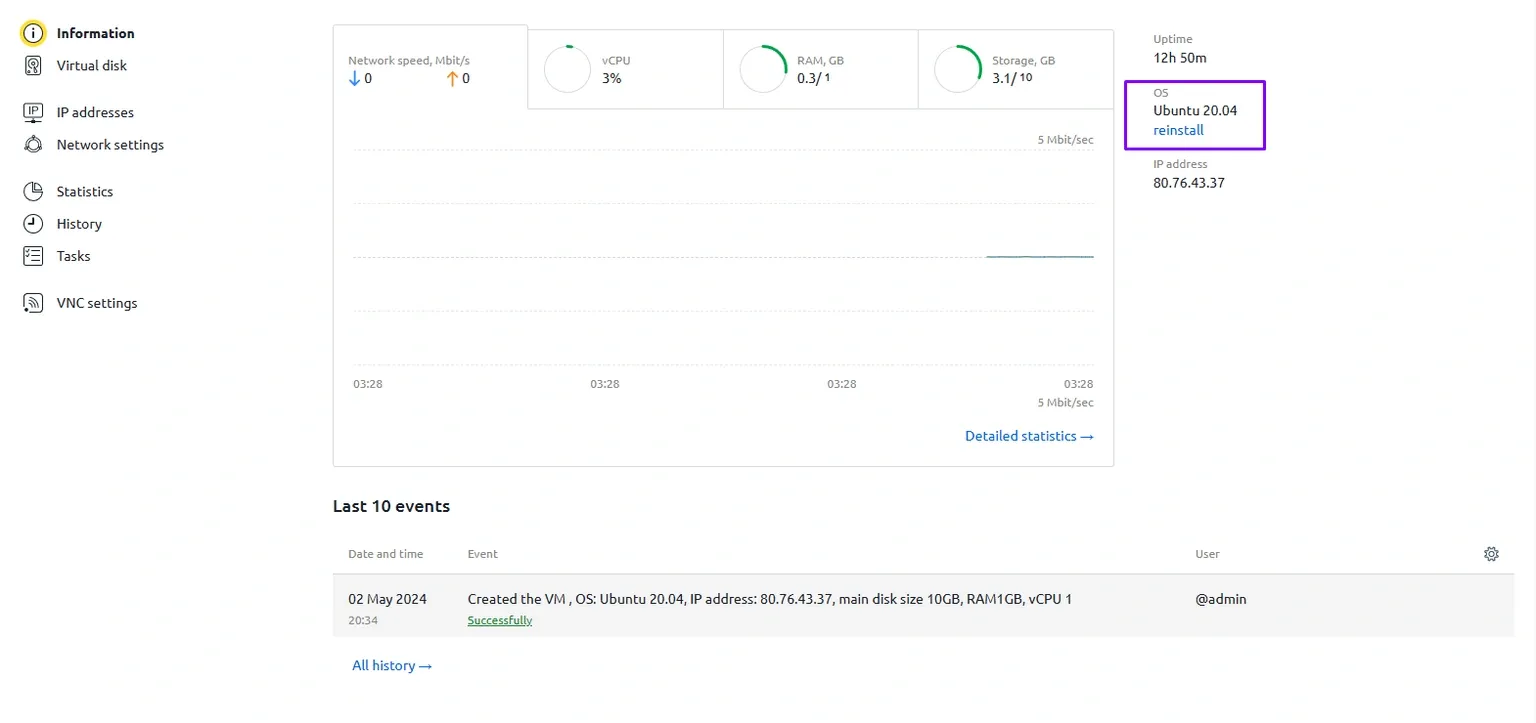
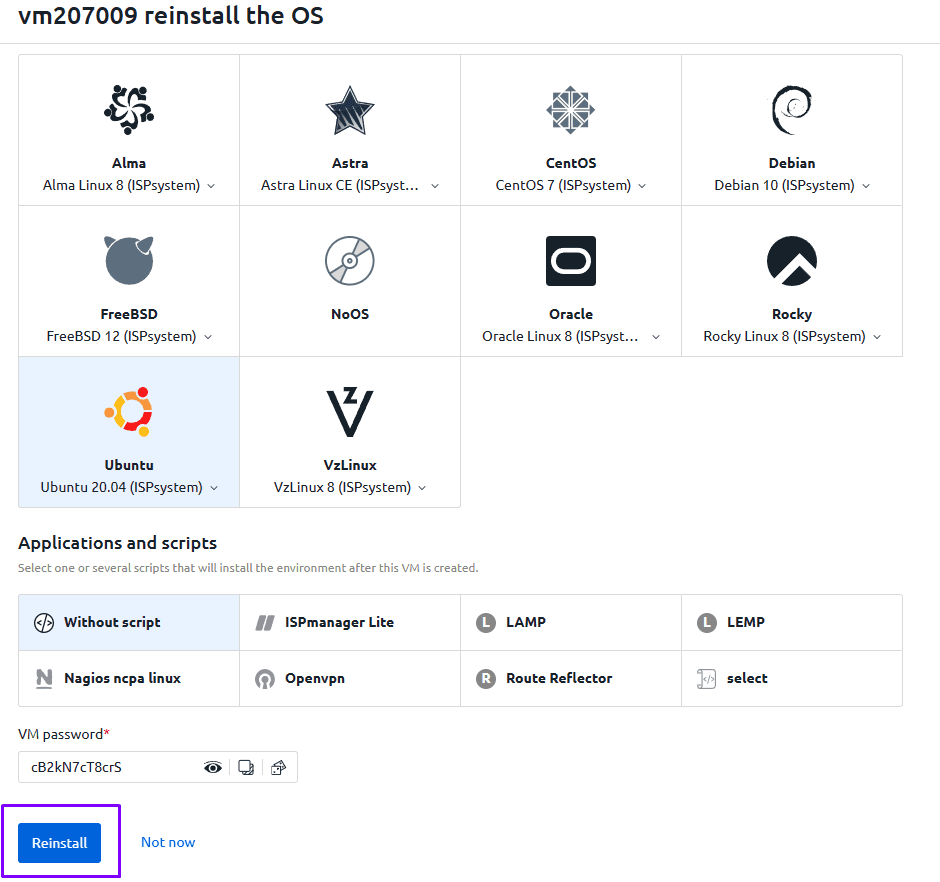
In the window that appears, select the required OS version. If needed, you can also choose scripts for automatic software installation (this option is identical to the one available when ordering the server). Below, you can either set your own password or generate one automatically. By ticking the "Send password by email" checkbox, you will receive the specified password to your email address after the OS reinstallation is completed.
We recommend either saving the password in a safe place or enabling password delivery by email, because after clicking "Reinstall" the chosen password will not be displayed anywhere in the control panel.
Wait until the OS reinstallation is finished, and then you can start working with the server. The connection procedure is exactly the same as described in the instructions above.
Please note: reinstallation of Linux distributions usually takes about 2–3 minutes, while installing Windows images can take up to 20 minutes.