IPTables Configuration: Rules and ExamplesChanging MTU on Windows and LinuxWorking with TCPDump: basics and filtersMeasuring Network Speed in Linux with Speedtest CLIDNS error “Temporary failure resolving…”: how to fix itHow to Collect Network Traceroute on Linux and WindowsMonitoring Network Traffic with VnStat
Configuring RDP Connection Settings
Information on configuring the Microsoft utility for connecting to remote servers over the RDP protocol.
In the main window you can save or open a file for quick connection to the server.
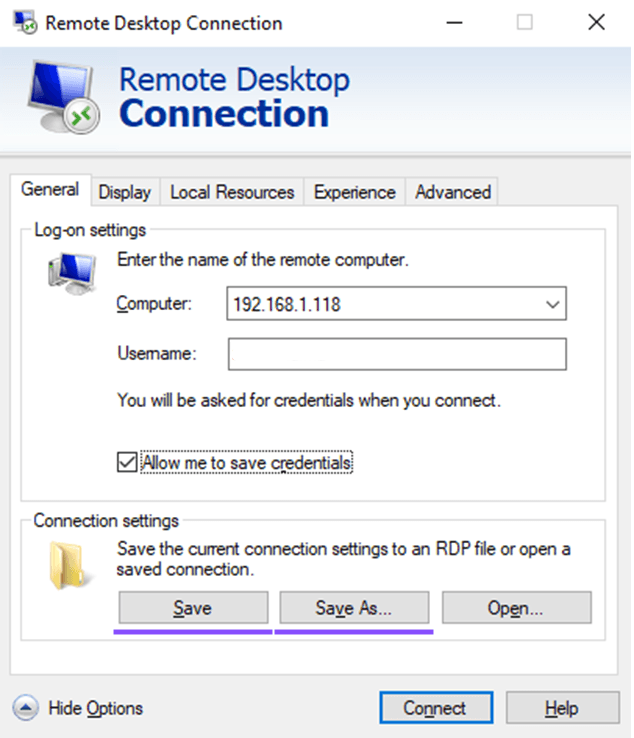
When you click the Save As button, a new .rdp file appears on the desktop.

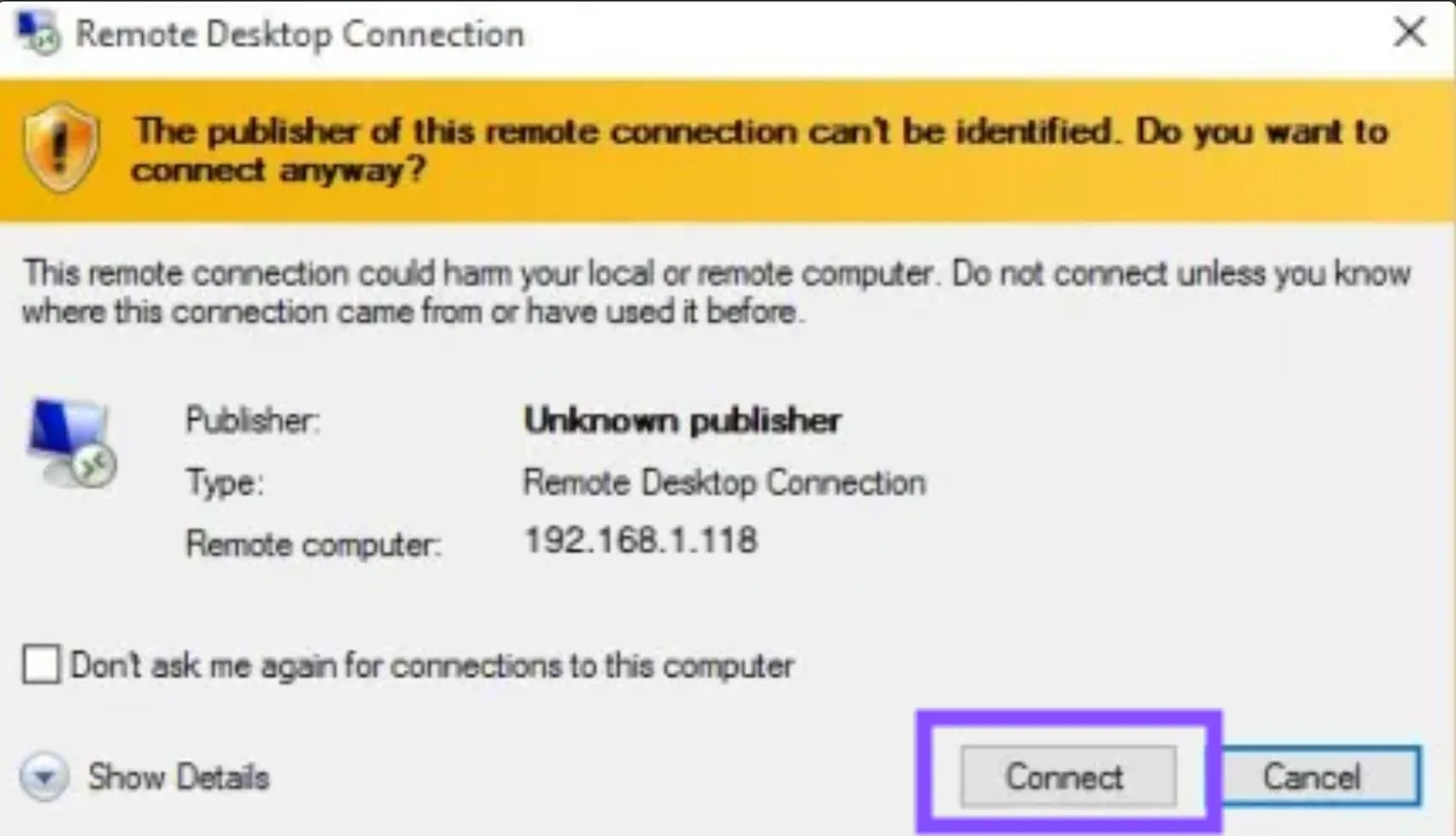
Double-click the file and a dialog appears asking you to confirm the connection again. Tick the checkbox and click Connect.
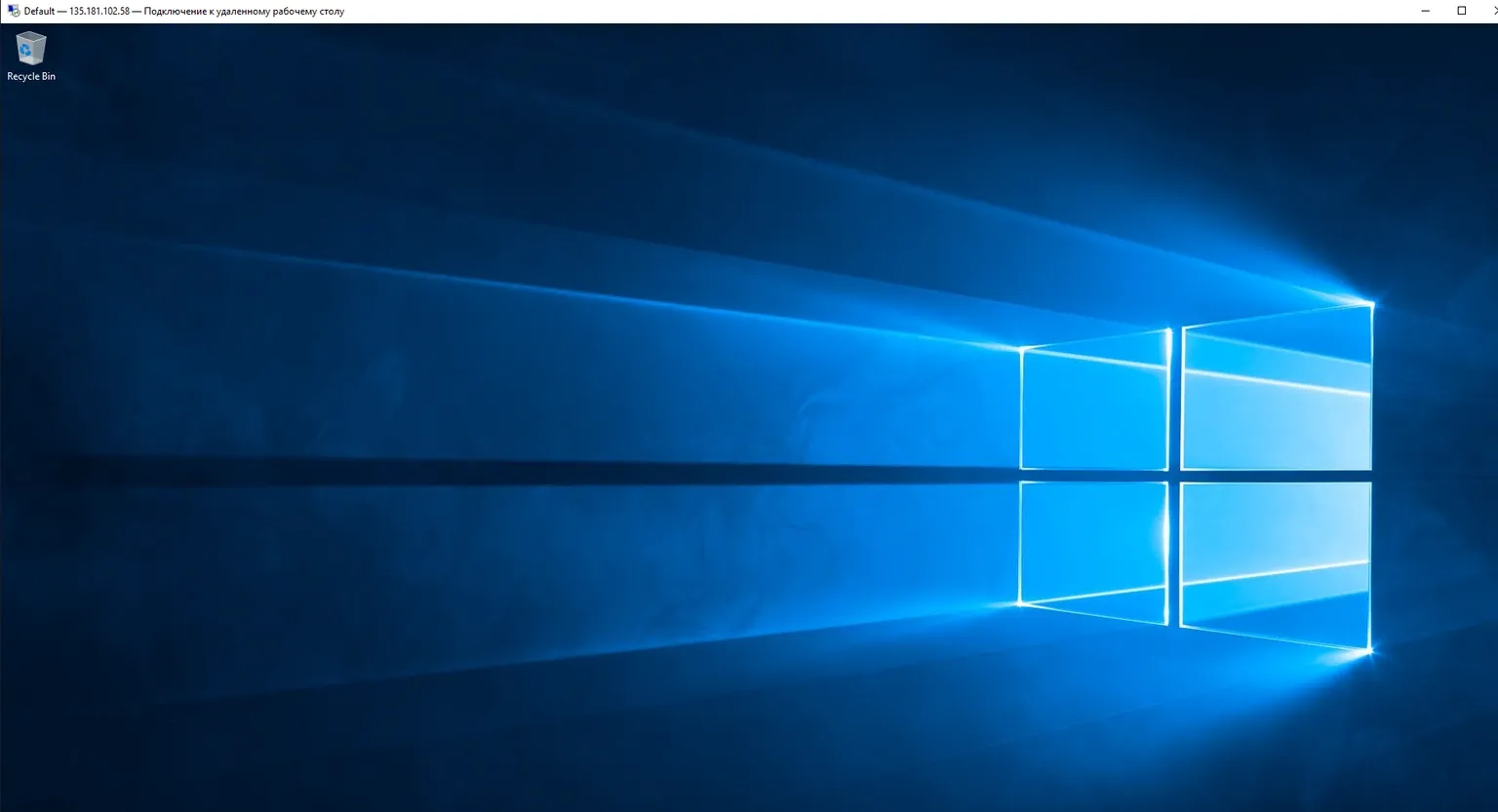
Done! We have connected to our server in the same way, but even faster.
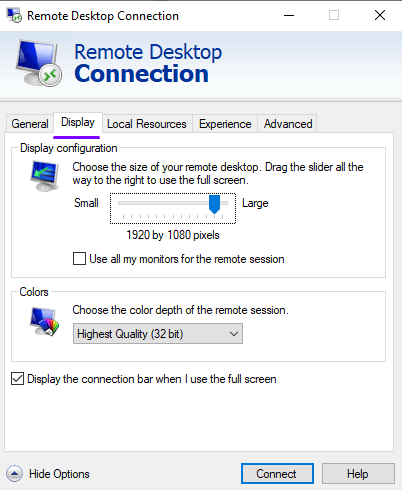
Display
Here you can configure the resolution of the server window, the color depth, and the display of the connection bar.
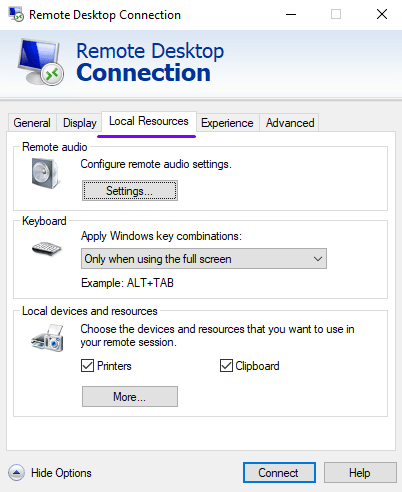
Local resources
In this section you can configure Remote Desktop audio redirection, available keyboard shortcuts, and additional devices.
Experience
Here you can set the main network settings for the connection and choose the option that best suits your needs.
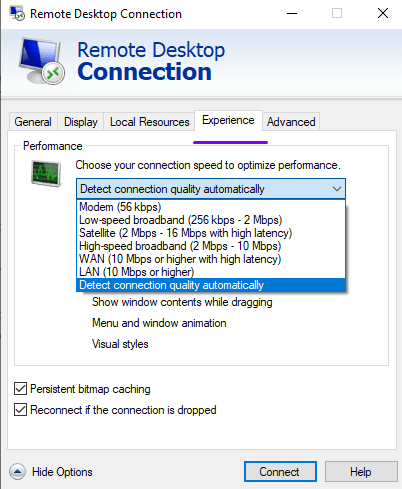
The Persistent bitmap caching option is used to prevent black screen issues during the session. We also recommend keeping the Reconnect if the connection is dropped checkbox enabled.
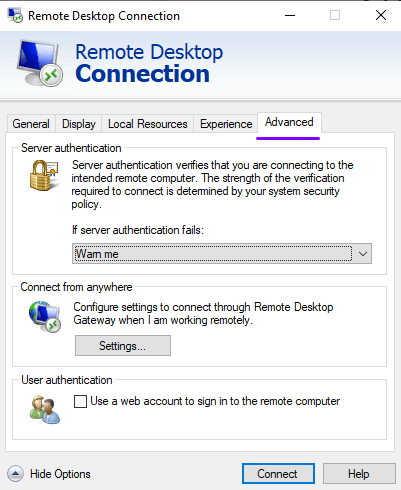
Advanced
This tab is used to configure server certificate authentication checks. You can choose one of the options: Connect and don't warn me, Warn me, or Do not connect. You can also configure connections through gateways.