


 IPTables Configuration: Rules and ExamplesChanging MTU on Windows and LinuxWorking with TCPDump: basics and filtersMeasuring Network Speed in Linux with Speedtest CLIDNS error “Temporary failure resolving…”: how to fix itHow to Collect Network Traceroute on Linux and WindowsMonitoring Network Traffic with VnStat
Password Reset
This article will help you resolve a situation where you have forgotten the password to your Windows Server account. Only built-in methods are used, without downloading any additional software.
If changing the Windows Server password from the VmManager panel fails due to errors, here is what you should do.
To restore access, we will use the SystemRescueCD utilities.
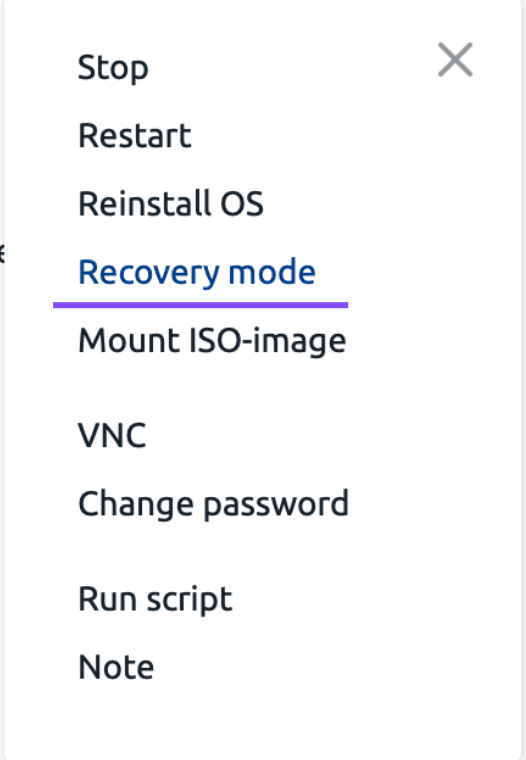
First, go to the VmManager panel, select your server, and click the "Menu" button. In the window that opens, click the "Recovery mode" button.
After clicking, an information dialog opens asking you to confirm the action.
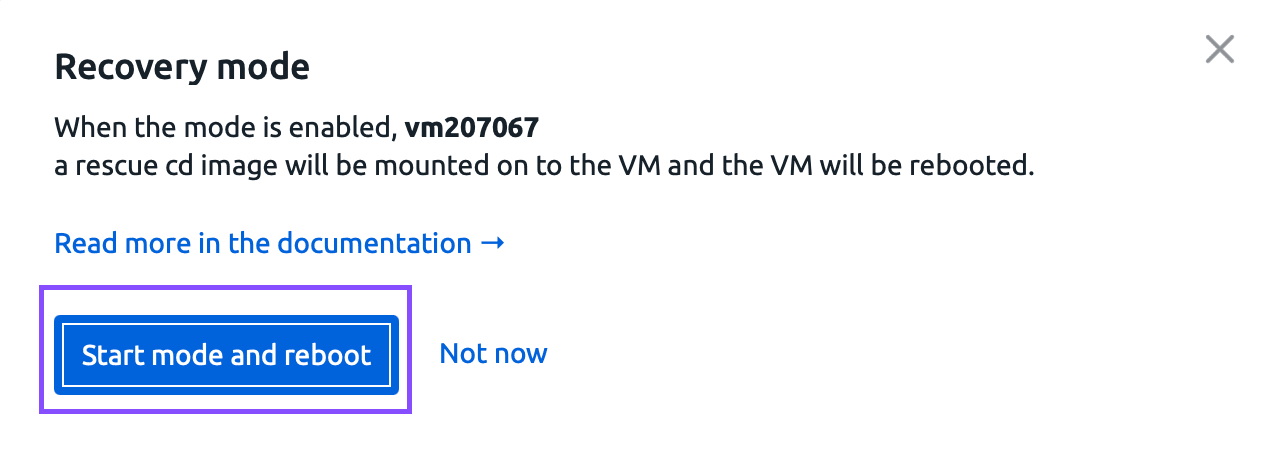
Click "Start mode and reboot". Your server will reboot and start in recovery mode.
After some time, the server will start again.

Next, you need to connect to the server via VNC using the corresponding button:

We have successfully connected to the server using VNC.
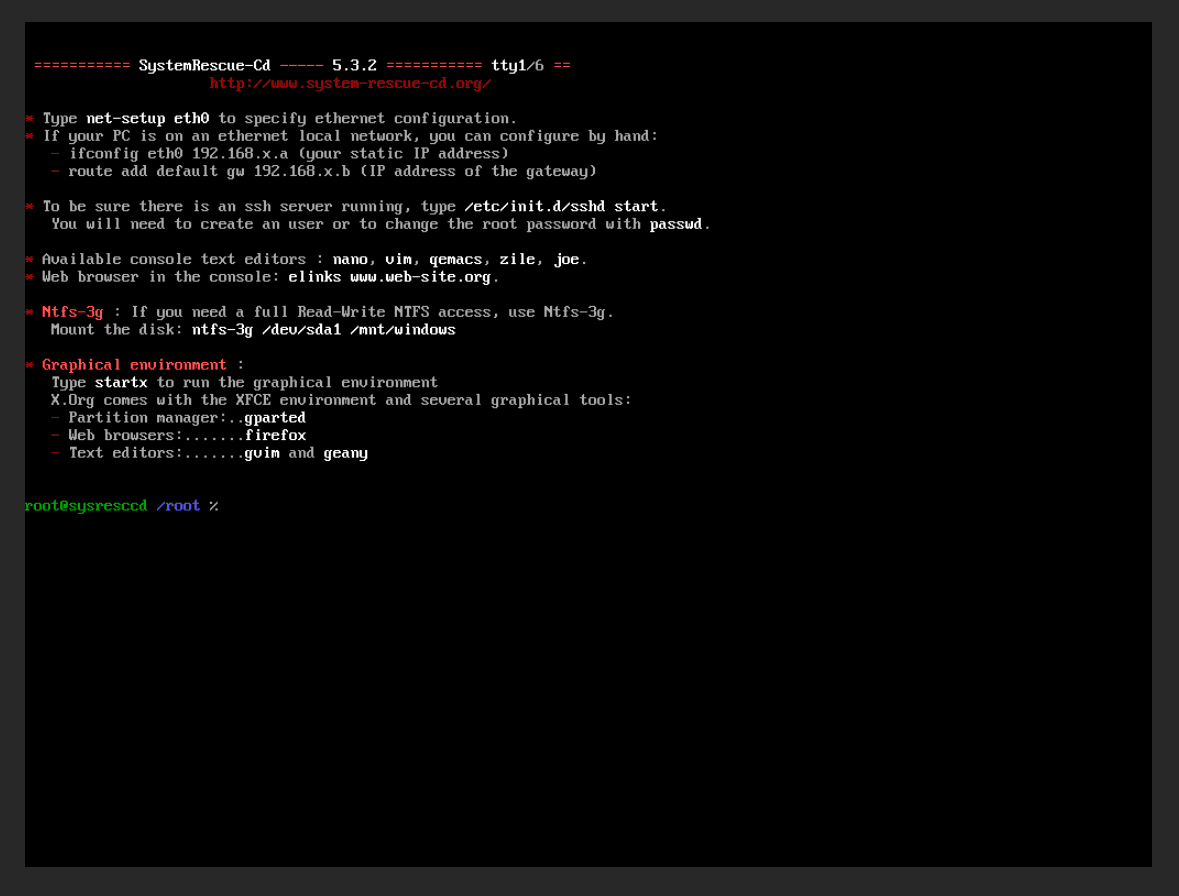
Now we need to run a command to list the existing partitions:
fdisk -l
After running the command, by default you will see the following partitions:

Mount the partition containing the operating system using the command:
mount /dev/vda2 /mnt
Next, change to the directory containing the system configuration files.
cd /mnt/Windows/System32/config/
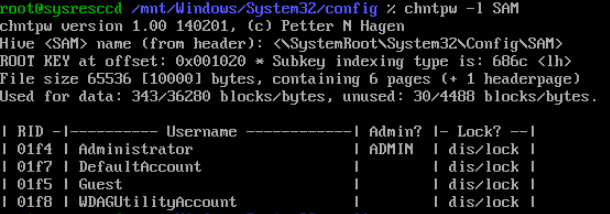
Now we need to list the Windows users using the command:
chntpw -l SAM
By default, you will see four users.
Use the following command to edit the Administrator account:
chntpw SAM
Note that to modify another user account, use the command:
chntpw -u <name> SAMA user editing menu will open. Enter "1" to clear the password.
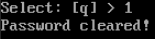
Check whether a password is set using the command:
chntpw -l SAM
Great, the Administrator account now has no password.
Return to the VmManager panel and click "Recovery mode".

Select "Disable mode and reboot".
The server has now started in normal mode.
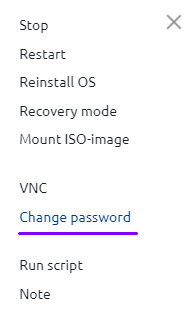
Now you can change the service password without any issues. Click the "Change password" button as shown in the screenshot.
Enter a new password or generate one automatically, then click "Save".
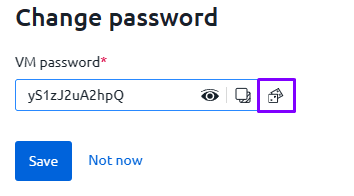
As you can see, the password change was successful.
Now try connecting to the server via remote access using the new password.
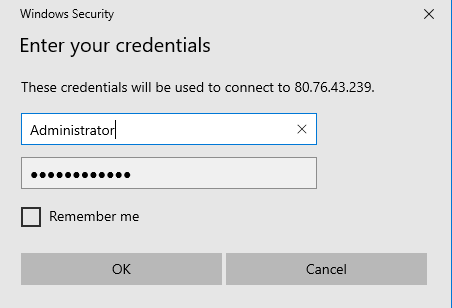
Wait for the connection to complete.

We have successfully connected to our VDS running Windows Server 2019!