


 IPTables Configuration: Rules and ExamplesChanging MTU on Windows and LinuxWorking with TCPDump: basics and filtersMeasuring Network Speed in Linux with Speedtest CLIDNS error “Temporary failure resolving…”: how to fix itHow to Collect Network Traceroute on Linux and WindowsMonitoring Network Traffic with VnStat
Resetting the Password via Rescue
Forgot the password for your Linux dedicated server? No worries — let’s fix this.
First, you need to boot your dedicated server into recovery (Rescue) mode. You can do this by following this guide .
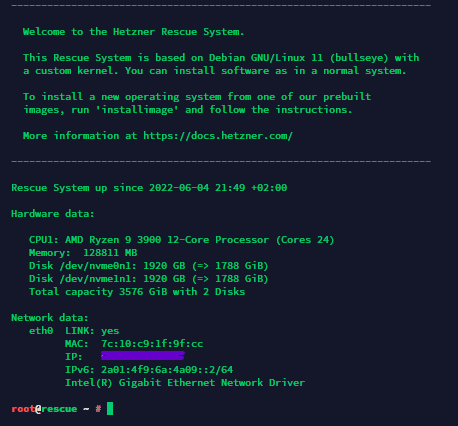
Use the
lsblk
command to view the storage devices attached to your server.
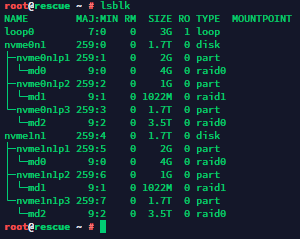
If you are using Software RAID on your server, the output will look similar to this. Pay attention to the md devices, specifically md0, md1, md2:
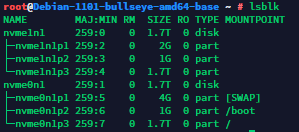
If your server does not use Software RAID, then depending on the type of storage devices, the command output will look roughly like this:
Next, you need to mount the main disk partition. Since our test server uses Software RAID, md2 is the appropriate choice here.
mount /dev/md2 /mnt
Excellent.

Now we set a new root directory to work with the newly mounted filesystem:
chroot /mnt /bin/bash
The main part of the procedure is now complete. All that remains is to use the standard command to change the password of the required user.
passwd root
Enter the new password twice.

Done.

You simply need to reboot the server in the cloud control panel or by using the
reboot
command to exit Rescue mode. After that, you can connect to your server using the new password.
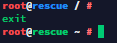
If you encounter an error like this when running the
reboot
command, use the key combination
CTRL + D
to exit the additional session that was created.
Great. Now you can reboot your server and continue working!