


 IPTables Configuration: Rules and ExamplesChanging MTU on Windows and LinuxWorking with TCPDump: basics and filtersMeasuring Network Speed in Linux with Speedtest CLIDNS error “Temporary failure resolving…”: how to fix itHow to Collect Network Traceroute on Linux and WindowsMonitoring Network Traffic with VnStat
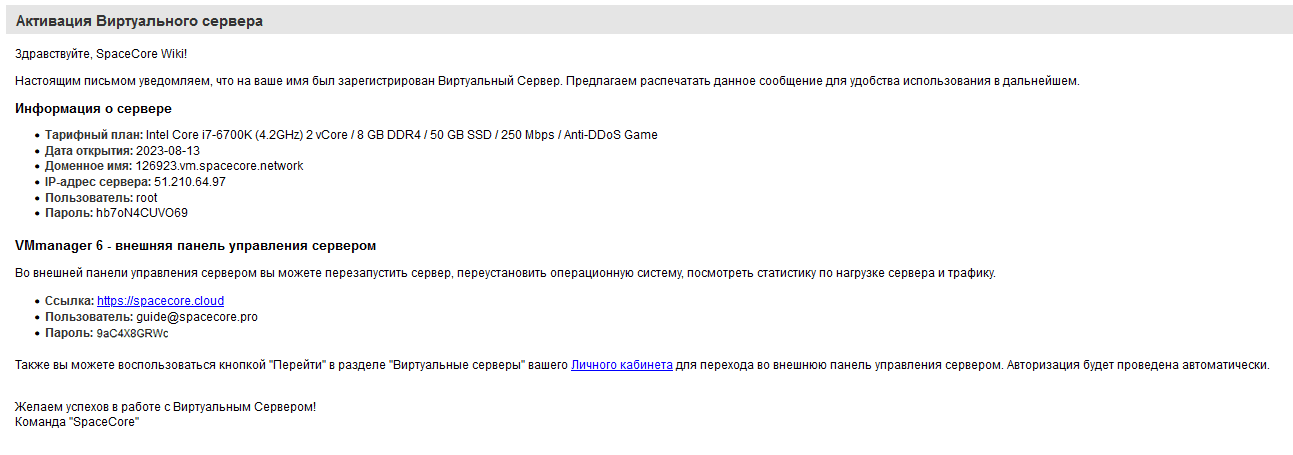
Getting your access details
If you have not purchased your server yet, you can follow our guide. Once your server is activated, you will receive an email with all the details you need to work with it.
If this is not your first time ordering a virtual server, instead of a password for the control panel you will see: "the password was sent to you in the activation email for a previously ordered server".
I have not received the email, what should I do?
This may happen in rare cases due to issues with our mail servers.
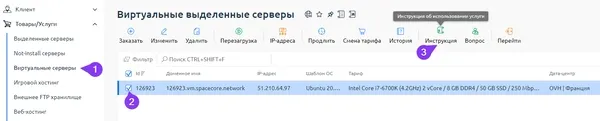
If you have checked all folders, including Spam, and still cannot find the activation email, you can find your details in your client area. Log in and then open the section with your service, in this case "Virtual servers", then select the specific server and click the «Instructions» button, as shown in the screenshot.
As a result, a copy of the service activation email will open for you on a new page.
Connecting to the server
On most popular server Linux distributions such as Ubuntu, Debian, CentOS and others, SSH and SFTP services are installed by default. This means there is no need for additional configuration — you can connect to your server right away.
Connecting via SSH
You can use free tools such as Termius, Putty, WinSCP, MobaXterm and others. In this guide, we will use Termius as the simplest and most convenient option.
You can download Termius from the official website via the following links:
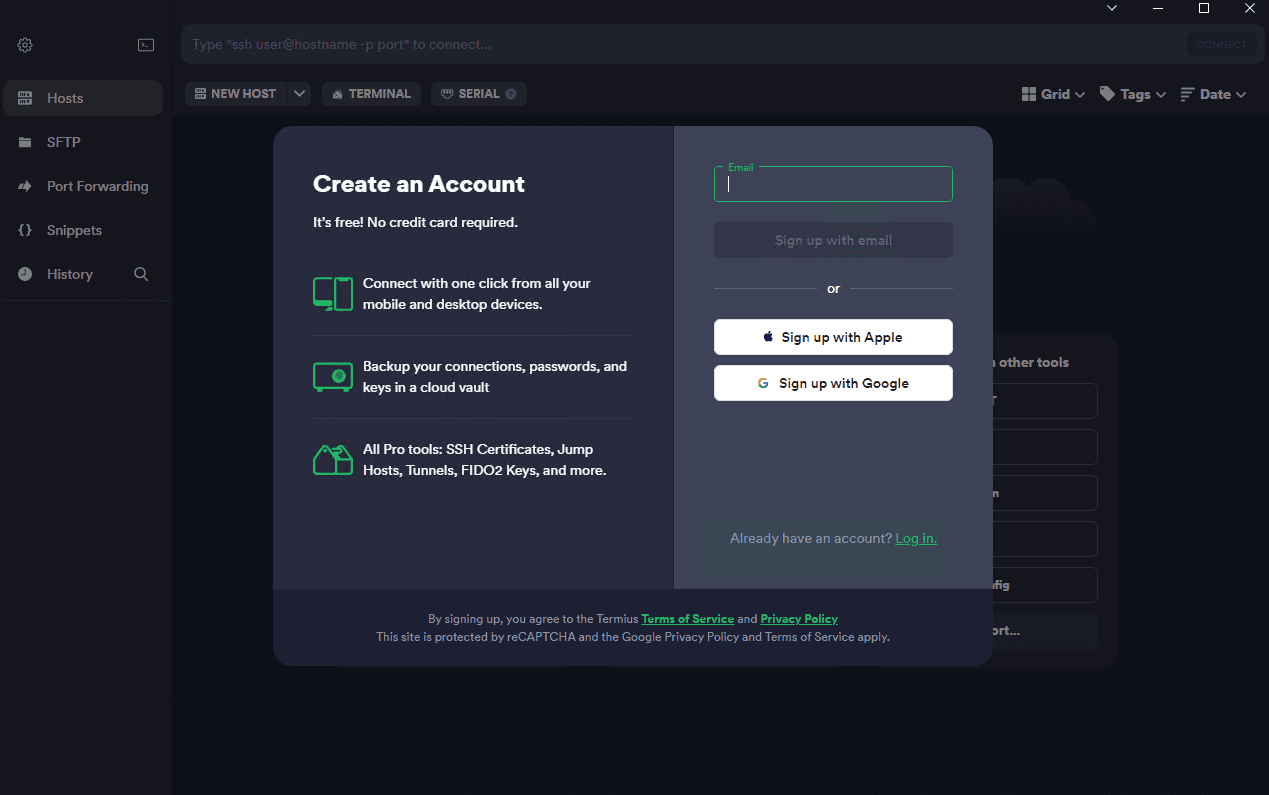
Install the application and then register an account if you do not already have one.
Next, go to the "Hosts" section, click "New Host" and enter the server details that were provided in the activation email.
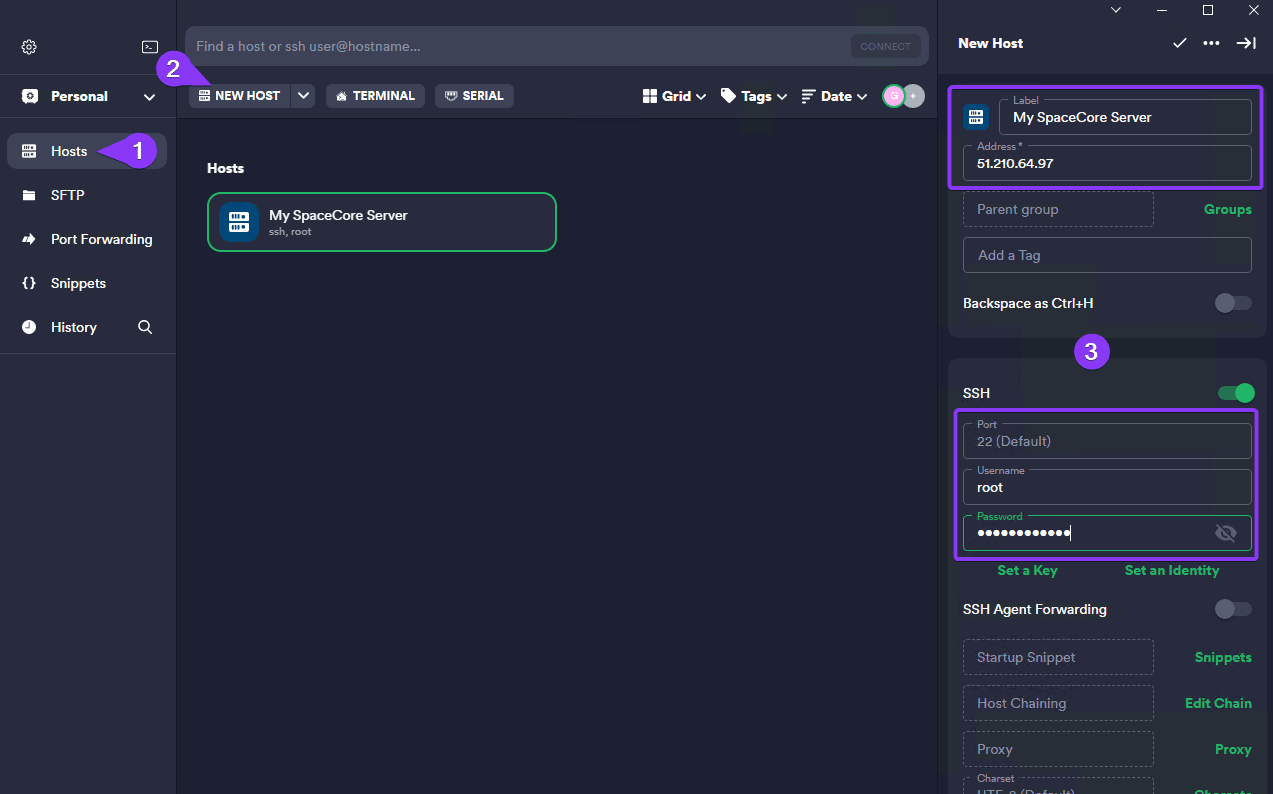
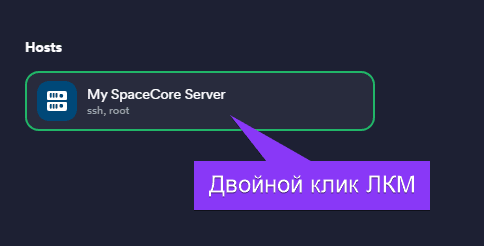
Save the entered details and try connecting to the server by double-clicking the saved host.
The application detects a new host fingerprint. Add it using the "Add and continue" button so that this warning does not appear during subsequent connections.
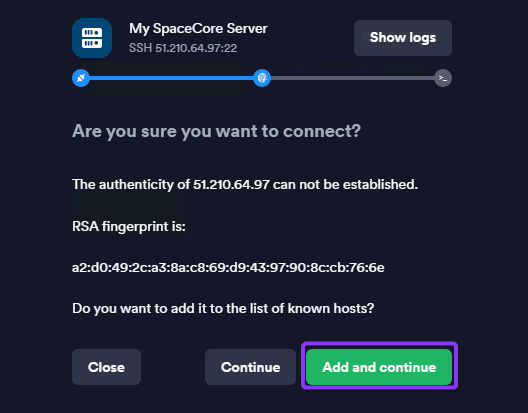
The connection is established.
Transferring data via SFTP
But that is not all! How do you transfer files from your computer to a remote server? For this, we will use the SFTP protocol, which is also configured by default on all our Linux OS images.
You can use free applications such as FileZilla, WinSCP and others. However, we will use Termius, which includes a convenient built-in SFTP client.
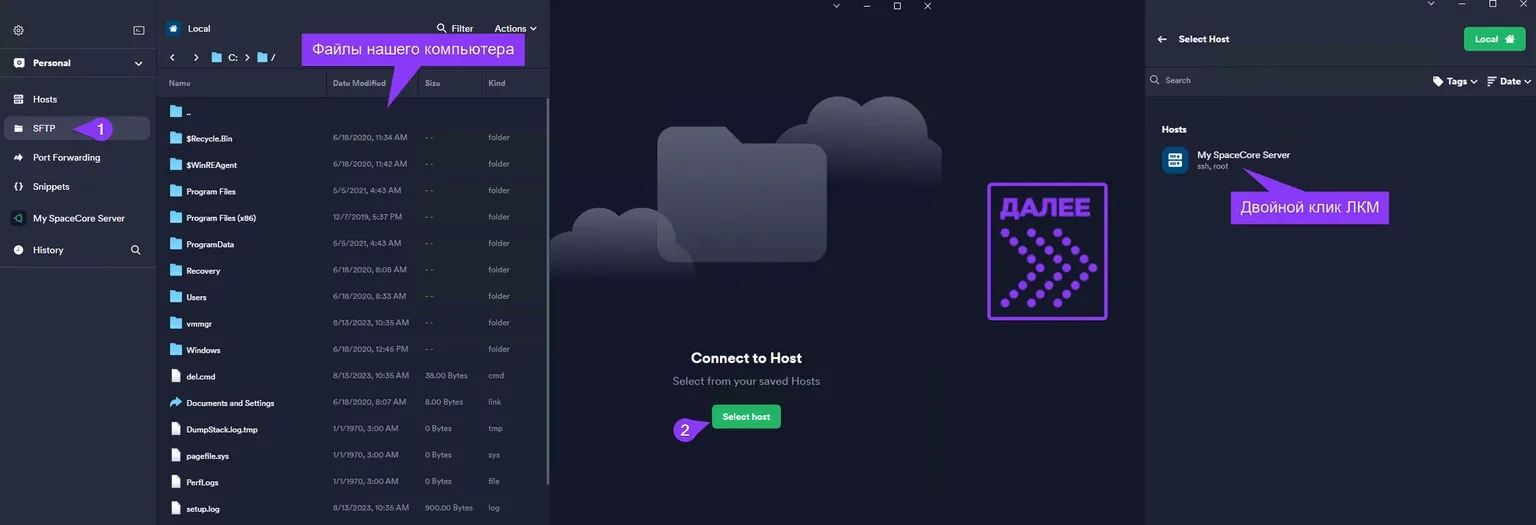
After connecting, you can transfer any files to your server simply by dragging and dropping them.
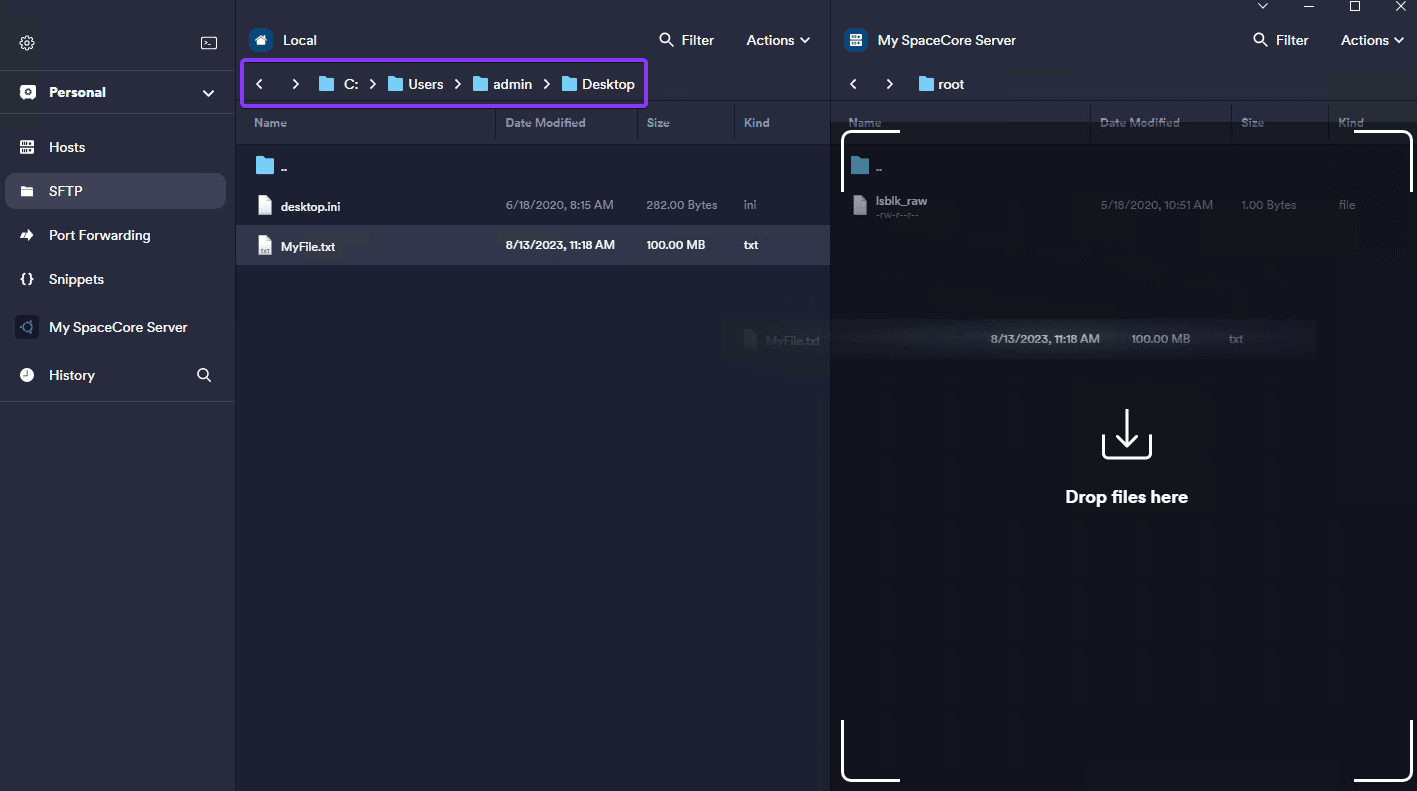
By default, you are in the root directory of both your computer and the server. To navigate to the required location, you can specify the path in the corresponding field. The screenshot shows the path to the Windows desktop. The exact path will differ depending on the operating system.
