


The hosts file: what it is, where it lives, and how to edit it
Sometimes a site opens for everyone except you. Or the opposite - the domain is not even delegated yet, but you already want to check how a fresh server will handle it. In both cases the answer often hides in one small text file that people rarely think about - the hosts file.
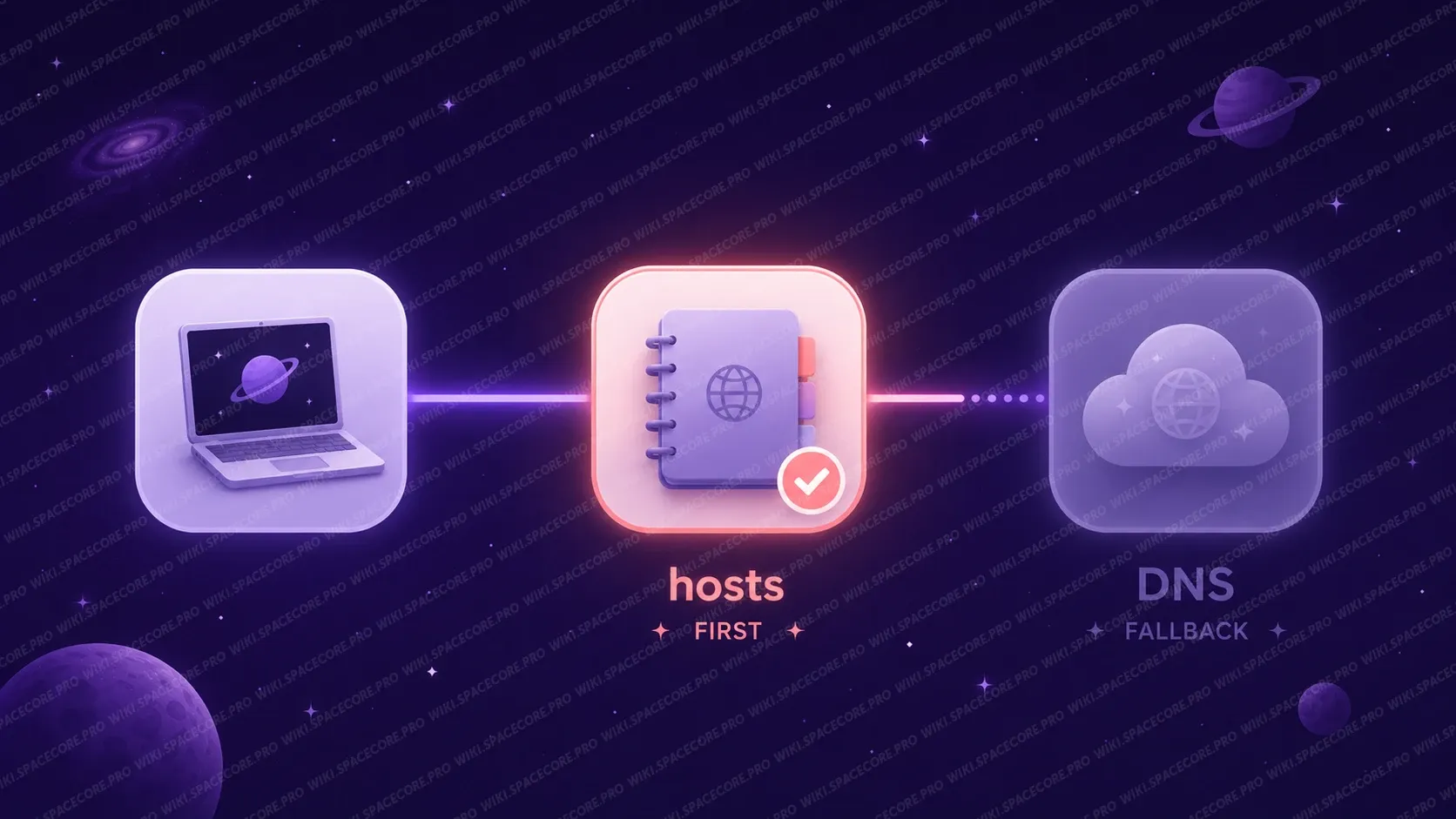
hosts is a plain text file that maps domain names to IP addresses right on your own computer or server, bypassing DNS. Roughly speaking, it is a local address book that the system looks into before it turns to DNS servers.

#What the hosts file is actually for
When you open any address in a browser, the system first has to turn the domain into an IP. By default DNS handles this. But before going to a DNS server, the OS looks into the local hosts file. If the needed record is there, the system uses it and does not contact DNS at all.
This leads to several genuinely useful scenarios.
- Test a new server before moving DNS. You ordered a VPS, deployed the site, but the domain still points to the old hosting. By adding a "domain to new IP" pair in hosts, you see the site on the new server only for yourself, without breaking anything for other visitors.
- Block a domain locally. By pointing a domain at or , you cut off access to it on a specific machine - this is how many homemade ad blockers and parental controls work.
- Work around broken or hijacked DNS. If the DNS resolver returns a wrong answer, a temporary hosts record lets you reach the service directly.
- Local networks and development. It is handy to give yourself readable names like for machines without public domains.
An important caveat: hosts only applies on the machine where you edit it. This is not a domain setting and not a DNS replacement for the whole world - visitors to your site will not see the changes in your hosts.
#What the hosts file looks like inside
The contents are extremely simple. Each line is an IP address, then one or more spaces (or a tab), then a domain name. Lines starting with the symbol are treated as comments and ignored.
# This is a comment, the system skips it
127.0.0.1       localhost
::1             localhost

# Point a domain at a specific server
185.12.34.56    example.com
185.12.34.56    www.example.com

# Local domain block
0.0.0.0         ads.example.net
Here is always the local computer itself (loopback), and is the same address in IPv6 form. You usually do not need to touch these two lines: correct system behavior depends on them.
#Where the hosts file is located
The path depends on the operating system. The file itself is named the same everywhere - , with no extension.
| Operating system | Path to the hosts file |
|---|---|
| Windows | C:\Windows\System32\drivers\etc\hosts |
| Linux | /etc/hosts |
| macOS | /etc/hosts |
On all three systems you need administrator (root) rights to edit hosts. Without them the file opens read-only and you will not be able to save changes.
#How to edit hosts on Windows
The main difficulty on Windows is exactly the access rights. If you open the file with an ordinary double click, you will not be allowed to edit it. That is why the editor must be launched as administrator.
- Click "Start" and begin typing Notepad.
- Right-click it and choose Run as administrator.
- In Notepad open the file via "File - Open" and go to the path .
- In the file type field choose "All files", otherwise hosts (which has no extension) simply will not be visible.
- Open , add the lines you need and save with the usual Ctrl + S.
If Windows still complains about access when saving, the editor was almost certainly not launched as administrator. Close it and reopen it the correct way. In some cases edits to hosts can be blocked by an antivirus or Microsoft Defender, which treats them as potentially unwanted - then you need to confirm the change in its notification.
#How to edit hosts on Linux
On a server the easiest way is to work over SSH with the console editor nano. The command has to be run as root or through .
sudo nano /etc/hostsAdd the line you need to the end of the file, for example to point a domain at a specific server:
185.12.34.56 example.comSave the file with Ctrl + O and confirm the name with Enter, then leave the editor with Ctrl + X. The changes take effect immediately, no server reboot is required.
Alternative: add a line with a single command, without an editor
Sometimes it is convenient to append a record to hosts with a single command. You might be tempted to use the redirect, but will not work: the redirect is performed by the shell as your own user, not as root. That is why people use with the (append) flag - it appends the line to the end of the file as root. Without the command would overwrite the whole file.
echo "185.12.34.56 example.com" | sudo tee -a /etc/hosts#How to edit hosts on macOS
On macOS the path is the same as on Linux. Open "Terminal" and run:
sudo nano /etc/hostsThe system will ask for the administrator password. The rest is the same: you add a line, save with Ctrl + O, and exit with Ctrl + X. After editing, on macOS it is sometimes useful to flush the DNS cache so the changes are picked up for sure:
sudo dscacheutil -flushcache
sudo killall -HUP mDNSResponder#How to check that a hosts record works
After editing it is worth making sure the system really resolves the domain to the desired IP. The simplest way is the command: its output shows which address the request goes to.
ping example.comIf the reply shows the IP you wrote in hosts, the record has been applied. Keep in mind that many servers do not respond to ping (ICMP is closed by a firewall), and that is normal: what matters is the line that resolves the address, not the replies themselves. On Windows is more convenient for checks, but it shows the DNS answer and may ignore hosts - so for hosts specifically it is more reliable to rely on or on actually opening the site in a browser.
If the changes are not picked up, flush the DNS cache. On Windows use the command in a console launched as administrator. On Linux it depends on the resolver in use (for example or restarting ).

#Security: why viruses love hosts
Since hosts is checked before DNS, it becomes a tempting target for malware. A classic phishing trick is to add a line to hosts that sends a banking or email domain to a fake IP. The user types the familiar address but lands on a clone site.
That is why it makes sense to look into your hosts from time to time. If you see unfamiliar lines there with well-known domains (banks, social networks, email) that you did not add - that is a reason to be alarmed and scan the system with an antivirus.
Before any edit to hosts it is useful to save a copy. On Linux this is a single command: . If something goes wrong, you can always restore the original state.
#Common mistakes when working with hosts
- The file is saved with an extension. On Windows Notepad likes to add , and you get - the system does not read such a file. The name must stay exactly , with no extension.
- No administrator rights. The most common cause of "it will not save". The editor must be launched as administrator (Windows) or the command run through (Linux/macOS).
- No space or tab separating the IP and the domain. There must be at least one space or tab between the address and the name. Glued together, will not work.
- Forgetting about the DNS cache. Sometimes the edit is correct, but the old answer is still cached - flushing the cache and restarting the browser helps.
- Accidentally deleting the localhost line. It is better not to touch the and lines: system services depend on them.
#The short version
The hosts file is a local "domain to IP" lookup table that the system consults before DNS. It does not configure a domain globally and works only on a single machine, but that is exactly why it is handy: you can safely test a new server before moving DNS, locally block access to a domain, or work around a faulty resolver.
If you are migrating a project to a new server and want to test it on your own domain before switching DNS, add a "your domain to new VPS IP" pair to hosts. That way you make sure the site came up correctly on the new platform before you let real visitors onto it. SpaceCore servers with full root access let you deploy and verify an environment in exactly this way - without rush and without downtime for users.
#Frequently asked questions
#Do I need to reboot the computer after editing hosts?
No. The changes apply immediately. Sometimes you only need to close and reopen the browser or flush the DNS cache if the old answer is cached.
#Can I point one IP at several domains?
Yes. Each domain is written on its own line with the same IP, or several names can be listed on one line, separated by spaces after the address.
#What is the difference between 127.0.0.1 and 0.0.0.0 when blocking a domain?
Both options send the domain into nowhere on the local machine. redirects the request to the computer itself (and sometimes causes a short delay when trying to connect), while more often leads to an instant refusal. For blocking, is usually preferred.
#Why does my hosts record not work?
Most often the cause is one of three things: the file was saved without administrator rights, it gained an extra extension, or the DNS cache was not flushed. Check these three points first.
Did not find the answer? We are online 24/7.Contact support