


Setting Up a Minecraft Server Network with BungeeCord
Many people wonder: "How do I actually build my own server network?". Let's figure it out!
Before installing the server we recommend reading these articles:
- Installing a Minecraft Java server
- Installing Screen
- Installing Java: Ubuntu / Debian
This guide demonstrates how to install a BungeeCord server on Minecraft 1.17. We will show 2 installation options - via sFTP or purely through SSH.
#Installing the servers
Once all the required software is in place, let's start uploading the server.
#sFTP
Create a new directory with any name you like.
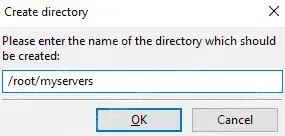
Open it.

Next we need to upload the BungeeCord core into this folder (or create a dedicated folder per server). To get the latest BungeeCord build we will use the official site. After downloading, send the file to our directory.
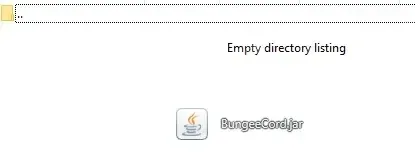
Open the server folder over SSH.
cd myservers
Use this command to create a new Screen window:
screen -S bungeecordThe window is ready.

Now let's start the server itself. You can do it via an SH script or by launching Java with arguments manually.
java -Xms512M -Xmx2048M -jar BungeeCord.jar nogui- - minimum amount of RAM allocated to the game server.
- - maximum amount of RAM available to the server at runtime.
- - the type of file to launch.
- - the name of the game server core itself.
- - argument that disables the graphical interface, which we do not need.
The server started successfully on port 25577.
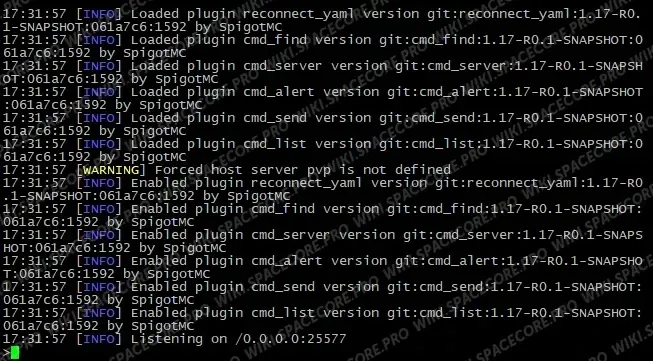
Press to leave the Screen window.
Now let's create a new folder for the game server where users will actually play:
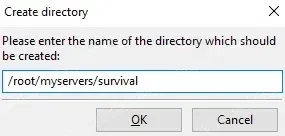
Open it. Done!

Next, download the latest Paper 1.17 build. Upload the core into the new directory:

Done!

Create a new Screen window for this server:
screen -S survival
Switch to the server directory:
cd myservers/survival
Use the SH script or run the server manually:
java -Xms512M -Xmx2048M -jar paper-1.17-71.jar noguiAs usual, accept the EULA by setting inside , then start the server again:
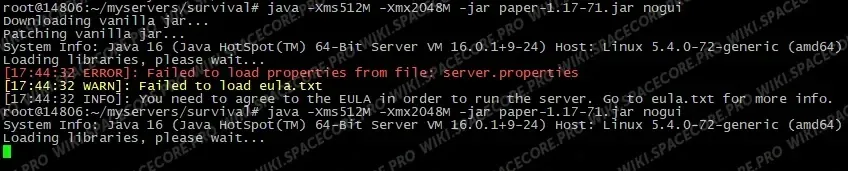
The server is up.
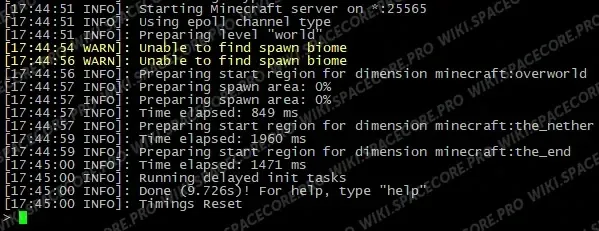
Press to hide the window.
#SSH
Now let's look at installing the servers entirely through the SSH console. Create a directory in the root folder for our servers and switch to it:
mkdir myservers && cd myserversDownload the BungeeCord core.
wget https://ci.md-5.net/job/BungeeCord/lastSuccessfulBuild/artifact/bootstrap/target/BungeeCord.jarDone.

Create a new Screen window for the server:
screen -S bungeecord
Start the server:
java -Xms512M -Xmx2048M -jar BungeeCord.jar noguiThe server is running.
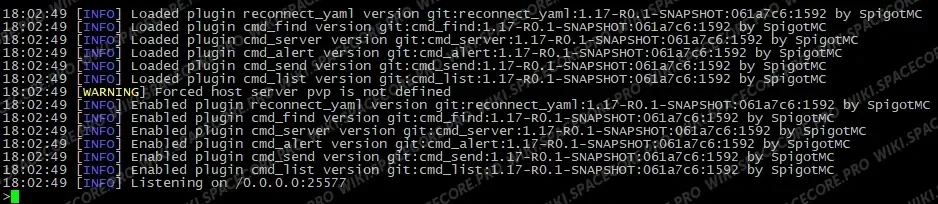
Leave the window with .

Create a new directory for the game server players will join, then switch to it:
mkdir survival && cd survivalDownload the latest Paper 1.17 build.
wget https://papermc.io/api/v2/projects/paper/versions/1.17/builds/71/downloads/paper-1.17-71.jarThe core is downloaded.

Create another Screen window for the new server.
screen -S survival
Start the server.
java -Xms512M -Xmx2048M -jar paper-1.17-71.jar noguiAs usual, accept the EULA by setting inside , then start the server one more time:
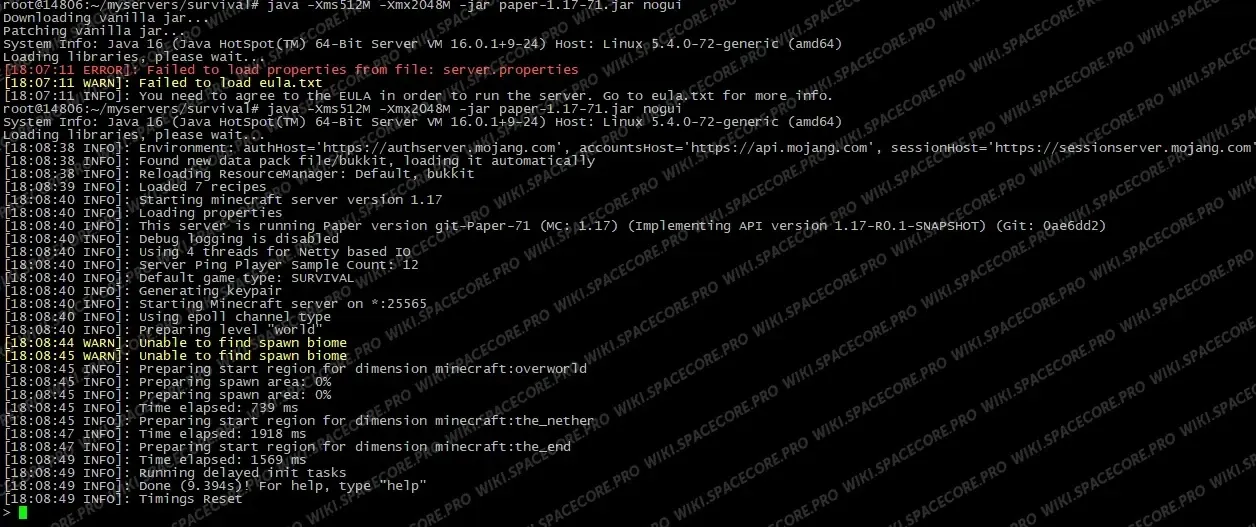
Press to leave the window.

#Linking the servers
First, let's review the file in the BungeeCord folder.
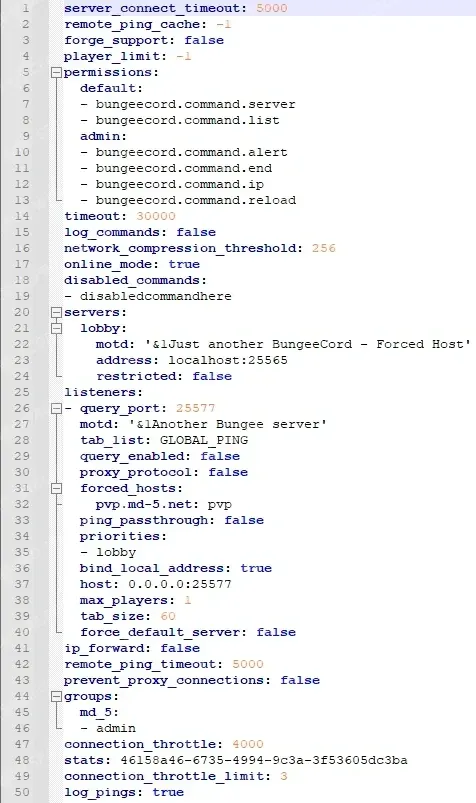
- server_connect_timeout - how long a player has to join the server before being disconnected.
- remote_ping_cache - sets, in milliseconds, how long BungeeCord caches the player count. Disabled by default.
- forge_support - controls Forge support on BungeeCord servers.
- player_limit - the real slot count on the BungeeCord proxy. Default -1 - unlimited.
- permissions - declares default permissions for the various groups on the servers.
- timeout - how long BungeeCord may stay unresponsive before disconnecting all players.
- log_commands - when enabled, every BungeeCord command used by a player is shown in the console.
- network_compression_threshold - sets the network compression threshold, usually tuned when the hosting is far from the main audience.
- online_mode - controls whether players must use a licensed copy of the game. Disable it to make the server cracked.
- disabled_commands - here you can list commands that should be blocked.
- servers - this section configures the servers BungeeCord talks to, we will cover it in more detail below. If is enabled, only players with the permission can connect.
- query_port - the port used to fetch server information via query.
- motd - the server description shown in the master list.
- tab_list - configures the in-game TAB list, supports several modes:
- - shows all players in the tab and updates their ping.
- - also shows players but without ping updates.
- - shows only the local players on the current server.
- query_enabled - enables the GameSpy4 service that exposes server info. The port is configured in .
- proxy_protocol - enables the HAProxy PROXY protocol for all incoming connections.
- forced_hosts - redirects specific subdomains to game servers behind BungeeCord.
- ping_passthrough - lets query connections receive the MOTD and player count from the backend server.
- priorities - sets the priority servers players connect to.
- bind_local_address - whether the IPv4 address should point to a localhost backend. Useless unless the server has multiple IPs.
- host - the server host with port. Usually a local address.
- max_players - the "fake" slot count on the server. Even with 0 here, players can still join.
- tab_size - maximum number of players that may appear in the TAB list.
- force_default_server - related to . If true, the player is always connected to the priority servers. If false, the player returns to the last server.
- ip_forward - forwards the real player address through the proxy.
- remote_ping_timeout - how long BungeeCord may ignore query requests before dropping the connection.
- prevent_proxy_connections - when enabled, players cannot connect through a proxy.
- groups - assigns players and the group they receive by default.
- connection_throttle - time in milliseconds a player must wait before reconnecting.
- stats - a randomly generated code for MCStats statistics. Do not change it to avoid losing your stats.
- connection_throttle_limit - how many logins a player may attempt within the window.
- log_pings - prints information about player pings to the console.
#Configuring the servers
In the config we specify the server name, description and address with port.
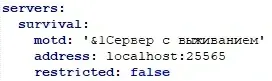
We also set the priority server.
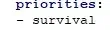
This is optional if you only have one server. That is everything we need for a basic link-up.
Save the file and push it back to the server.
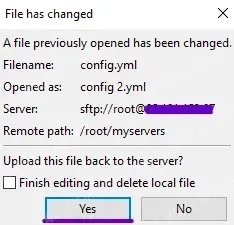
Now switch to the folder of our player-facing server (survival).

Open and set .

Note that this setting does not affect connecting via a licensed or cracked client. We disable it here purely to wire the server correctly to BungeeCord. License checks for the proxy are configured in the BungeeCord .
Save the file and upload it back to the directory.
#Starting the servers
Let's return to the BungeeCord window with this command:
screen -x bungeecordWe are back in the BungeeCord console. Stop the server with and start it again:
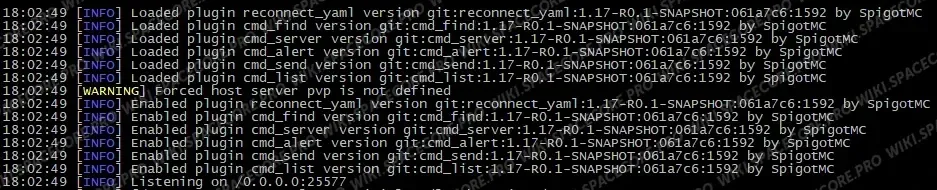
java -Xms512M -Xmx2048M -jar BungeeCord.jar noguiThe server is running.
Leave the window with .

Reattach the Survival window:
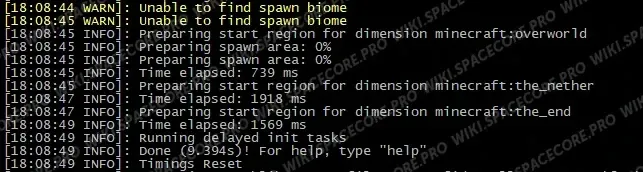
screen -x survivalWe see the console of the running server.
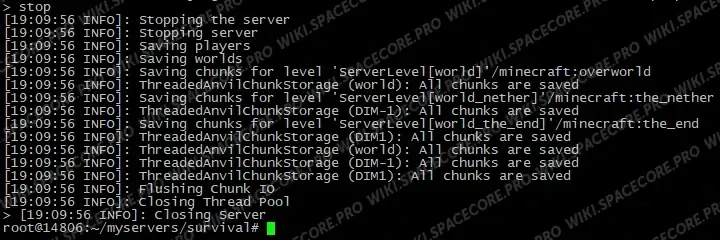
Use to shut it down.
Start it again:
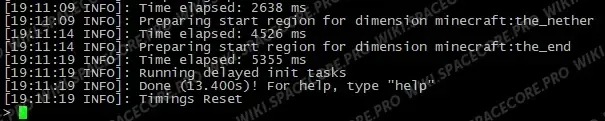
java -Xms512M -Xmx2048M -jar paper-1.17-71.jar noguiThe server is up.
Let's test BungeeCord. Add the default address with port 25577 (which BungeeCord uses by default).

Try to join.
The BungeeCord console shows the moment the server is pinged via the Minecraft network list, the connection process to BungeeCord itself and the redirect to the Survival server.

Thank you for reading the article. This way you can add an unlimited number of servers to a BungeeCord network.
Your SpaceCore team.
Did not find the answer? We are online 24/7.Contact support