


How to Set Up Happ
Happ is a free app for connecting to a VPN or proxy, built on the Xray core. It runs on Windows, macOS, Linux, Android and iPhone and accepts VLESS, VMess, Trojan and Shadowsocks links as well as subscriptions. Paste a link from the 3X-UI panel, and Happ loads your servers by itself. That is why Happ suits both experienced and beginner users.
This guide uses a server running Ubuntu 24.04 with the 3X-UI 3.8.5 panel, Happ 4.3.0 for Windows 11 and Happ 4.4.1 for Android 14.
Please note that Happ is third-party software. SpaceCore is not responsible for how it works.
You will need your own server with the 3X-UI panel. We described how to install it and create a connection in a separate article - we recommend starting there. Any available plan on our virtual servers is enough for 3X-UI.
#A link for Happ in the 3X-UI panel
Happ connects to the server via a link. The most convenient option is a subscription link.
A subscription is an address from which Happ fetches the list of your servers. If you change something in the panel, update the subscription in Happ and the changes will arrive. A single vless:// link works too, but you will have to replace it by hand.
#Client in 3X-UI
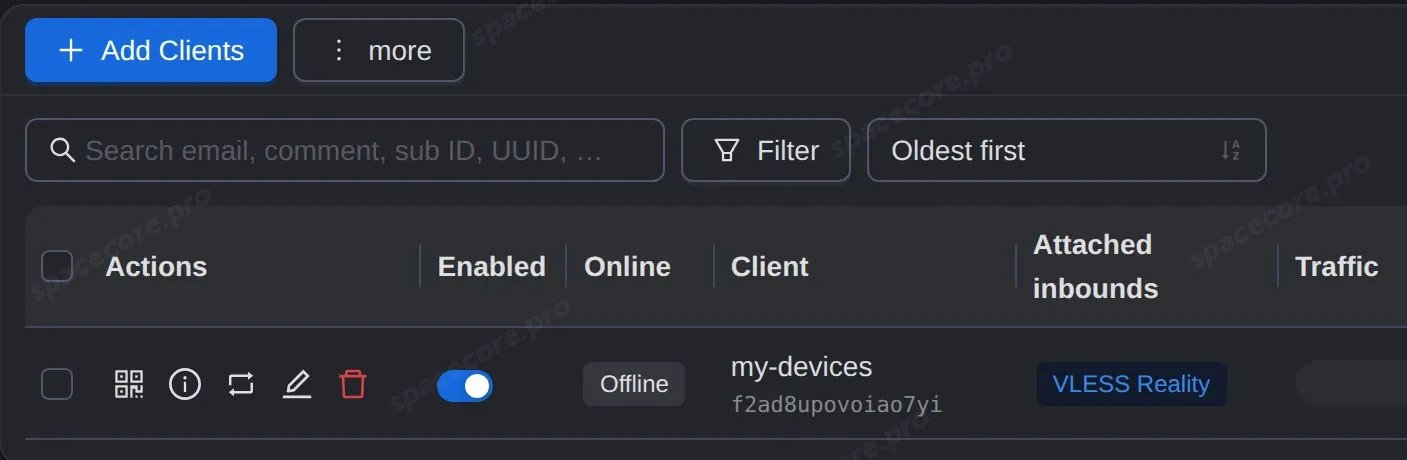
Open the 3X-UI panel and go to the "Clients" page in the menu on the left. 3X-UI versions 3.x keep clients on a separate page. Versions 2.x keep them inside the connection on the "Inbounds" page.
If there is no client yet, click "Add Clients". Enter any name in the "Email" field, an email address is not needed. Select your connection in "Attached inbounds".
If the connection is VLESS with REALITY, as in our 3X-UI article, set "Flow" to xtls-rprx-vision on the "Credentials" tab. Click "Create".
#Where to get the link
Click the first button in the "Actions" column. It opens the client QR code.
In the "Subscription info" block, click the copy icon next to the name. The subscription link is now in the clipboard.
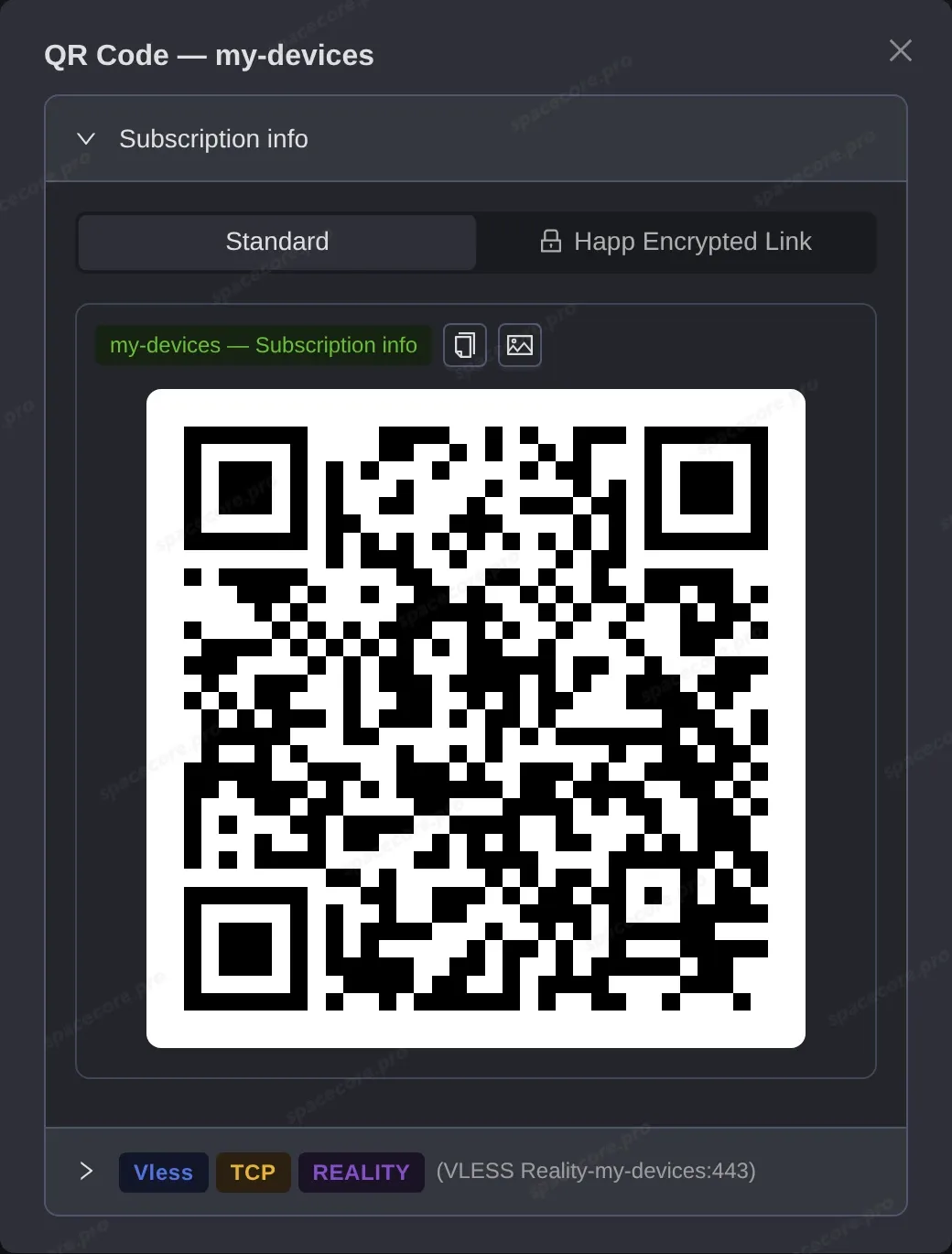
The QR code contains the same link. On a phone, it is easier to scan the code from the computer screen than to copy the link.
The "Happ Encrypted Link" tab is disabled by default and is not needed for regular use.
Important: the link gives access to your VPN. Create a separate client for each person. Then you can revoke access for one person without affecting the others.
#Installing Happ and connecting on a computer
#Installation
Download Happ from the GitHub releases page. A regular computer needs setup-Happ.x64.exe, a computer with an ARM processor needs setup-Happ.arm64.exe.
Run the installer and confirm the Windows prompt. Choose the setup language and click "OK", then "Next" at every step, "Install" and "Finish".
Download Happ only from official sources: GitHub, the developers' website and Google Play. Search results include sites with similar names.
#Adding the subscription
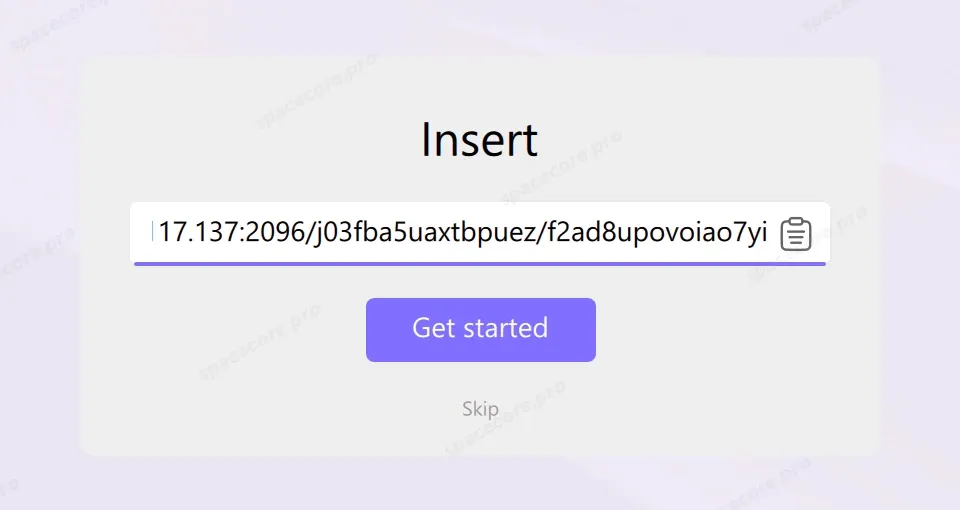
On first launch, Happ asks for a link right away. Paste it into the field with the button on the right or with Ctrl+V and click "Get started".
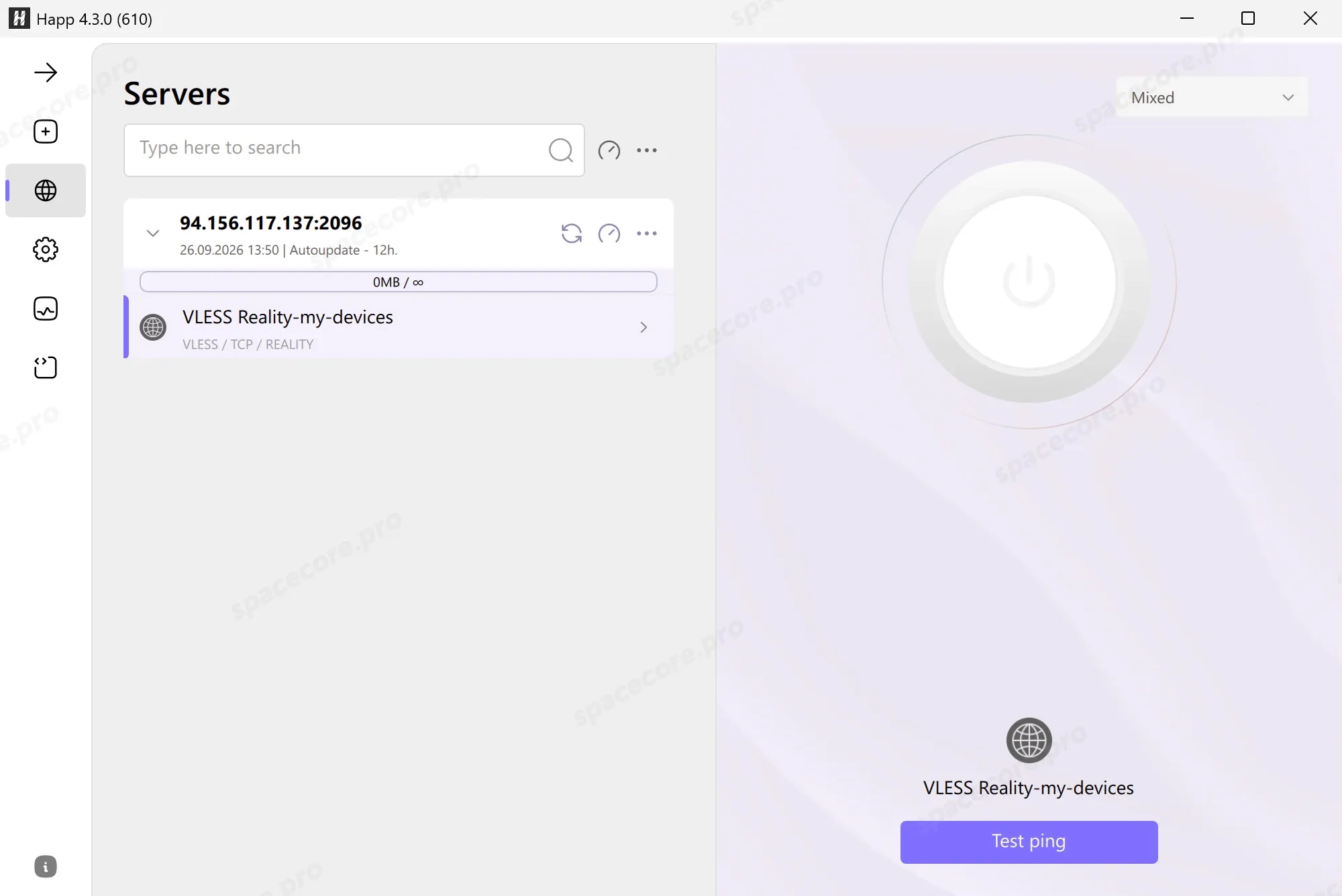
Happ shows the subscription and the servers in it. Under the subscription name you can see the update interval, 12 hours in our case. It is set by 3X-UI.
To add more links, use the "+" button on the left panel. In the "Type" field, choose Subscription for a subscription or Configuration for a single link.
#Connecting
Click "Test ping" in the bottom right to check the server. The delay appears next to it, 90ms in our case. If you see n/a instead of a number, the server is not responding. See the troubleshooting section.
Click the big power button on the right. It shows CONNECTED and a timer.
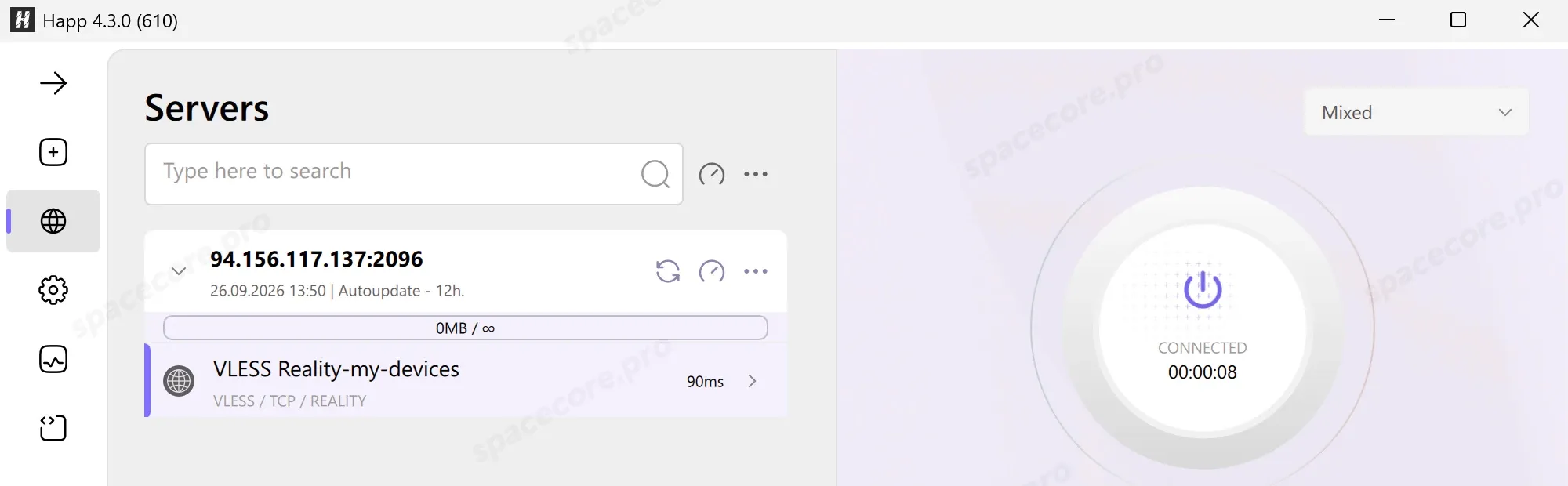
The connection is established! Check that the VPN works. Open any IP lookup site, it should show your server address.
#Main Happ settings on a computer
#Mode
The mode is chosen in the list above the connect button. It decides which programs go through the server.
- Proxy - Happ turns on the Windows system proxy. Browsers and programs that use it go through the server. Some programs ignore the system proxy and go directly.
- TUN - Happ creates a virtual network adapter, and all computer traffic goes through the server: games, messengers, any programs. The default engine is Xray TUN, there is no need to change it without a reason.
- Mixed - both modes at once, with both Proxy and Xray TUN checked in the list. It is on by default, just keep it.
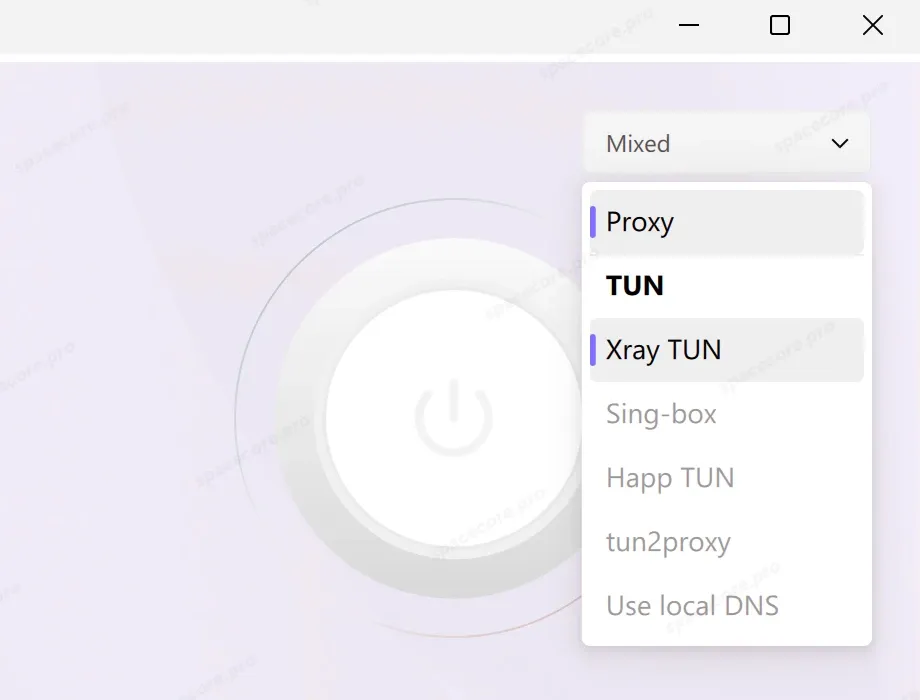
If a program shows your usual address in Proxy mode, it does not use the system proxy. Choose Mixed or TUN.
A new mode starts working after you reconnect. Happ warns about it with the message "Transport mode change will take effect after reconnection".
#Routing
Routing is a set of rules that decide where each site goes. There are three options:
- Proxy - through your server.
- Direct - directly, as if there were no VPN.
- Block - the connection is not allowed.
Rules are stored in a profile. To create one, open "Settings" → "Routing rules", click the three dots on the right and choose "Add Routing Profile". Choose the subscription the profile is for and give it a name.
Happ downloads the geoip and geosite databases right away. They contain the IP addresses of countries and ready-made lists of sites, and rules refer to them.
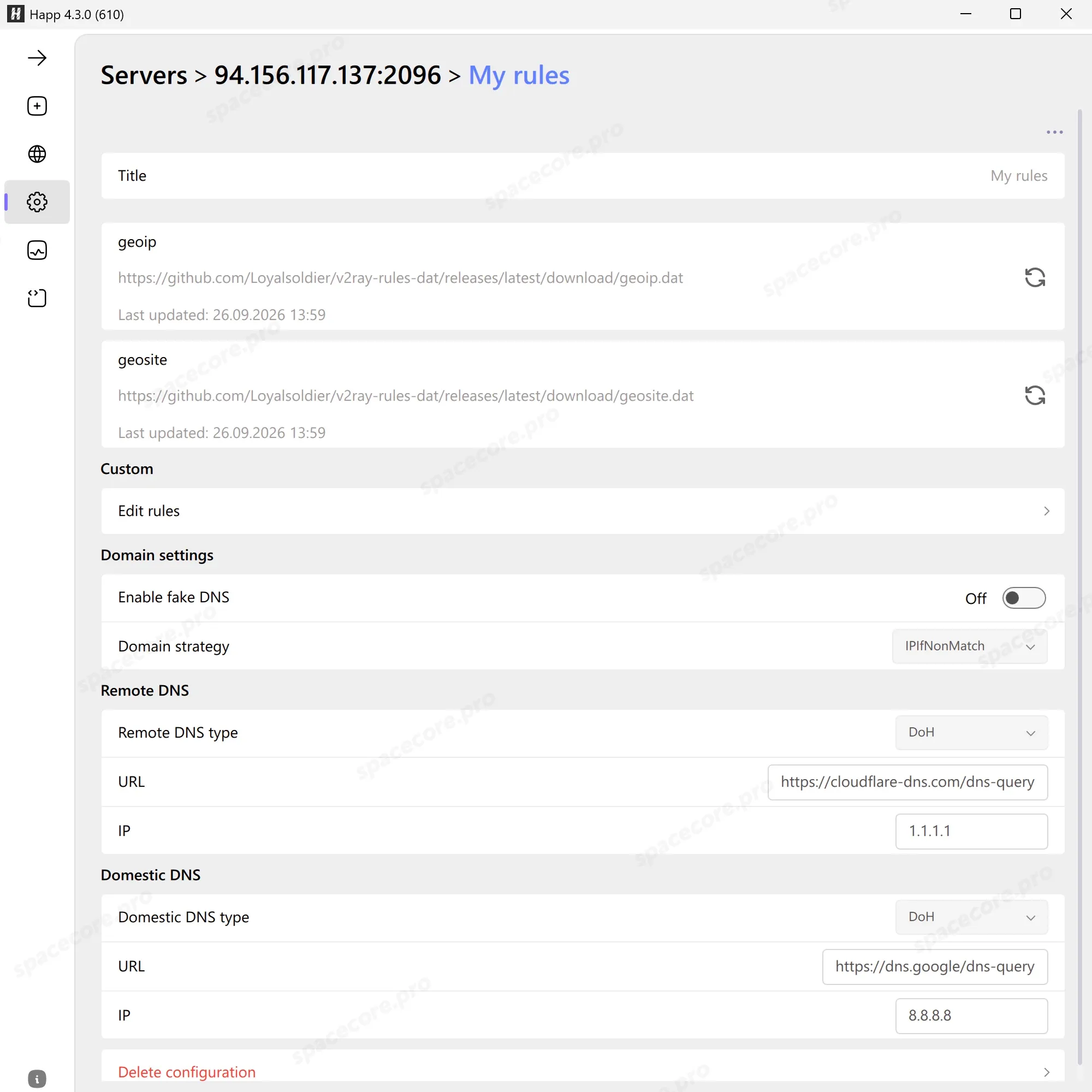
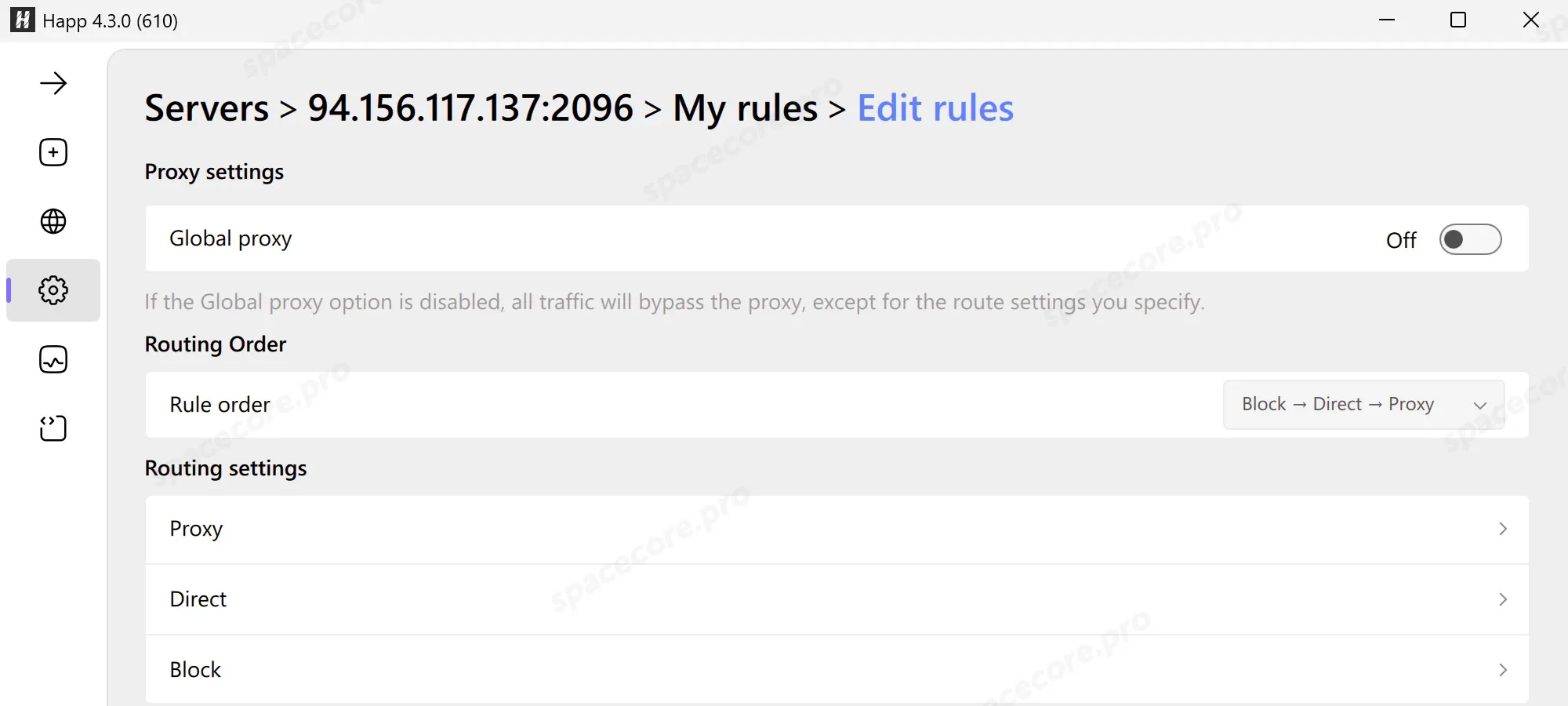
Click "Edit rules".
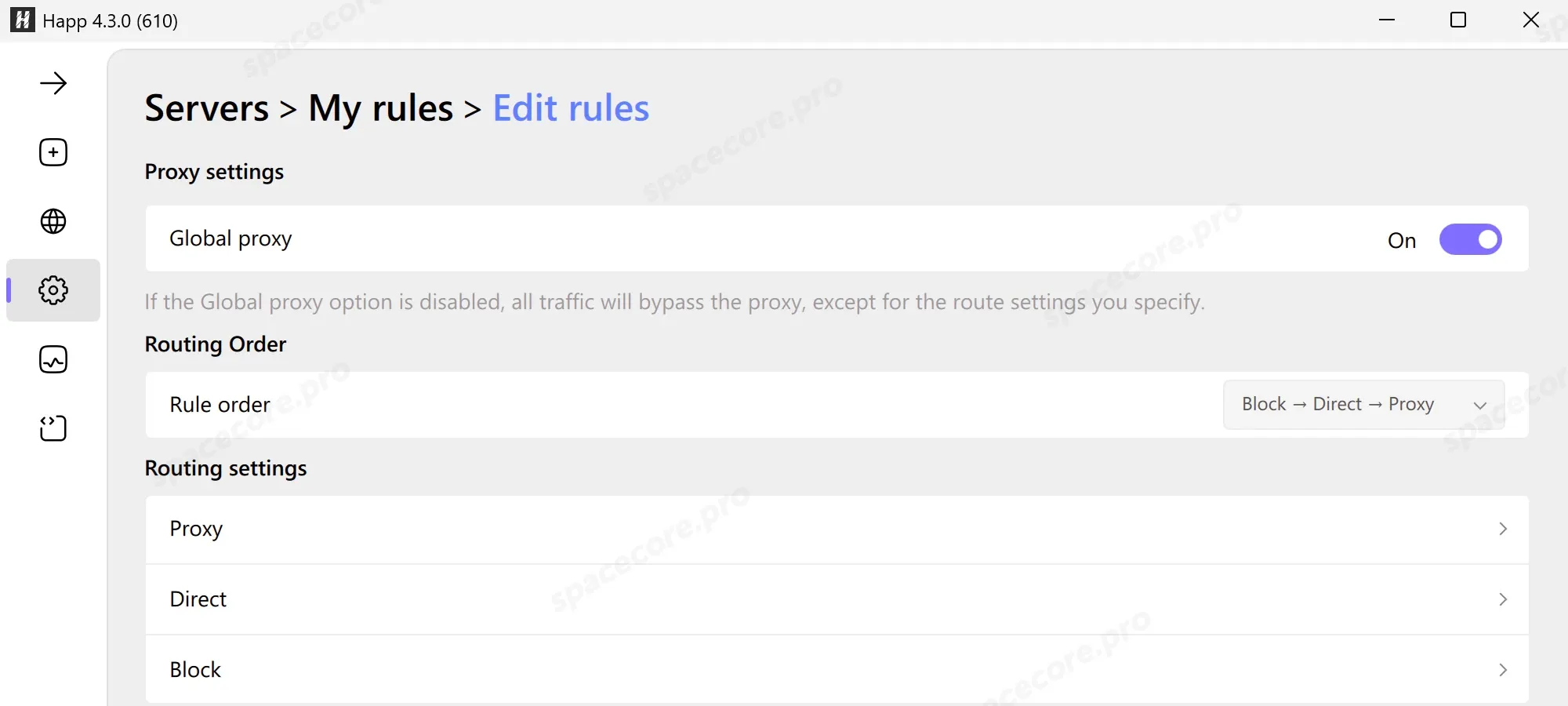
- "Global proxy" - when on, everything not covered by the rules goes through the server. When off, everything goes directly except the Proxy list.
- "Rule order" - the order in which the lists are checked, Block → Direct → Proxy by default.
- "Proxy", "Direct" and "Block" - the rule lists themselves.
Rules are written one per line. The formats are:
- domain:example.com - a site and all its subdomains. The entry domain:de covers all sites in the .de zone.
- geosite:category-ads-all - a ready-made list of sites from the geosite database.
- geoip:de - all IP addresses of a country.
- 192.168.0.0/16 - an address range.
All geosite tags are listed under the "Show tags in geosite" button below the list. The list is searchable.
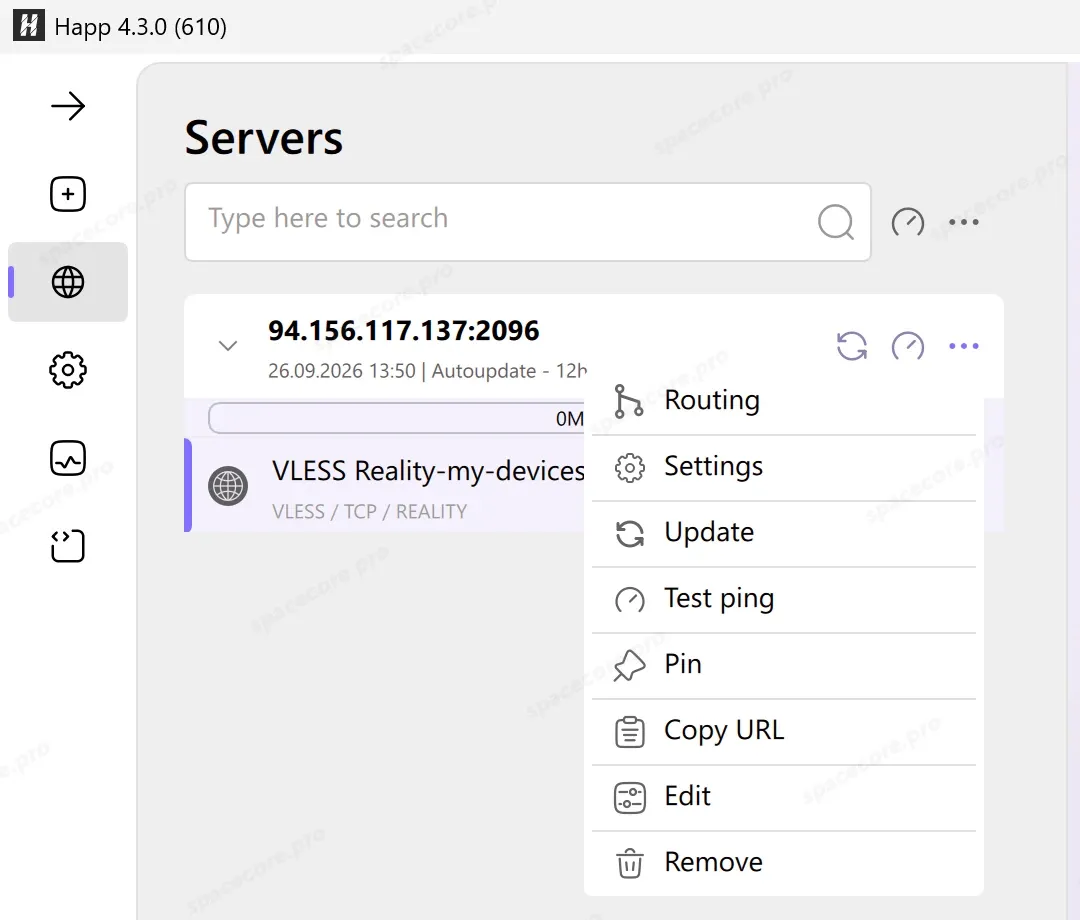
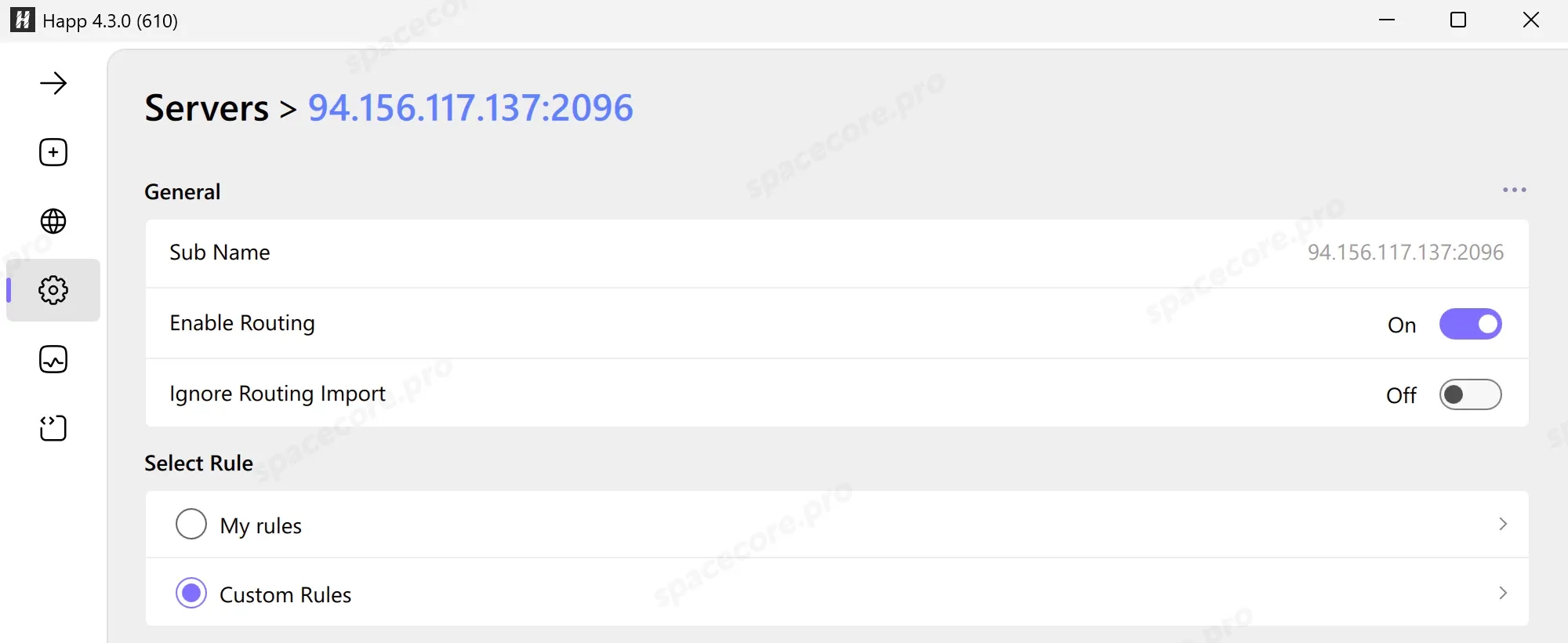
Now turn the profile on. Open the subscription menu (three dots to the right of its name) and choose "Routing".
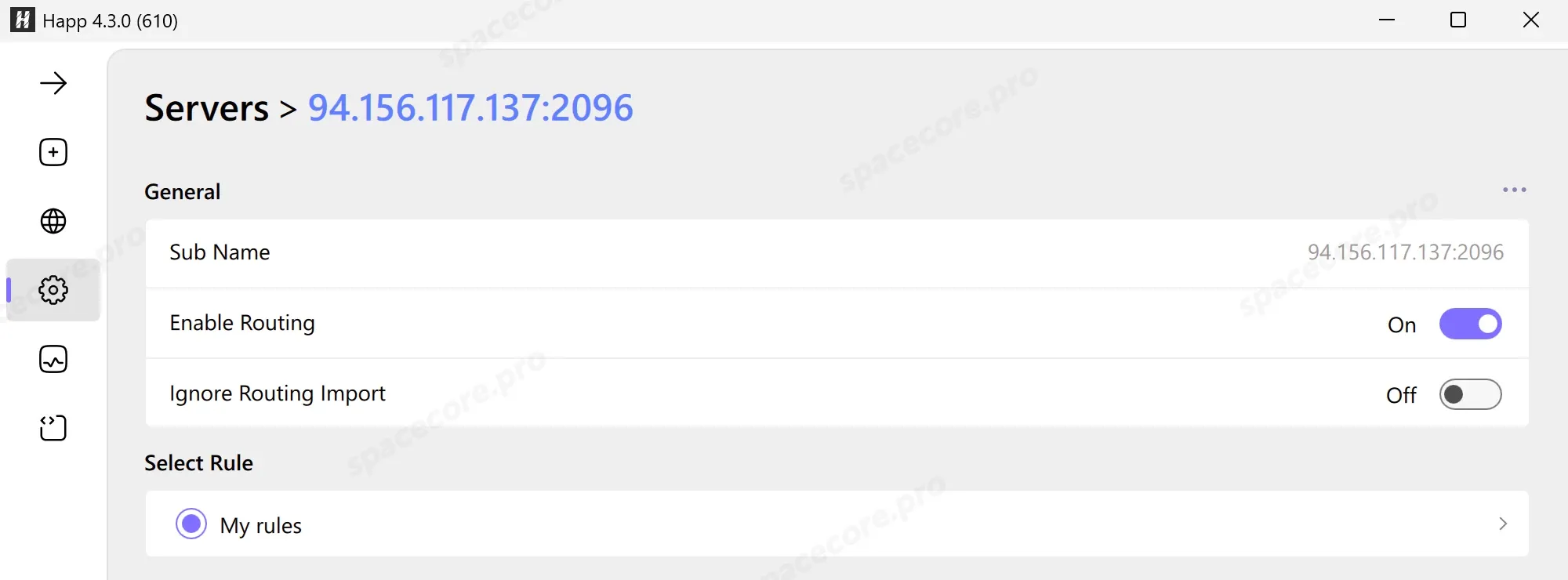
Make sure the "Enable Routing" switch is on and select your profile in the "Select Rule" block.
Important: Happ applies rules after you reconnect. Turn the VPN off with the power button and turn it on again.
#Ready-made scenarios
| What you need | List | What to enter |
|---|---|---|
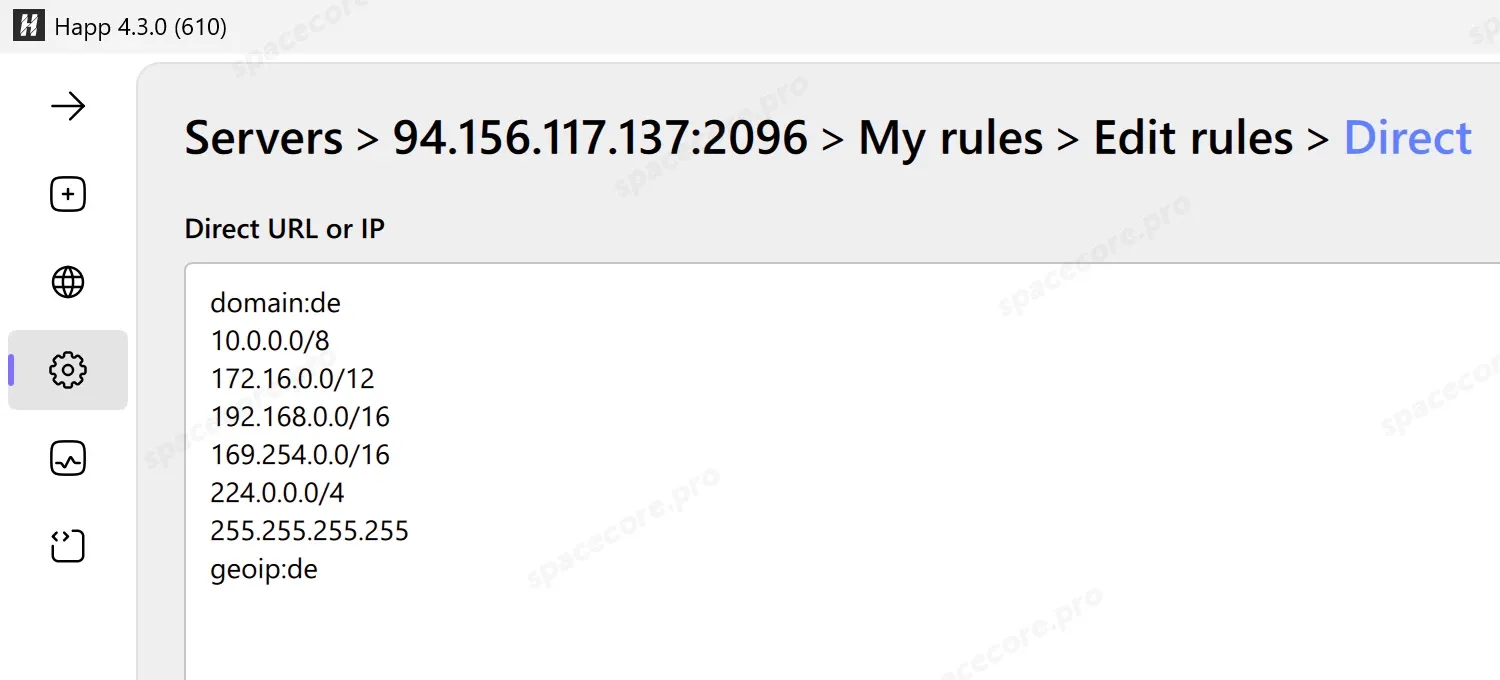
| Local sites directly (Germany as an example) | Direct | geoip:de and domain:de |
| Router, printer and other home devices without the VPN | Direct | Nothing, the profile already contains the home networks 10.0.0.0/8, 172.16.0.0/12 and 192.168.0.0/16 |
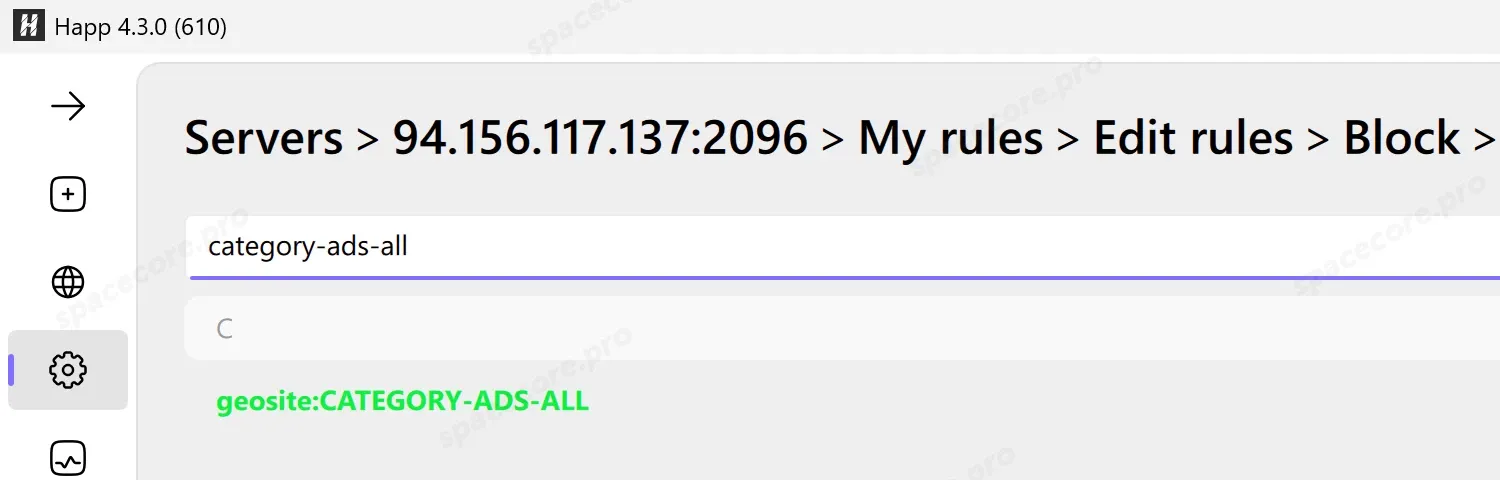
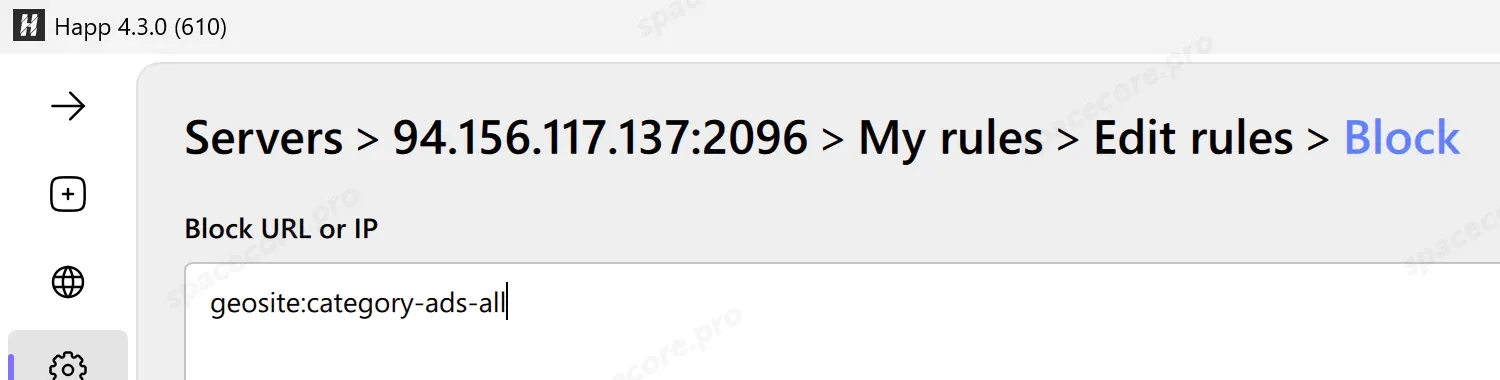
| No ads | Block | geosite:category-ads-all |
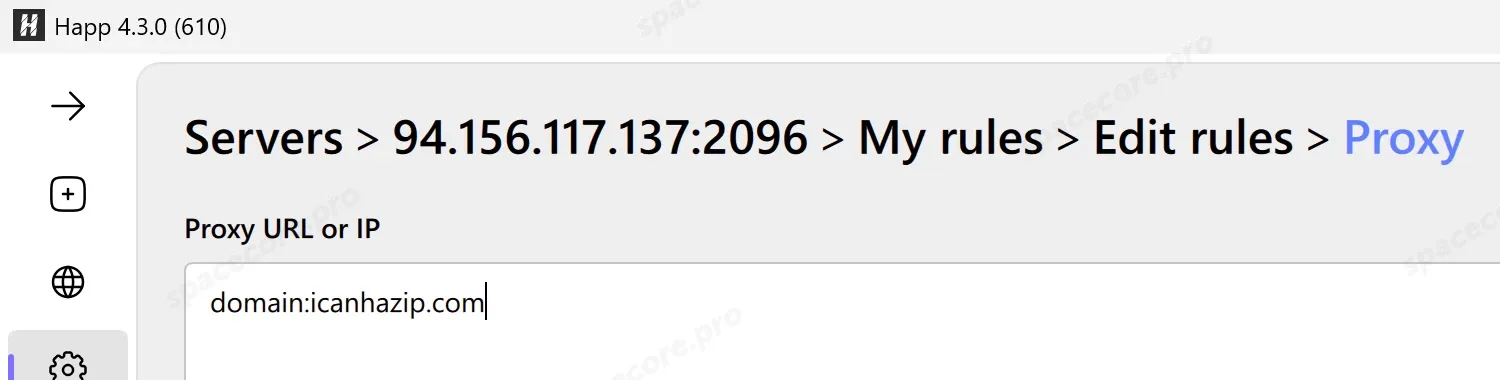
| Only selected sites through the server | Proxy, turn off "Global proxy" | domain: and the address of each site |
| A single site directly, for example a bank | Direct | domain: and the site address |
For Germany, the Direct list looks like this.
For ads, one line in the Block list is enough.
To send only selected sites through the server, turn off "Global proxy".
Then enter those sites in the Proxy list. Everything else goes directly, so the server uses less traffic. Traffic limits on our servers are described in a separate article.
It is easy to check the result on an IP lookup site. Sites from the Direct list show the computer address, the others show the server address, and ads stop opening.
#Rules for all devices at once
You do not have to set up a profile on every device. You can hand it out from the server together with the subscription. 3X-UI 3.8 has separate settings for Happ for this.
In the panel menu, open "Panel Settings" → "Subscription" and go to the "Happ" tab. On the "Routing & Rules" tab, click "Visual Rule Generator".
Fill in the fields you need. Fields with Direct in the name go directly, Proxy fields go through the server, Blocked fields are not allowed. Separate values with commas. Add geoip:private to "Direct IPs" so that home devices go directly. The generator always turns on "Global proxy", so a setup where only selected sites go through the server cannot be handed out this way. Configure it in Happ itself.
Click "Generate Deeplink".
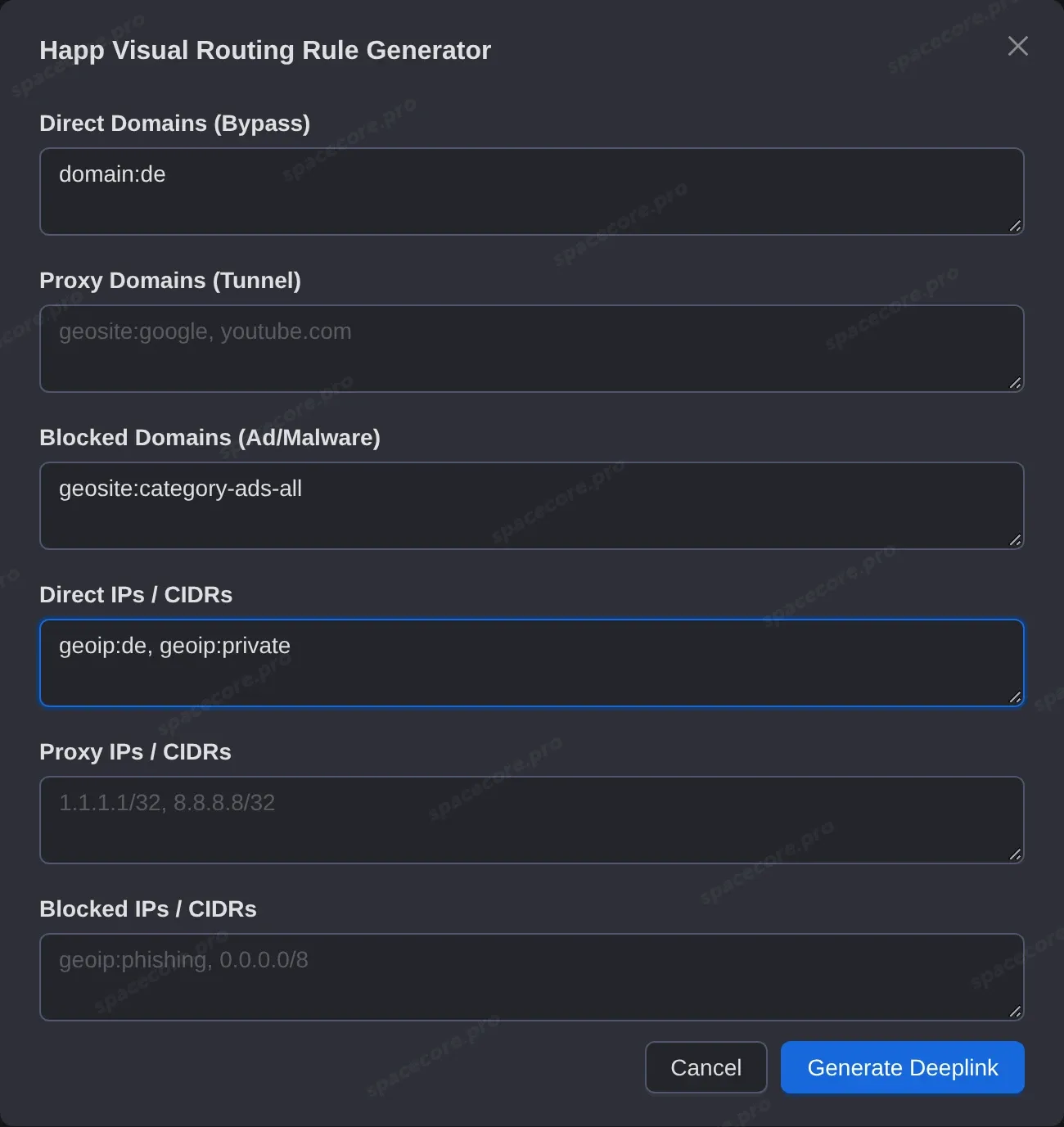
The link with the rules appears in the "Routing rules" field. Turn on "Enable routing", click "Save" and then "Restart Panel".
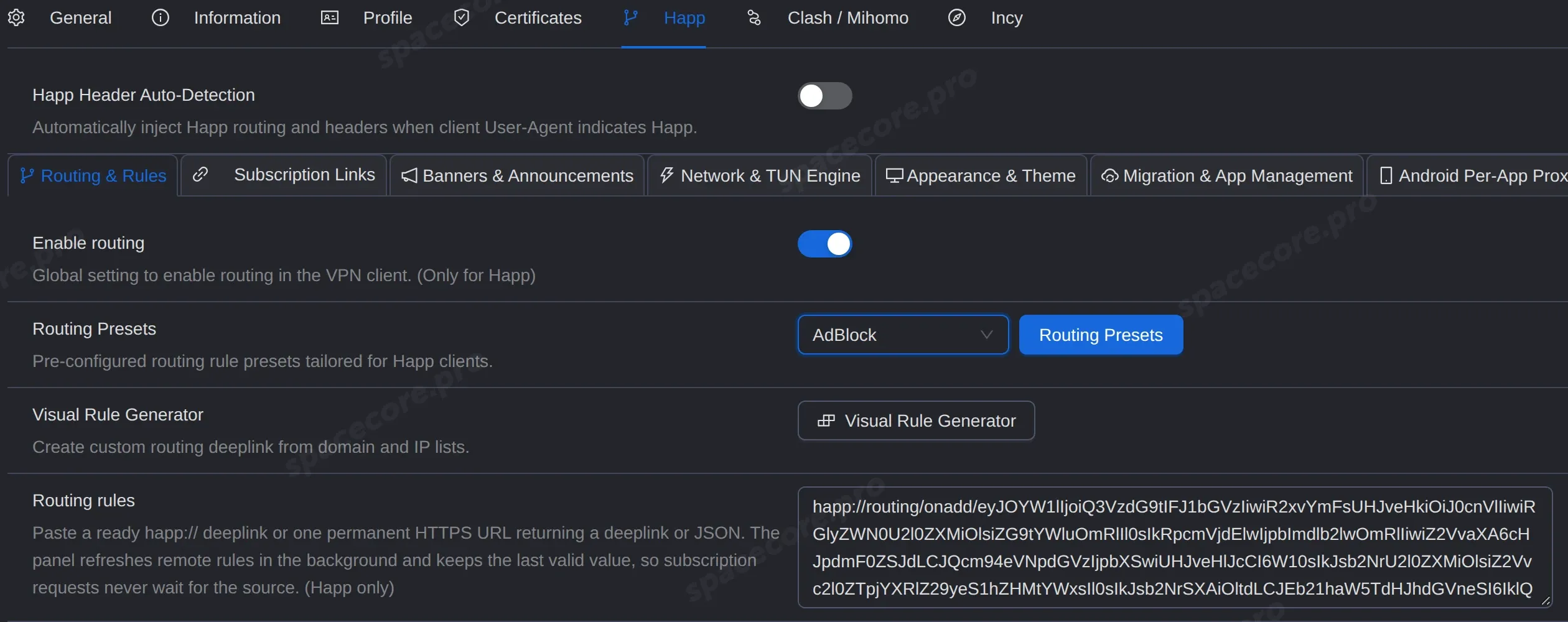
Without a panel restart, the rules do not get into the subscription.
In Happ, update the subscription with the round arrow next to its name. The Custom Rules profile appears in the list and turns on by itself.
#DNS
DNS is the address book of the internet. It finds the IP address of a site by its name, and only then does the device connect to the site.
DNS servers are set in the routing profile, in the "Remote DNS" and "Domestic DNS" blocks.
- "Remote DNS" - for sites that go through the server. By default it is Cloudflare, address https://cloudflare-dns.com/dns-query and IP 1.1.1.1.
- "Domestic DNS" - for sites that go directly. By default it is Google, address https://dns.google/dns-query and IP 8.8.8.8.
The "Remote DNS type" field is set to DoH. It means that queries are encrypted the same way as regular HTTPS.
A useful scenario is DNS with an ad filter. Enter the AdGuard DNS address in "Remote DNS". Put https://dns.adguard-dns.com/dns-query in the "URL" field and 94.140.14.14 in the "IP" field.
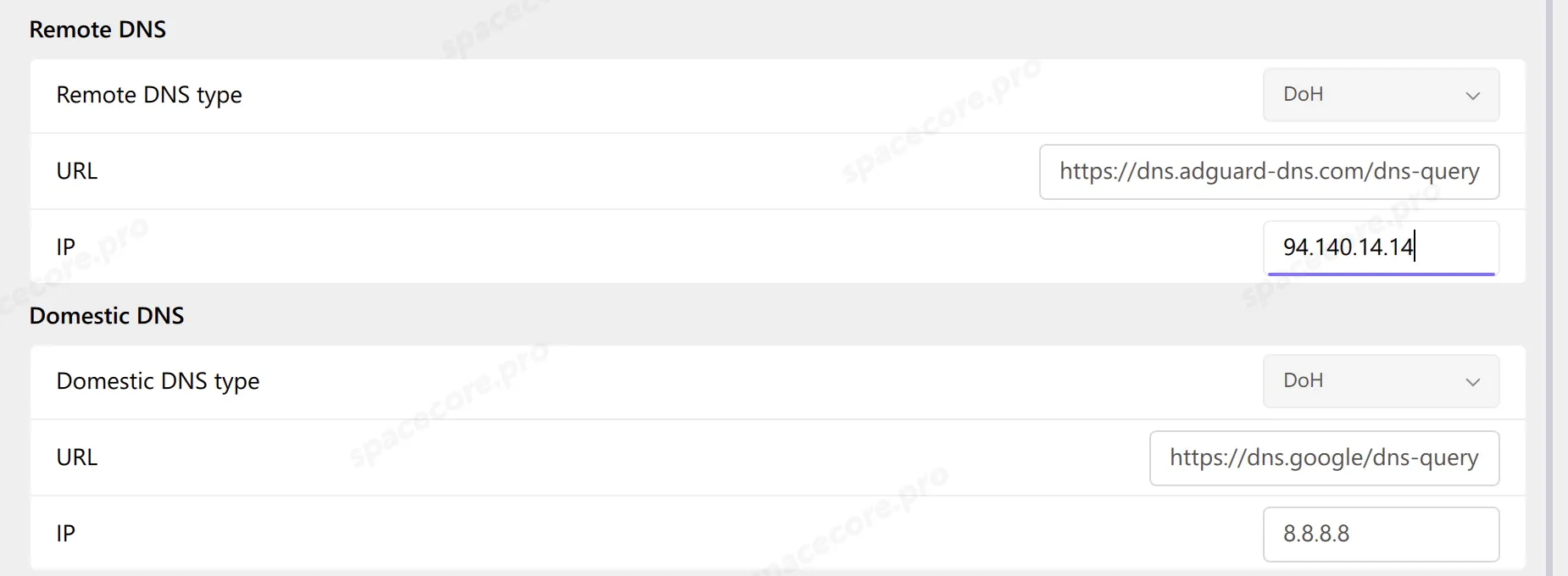
After reconnecting, ad domains get the address 0.0.0.0 and do not open, while regular sites work as before.
Leave the other profile settings, "Enable fake DNS" and "Domain strategy", as they are.
#Choosing apps
You can send only certain programs through the server. Open "Settings" → "Per-App Proxy Settings" and choose a mode:
- "System default" - all programs follow the general rules.
- "Direct connection for selected applications" - the selected programs go directly, the rest through the server. Useful for online games, for example.
- "Proxy only for selected applications" - only the selected programs go through the server.
Click "Add..." and choose a running program in "Add running app" or a program file in "Browse...".
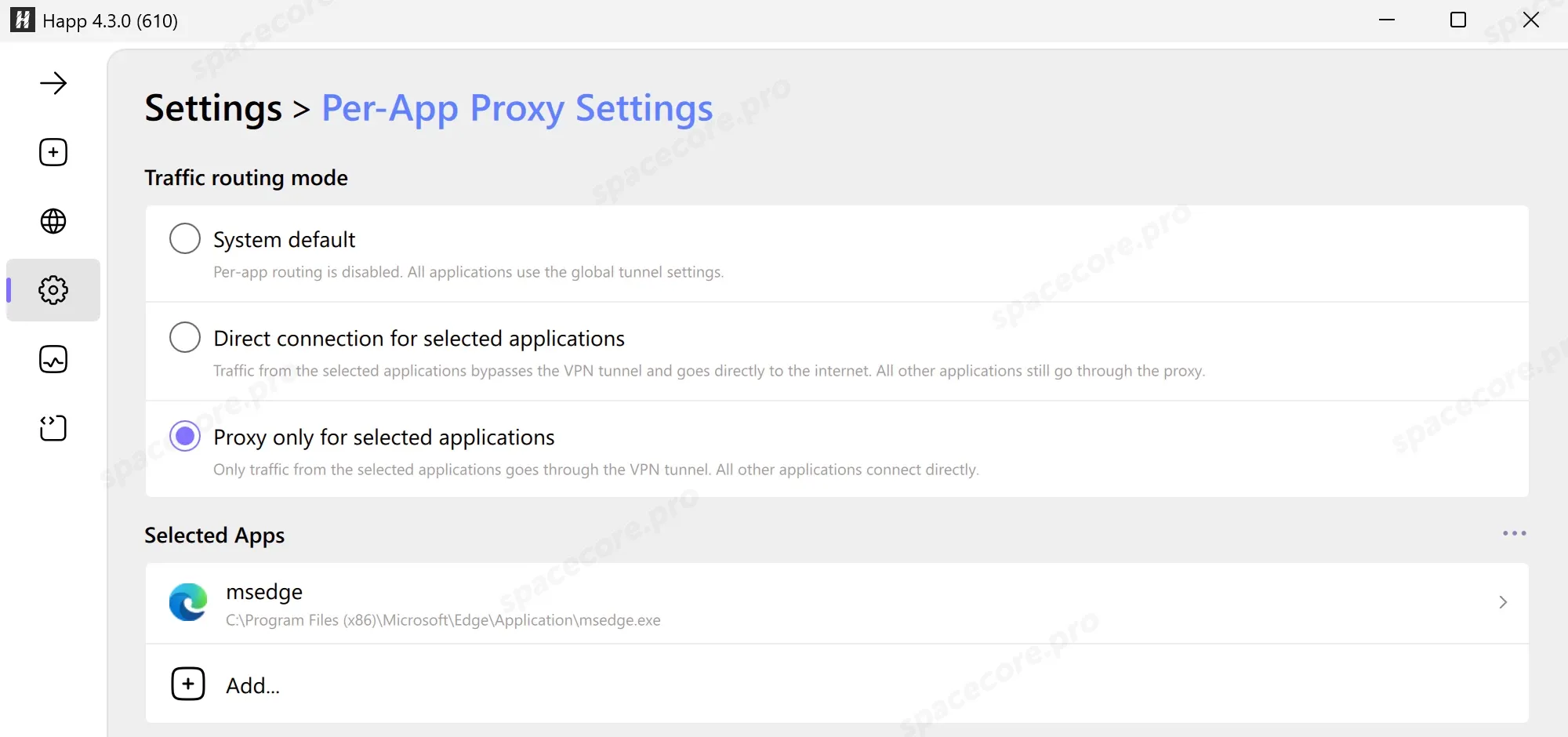
For example, if you add a browser in "Proxy only for selected applications" mode, only the browser goes through the server, and other programs work directly.
#Autostart and auto-connect
To start Happ with Windows, turn on "Autostart" in "Settings" → "Advanced settings".
To make the VPN turn on by itself, open "Settings" → "Subscriptions" and turn on "Connect on open". In the same place, "Update on open" updates subscriptions at launch, and "Ping on open" checks the servers right away.
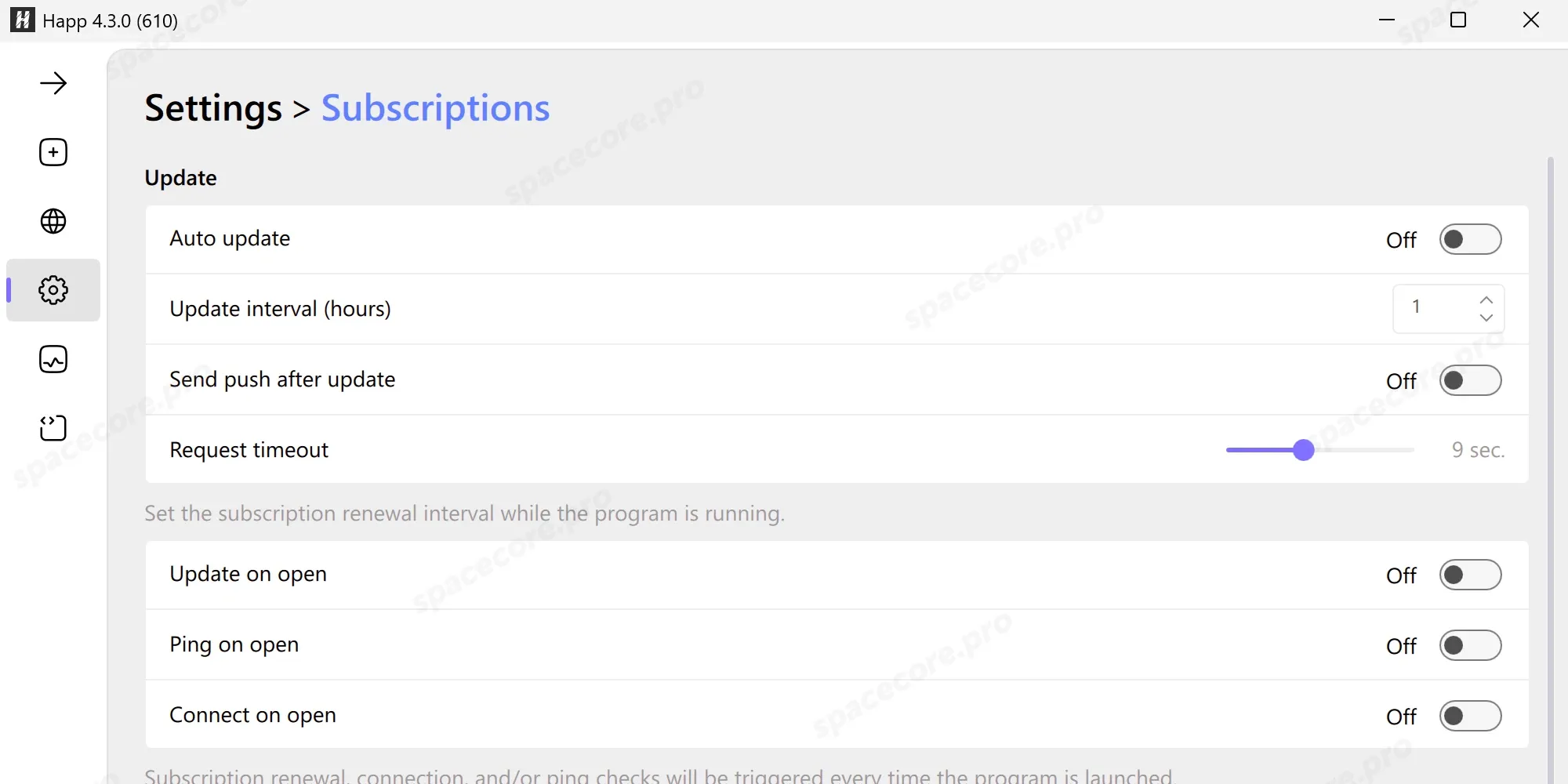
The ping method is set in "Settings" → "Ping". By default Happ checks whether sites open through the server. There is no need to change it.
#Setting up Happ on Android
Install Happ from Google Play. If your device has no Google Play, download Happ.apk from the GitHub releases page.
#Adding the subscription
Tap "+" in the top right corner and choose "Subscription URL". Paste the link into the "URL" field and tap "Save".
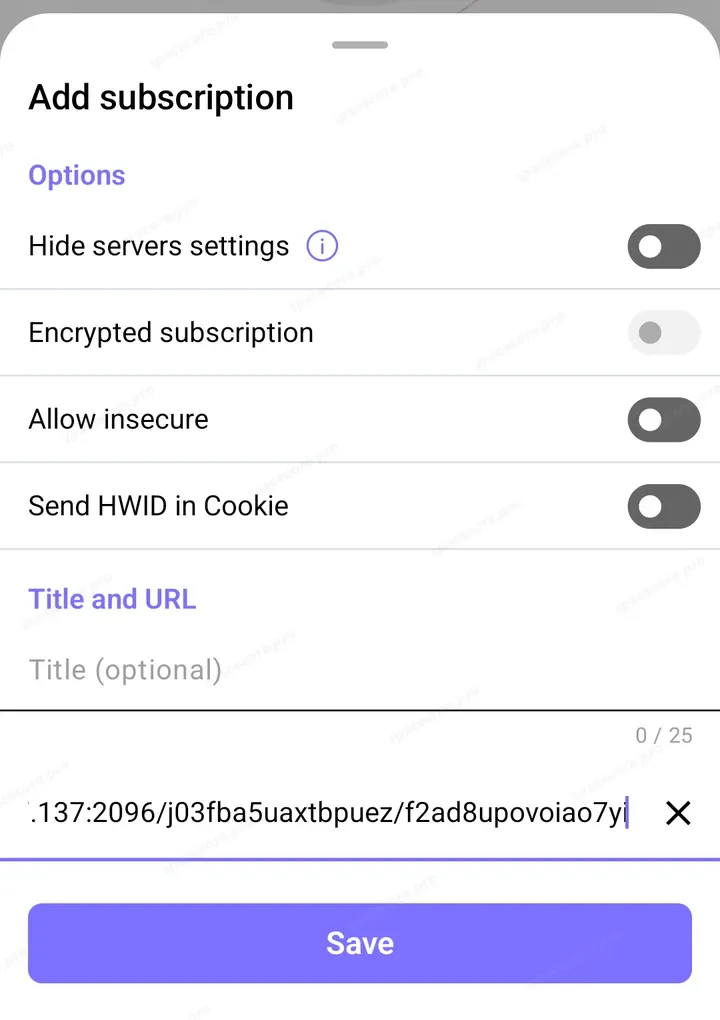
The same menu has "Import from Clipboard" for a link from the clipboard and "QR Code" for the QR code from the panel.
#Connecting
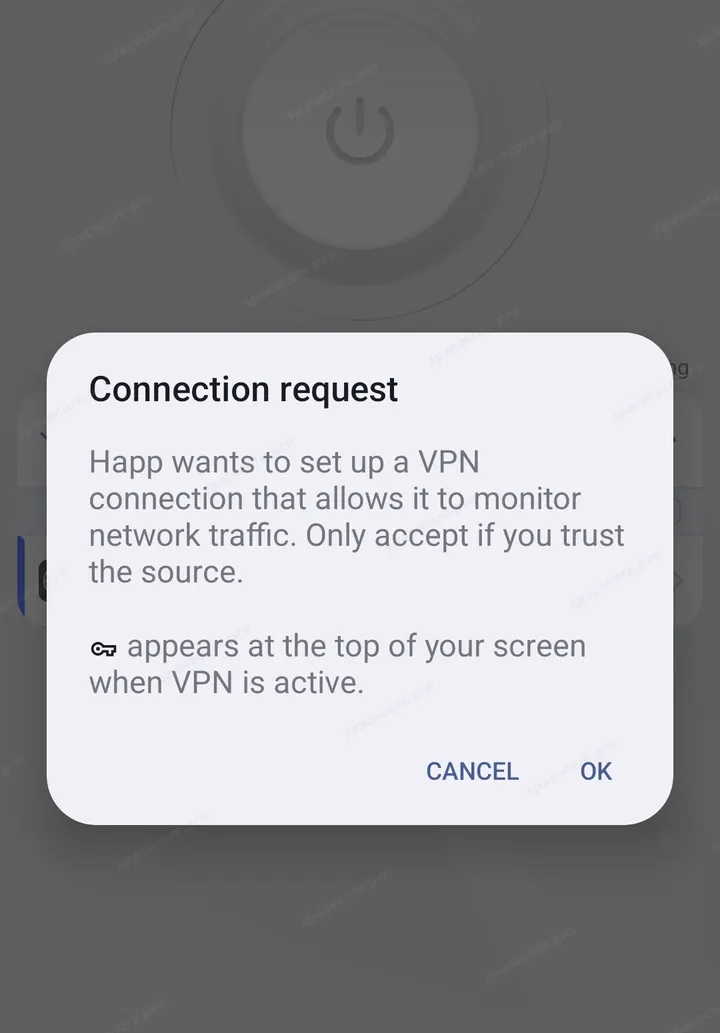
Tap the power button. On the first connection, Android asks for VPN permission. Tap "OK".
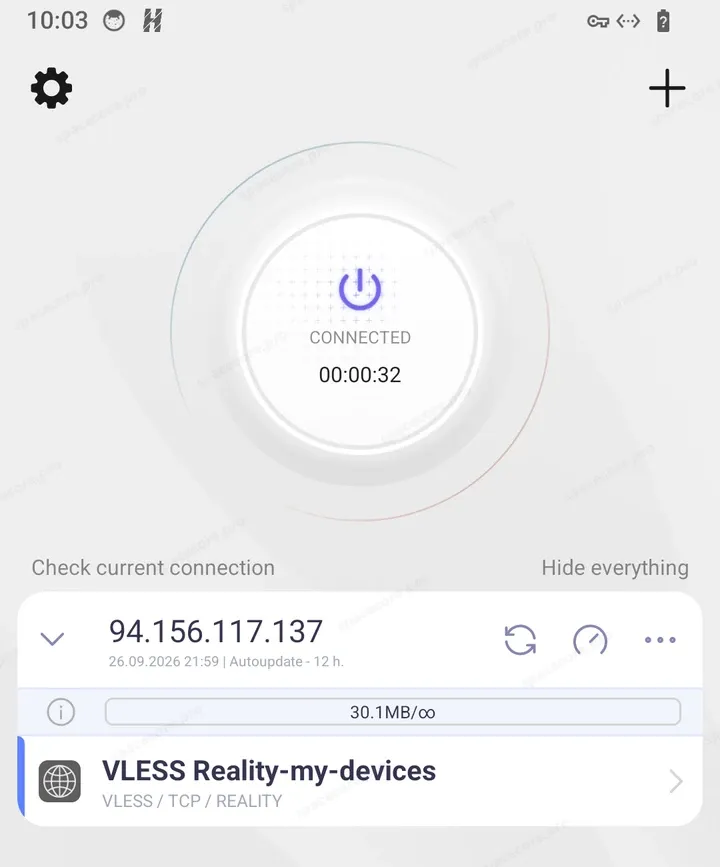
The connection is established! You can use it. A key icon appears in the status bar.
#Settings on the phone
Settings open with the gear icon in the top left corner. They are almost the same as on the computer, with a few differences.
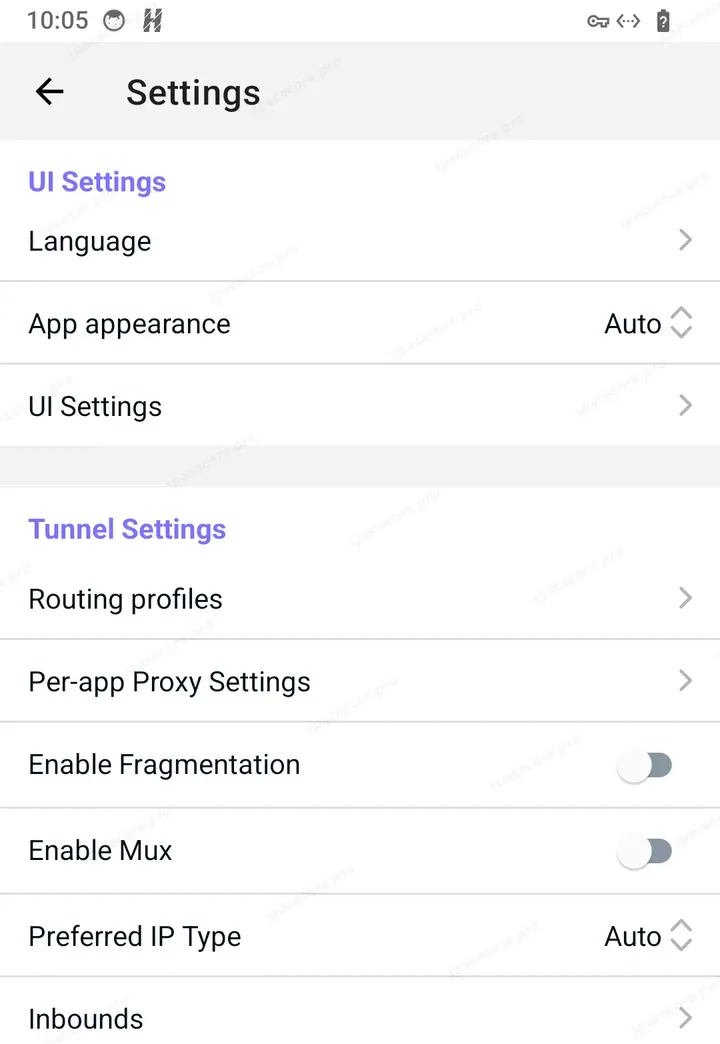
- There is no mode switch on the phone, Happ works as a regular VPN.
- "Enable Xray TUN" is off by default on the phone. There is no need to change it.
- "Per-app Proxy Settings" has three tabs. "Off" - all apps go through the server, "On" - only the selected ones, "Bypass" - the selected ones go directly.
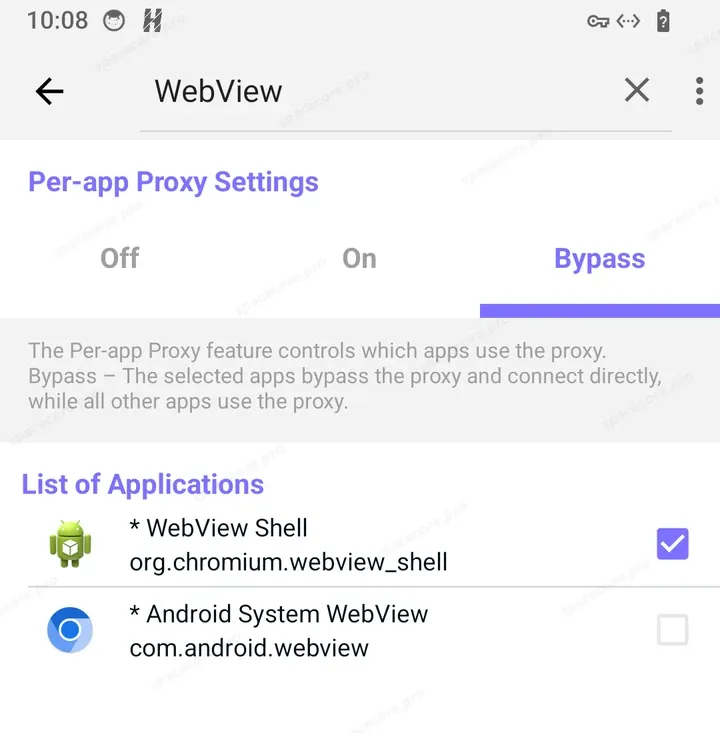
For example, if you select the browser on the "Bypass" tab, it opens sites directly even though the VPN is on.
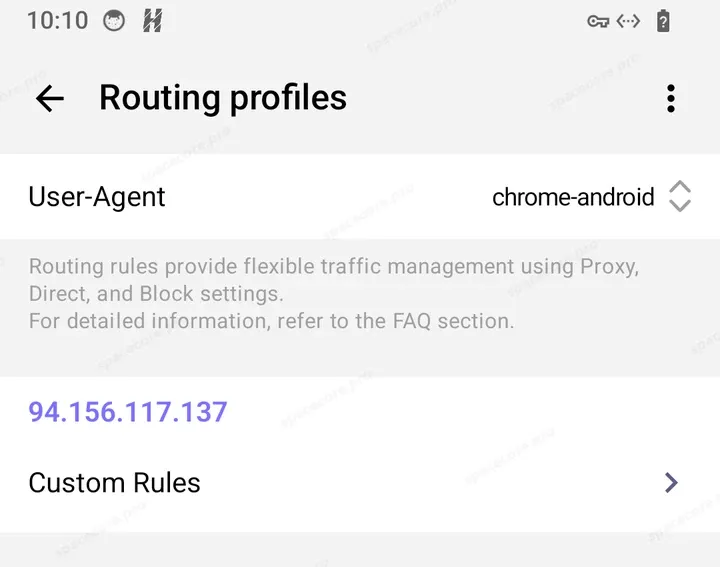
The routing profile from 3X-UI arrives on the phone together with the subscription. It is visible in "Routing profiles".
#iPhone, Mac and Linux
Happ is also available for iPhone, Mac and Linux, links to all versions are on the official website. A subscription is added the same way as on Android.
#Other settings and common problems
#Other settings
| Setting | Where | What it does |
|---|---|---|
| Enable mux | Settings | Carries several connections inside one. Off by default |
| Enable sniffing | Advanced settings | Finds out the site address inside a connection. Domain-based rules need this. On by default |
| Excluded routes | Advanced settings | Addresses that always go directly, outside the VPN |
| Allow connection from LAN | Settings | Lets devices on the home network connect to the computer's proxy, SOCKS5 on port 10808, plus HTTP on port 10809 while the system proxy is on. This proxy has no password, so turn it on only in your own network |
| Send HWID | Subscriptions | Sends the device ID, device model and OS version to the subscription server |
#Common problems
| Symptom | Cause | Solution |
|---|---|---|
| Yellow triangle next to the subscription, message "Remote host closed connection" or "Connection refused" | Wrong address or port in the link, or the 3X-UI panel on the server is stopped | Copy the link again from 3X-UI and check the panel with the x-ui status command |
| The button says CONNECTED, but sites do not open, the server shows n/a | The server or Xray is not running | Check the state with x-ui status and restart the panel |
| A server appeared in the "Server List" group, ping n/a | The vless:// link was not copied completely. Happ shows no error in this case | Delete the server and copy the link again |
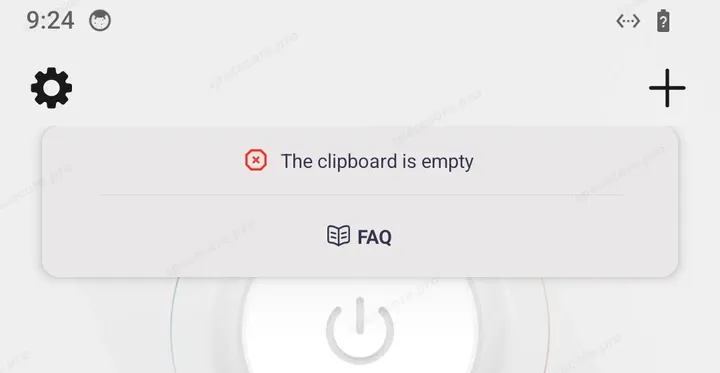
| "The clipboard is empty" on Android | There is no link in the clipboard | Copy the link and tap the button again |
| Routing rules do not work | Rules apply after reconnecting | Turn the VPN off and on |
| One program goes outside the VPN | Proxy mode is selected, and the program does not use the system proxy | Choose Mixed or TUN mode |
| The profile from 3X-UI did not appear in Happ | The panel was not restarted after saving | Click "Restart Panel" and update the subscription in Happ |
This is what a subscription with an error looks like.
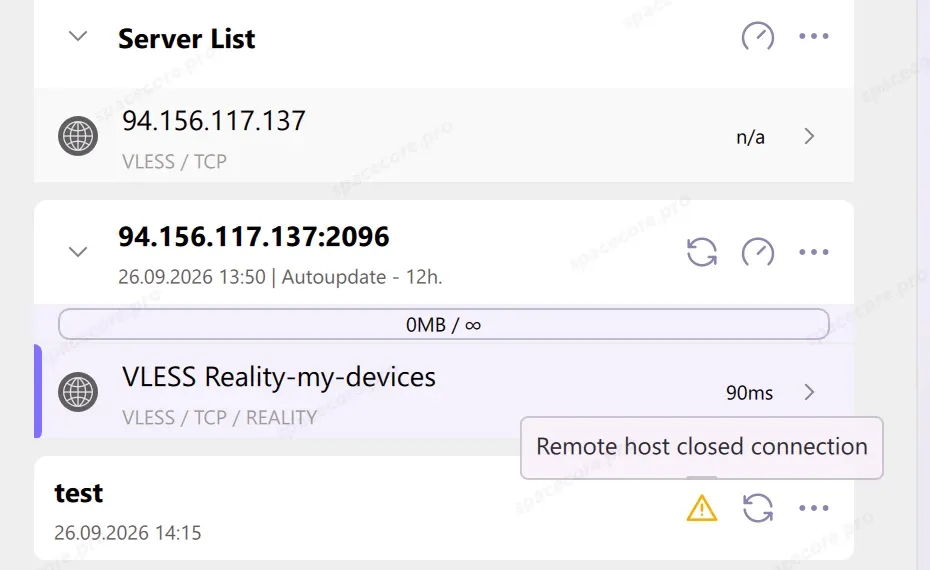
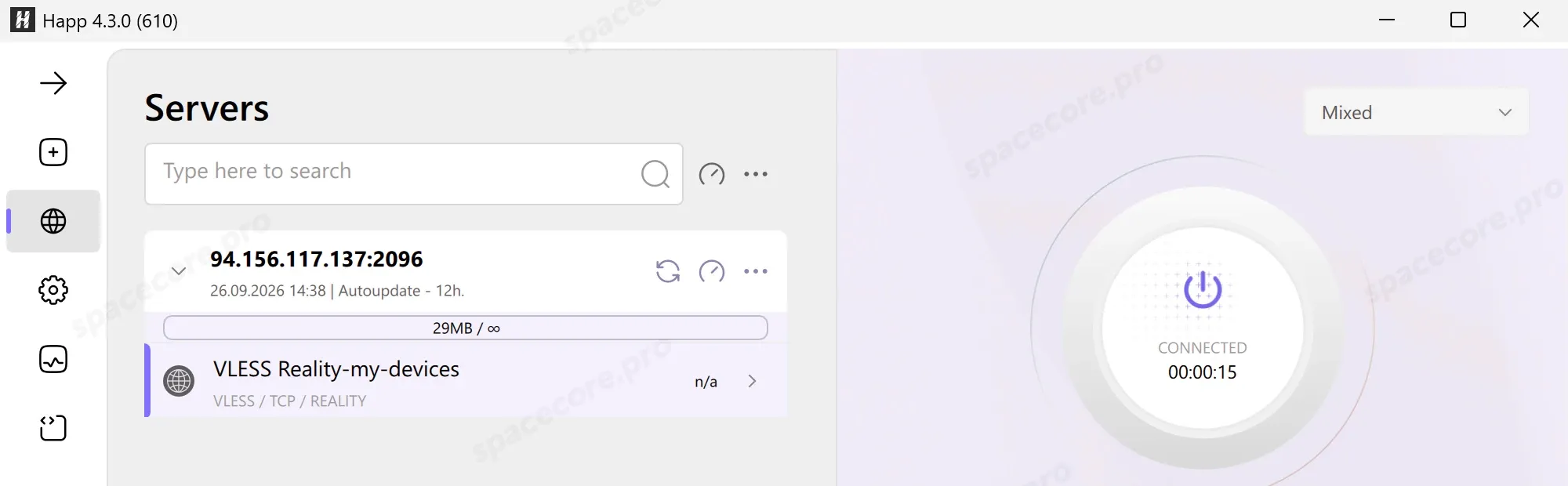
And this is a stopped server. The button shows CONNECTED, but the ping returns n/a.
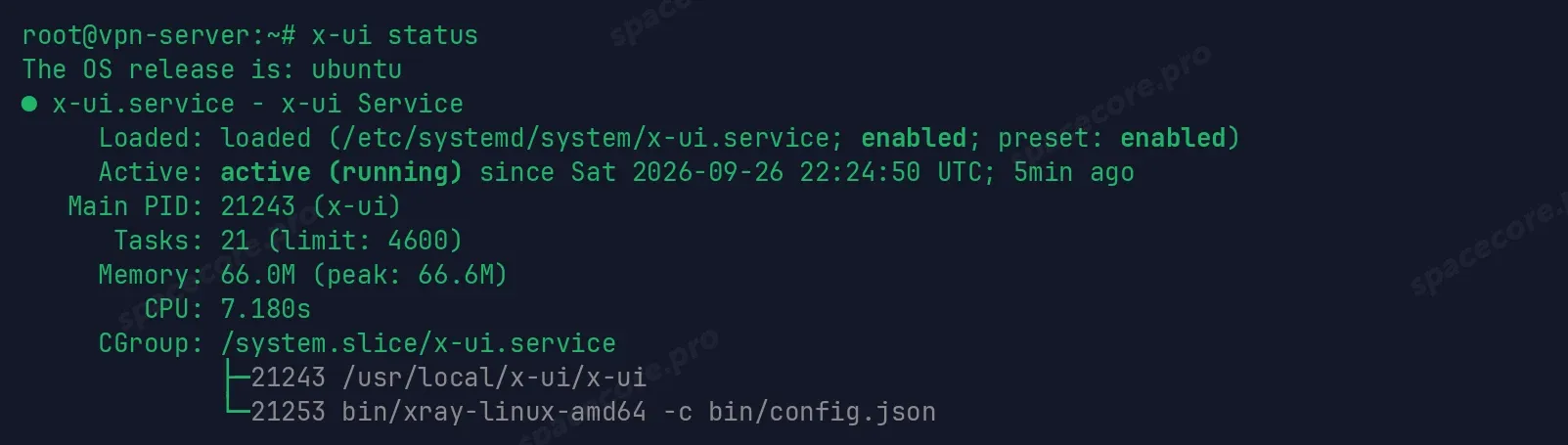
The panel state is checked on the server. Connect to it via SSH, use our detailed guide if needed, and run the command.
x-ui statusFor a running panel, the output contains the line Active: active (running), and the xray process is listed below.
If the panel is stopped, restart it.
x-ui restartOn Android, an empty clipboard looks like this.
Can I use one subscription on several devices?
Yes, one subscription works on several devices at the same time.
How do I give access to another person?
Create a client for them on the "Clients" page in 3X-UI and send them the link of that client.
How do I restore the default Happ settings?
Open "Settings" → "Reset". On Windows, when reinstalling, you can check "Reset all cache and settings after installation".
Did not find the answer? We are online 24/7.Contact support