


Resetting the Windows Administrator Password on a Dedicated Server
If you have forgotten the Windows administrator password on your dedicated server, you can regain access without reinstalling the system. To do this, boot the server into Rescue mode - a temporary Linux operating system that runs in memory and sees the server disk. Through it you can edit the Windows files and reset the password. So this method works for both experienced and beginner users.
This guide uses a dedicated server with Windows Server 2019 and the SystemRescue recovery image. On Windows Server the administrator account is called Administrator, on Windows 10 and 11 it is Admin.
Important: this method works only if the system disk is not encrypted with BitLocker. Rescue cannot open an encrypted partition without the key. Before making changes we will create backup copies so you can roll everything back.
#Booting the server into Rescue mode
Rescue mode is enabled in the server control panel. Select your server, turn on booting into Rescue and reboot the server. The SSH login details appear in the panel or arrive by email.
Connect to the server over SSH. If needed, use our detailed guide on connecting.
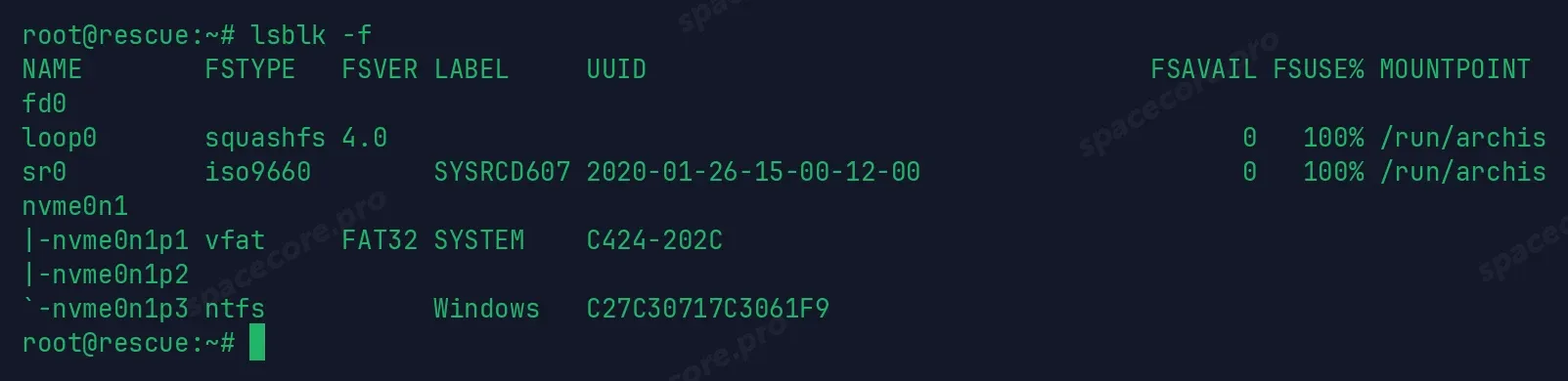
List the disks and partitions.
lsblk -fYou need to find the partition with Windows. It is the largest partition with the ntfs file system. Note its name, for example nvme0n1p3. The partition number may differ on your server.
Check the partition and clear the flag of an unfinished Windows session.
ntfsfix /dev/nvme0n1p3Create a mount point and mount the partition for writing.
mkdir -p /mnt/winntfs-3g -o rw,remove_hiberfile /dev/nvme0n1p3 /mnt/winMake sure this is really the Windows partition. The next command should show the SYSTEM file.
ls -la /mnt/win/Windows/System32/config/SYSTEM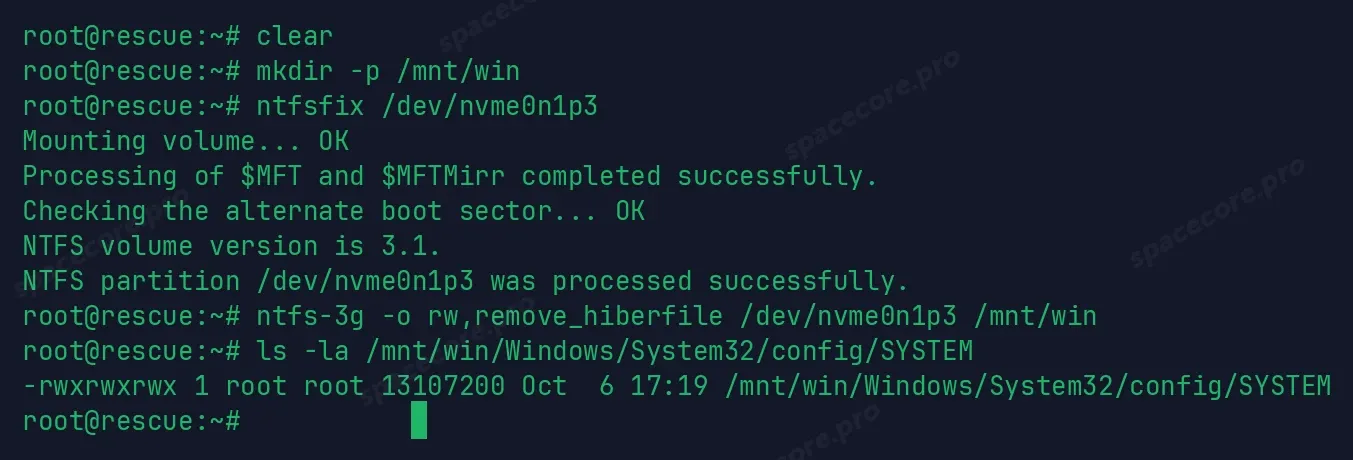
#Backups and replacing Utilman
First save backup copies of the files we are going to change. If something goes wrong, you can put them back.
cp /mnt/win/Windows/System32/Utilman.exe /mnt/win/Windows/System32/Utilman.exe.origcp /mnt/win/Windows/System32/config/SYSTEM /mnt/win/Windows/System32/config/SYSTEM.bakNow replace Utilman.exe with the command prompt. Utilman is the accessibility button on the Windows login screen. After the replacement, that button opens a command prompt with system rights.
cp /mnt/win/Windows/System32/cmd.exe /mnt/win/Windows/System32/Utilman.exe
#Disabling the NLA check
You connect to a dedicated server over RDP. To reach the login screen and press the accessibility button, you need to disable Network Level Authentication (NLA). Otherwise RDP asks for the password before the login screen appears.
Open the Windows registry from the partition we mounted.
reged -e /mnt/win/Windows/System32/config/SYSTEMNavigate to the RDP settings key step by step. Note that the Terminal Server key name contains a space.
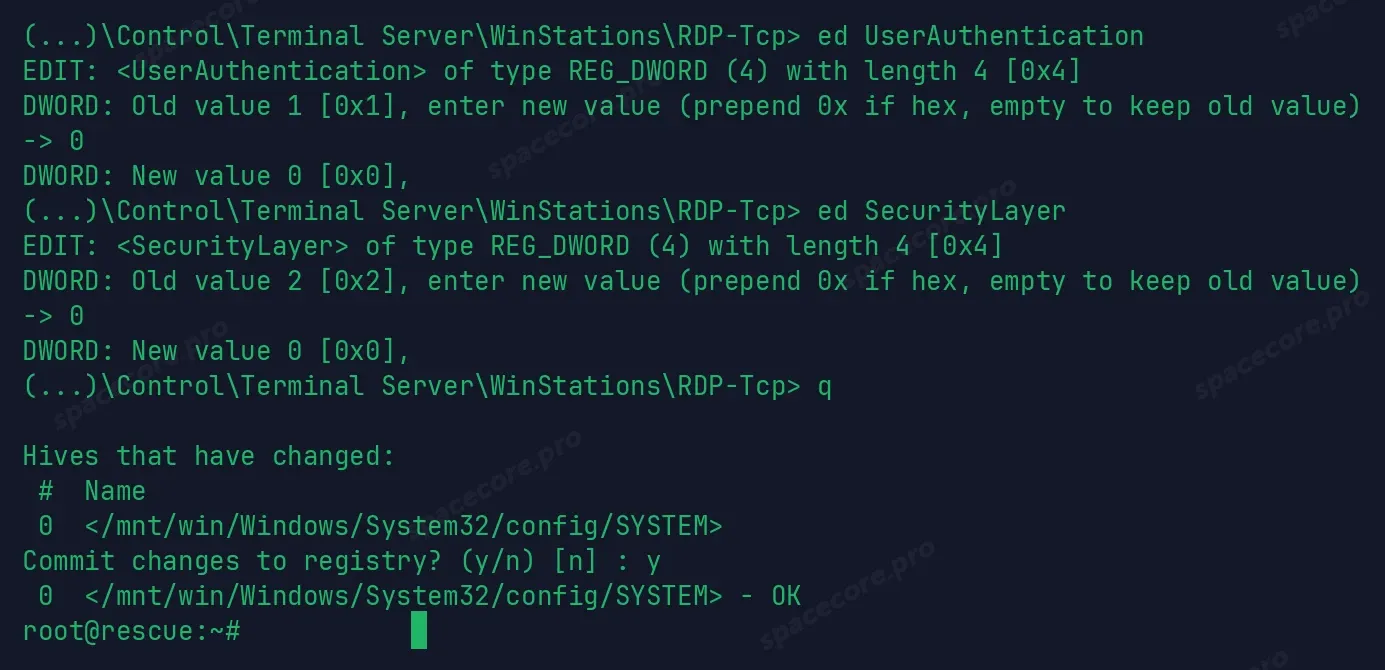
cd ControlSet001cd Controlcd Terminal Servercd WinStationscd RDP-TcpChange the UserAuthentication value.
ed UserAuthenticationreged shows the current value and asks for a new one. Enter 0 and press Enter. Set 0 for SecurityLayer the same way.
ed SecurityLayerExit the editor.
qreged asks "Commit changes to registry? (y/n)". Enter y to save the changes.
Unmount the partition and reboot the server in normal mode.
umount /mnt/winIn the control panel turn off Rescue mode and reboot the server. The server boots into Windows.
#Resetting the password over RDP
Connect to the server over RDP. On the login screen click the "Ease of Access" button in the bottom corner.
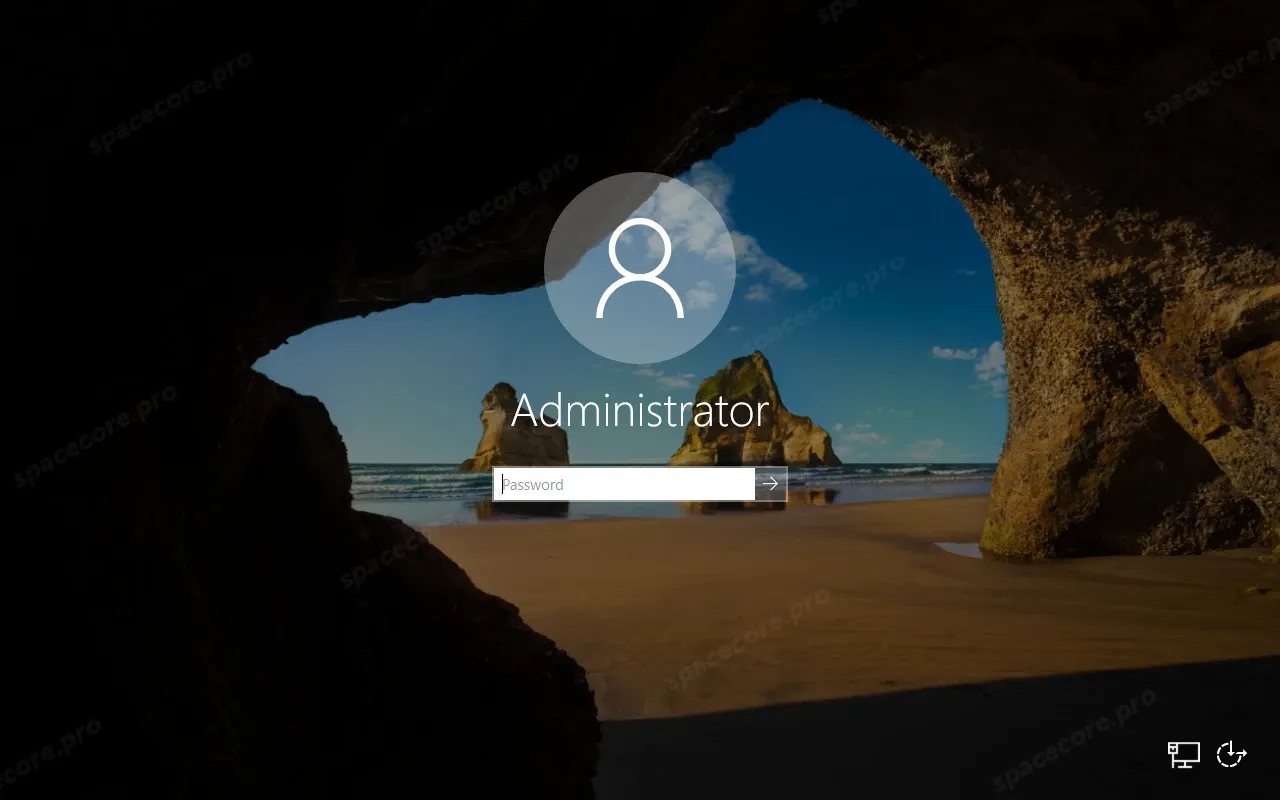
Instead of the accessibility window, a command prompt with system rights opens.
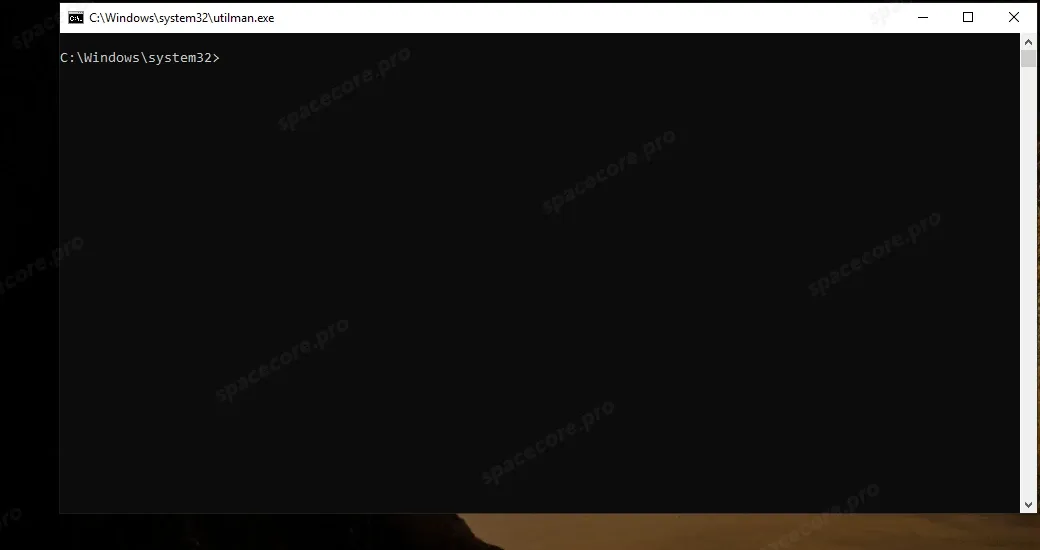
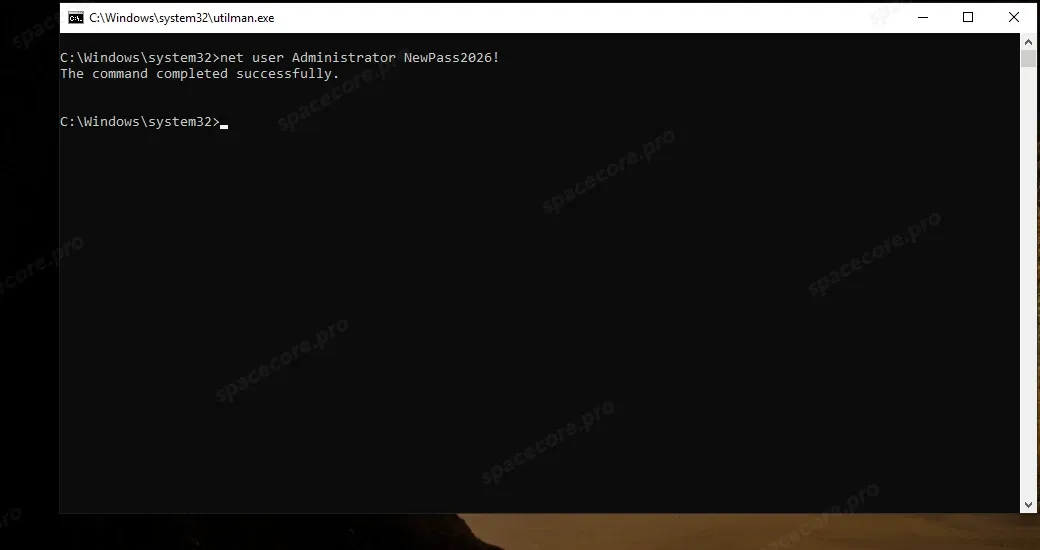
Set a new password for your account. On Windows Server it is Administrator.
net user Administrator NewPass2026!If you do not remember the account name, list the users with the net user command without parameters.
The result should look like this.
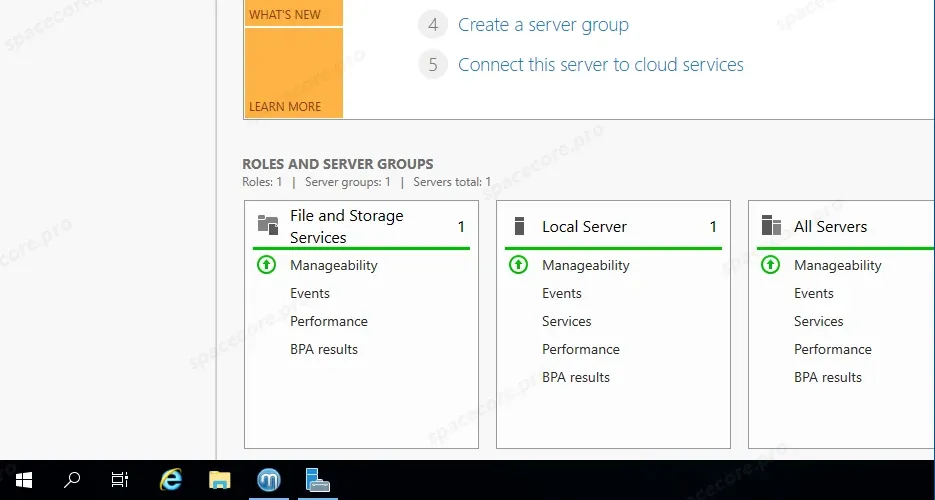
Close the command prompt. Log in with the new password.
Done. Access to the server is restored.
#Restoring the security settings
After logging in, put the protection back. Open a command prompt as administrator and turn the NLA check back on.
reg add "HKLM\SYSTEM\CurrentControlSet\Control\Terminal Server\WinStations\RDP-Tcp" /v UserAuthentication /t REG_DWORD /d 1 /freg add "HKLM\SYSTEM\CurrentControlSet\Control\Terminal Server\WinStations\RDP-Tcp" /v SecurityLayer /t REG_DWORD /d 2 /fNow restore the original Utilman.exe file. Boot the server into Rescue mode again, mount the Windows partition and run the command.
cp /mnt/win/Windows/System32/Utilman.exe.orig /mnt/win/Windows/System32/Utilman.exeUnmount the partition and reboot the server in normal mode.
umount /mnt/winAccess recovery is complete. The accessibility button works as usual again, and the NLA check protects the RDP connection.
| Symptom | Cause | Solution |
|---|---|---|
| The partition does not mount, an error about hibernation or a dirty volume | Windows was shut down incorrectly | Run ntfsfix for the partition and mount with the remove_hiberfile option |
| There is no Windows folder in the partition | The wrong partition is mounted | Unmount and choose the largest ntfs partition by lsblk -f |
| The accessibility button opens a normal window, not the command prompt | The Utilman replacement was not saved | Repeat the replacement in Rescue, check that the partition was mounted for writing |
| RDP asks for the password before the login screen | The NLA check is not disabled | Go back to Rescue and set UserAuthentication and SecurityLayer to 0 |
| The partition is encrypted, mounting fails | BitLocker is enabled | You need the BitLocker recovery key, without it this method cannot reset the password |
Can the password be reset without Rescue mode?
On a dedicated server with access only over RDP this is the main method. On a VPS with VNC console access it is more convenient to reset the password with a boot disk and the chntpw utility - there is a separate guide for that.
Will my data be lost?
No. Resetting the password changes only the account and two registry settings. The files and programs on the server stay in place.
What if there are several accounts?
List them with the net user command without parameters and set a new password for the account you need with administrator rights.
Did not find the answer? We are online 24/7.Contact support